Retrieving a list of databases in IBM Db2 requires executing specific command-line utilities or querying internal catalog tables depending on whether you are working with a Linux/Unix/Windows environment, a host mainframe system, or utilizing a graphical administration tool. System administrators and database engineers frequently need this fundamental capability to inventory assets, audit environments, troubleshoot connectivity issues, and manage multi-tenant enterprise architectures efficiently.
1. Understand the Db2 Environment and Architecture
Before executing commands to list databases, it is essential to understand the architectural structure of IBM Db2. Unlike some relational database management systems where a single server instance hosts a uniform catalog of databases across all connection points, Db2 relies heavily on the concept of instances.
An instance is a logical environment—an isolated database manager workspace—that houses one or more distinct databases. When you attempt to retrieve a list of databases, your scope depends entirely on which instance you are currently attached to or connected through.
Local vs. Remote Instances
- Local Environments: On Linux, UNIX, or Windows (LUW) systems, you must typically log in with an instance owner or administrative account and set your command-line processor (CLP) environment variables.
- Remote Environments: When connecting remotely via a client driver, the command behavior depends on whether you query the local client directory or execute a command that queries the remote database catalog manager.
- Mainframe (z/OS) Environments: On IBM z/OS systems, Db2 operates differently, often managing data sharing groups and subsystems where the concept of "listing databases" involves querying system catalog tables like
SYSIBM.SYSDATABASErather than running an instance-level shell command.
Recognizing these distinctions prevents common errors such as receiving empty result sets or permission-denied messages when querying system catalogs.
2. Prepare Permissions and Prerequisites
Executing administrative commands or querying internal system catalogs requires appropriate authorization. Without the correct privilege level, commands that query instance registries or catalog tables will fail or return incomplete information.
Required Privileges and Roles
- Operating System Level: To run instance-level commands like
db2 list db directory, you must be logged in as the instance owner, a user with root/administrator privileges, or a member of the Db2 administrative group (such asDBADMorSYSADM). - Database Catalog Level: If you query system tables directly (e.g.,
SYSCAT.DATABASES), you must holdSELECTprivilege on those catalog views, or possess broader database administrative authority. - Environment Initialization: On LUW platforms, you must ensure that your command-line shell is aware of the Db2 environment variables. If you open a standard shell without initializing the profile, the system will not recognize commands like
db2.
To initialize your environment on Linux or UNIX, run the instance profile script:
. /home/db2inst1/sqllib/db2profile
(Replace /home/db2inst1/sqllib with the actual path to your instance home directory).
3. Step 1: Open the Db2 Command Line Processor (CLP)
The primary interface for managing Db2 instances and databases is the Command Line Processor (CLP). You must open this interface to interact with the database manager directly.
Depending on your operating system, launch the CLP as follows:
- Linux / UNIX: Open your terminal emulator, switch to the instance owner user account (
su - db2inst1), and typedb2to enter the interactive CLP mode, or prependdb2to execute single commands. - Windows: Open the Command Prompt or Db2 Command Window via the Start Menu. The Db2 Command Window automatically initializes the environment variables and places you into the CLP environment.
- Remote Clients: If you are managing databases through a remote administrative workstation, ensure you have established a valid node directory entry and client configuration before attempting interactive sessions.
Once you type db2 and press Enter, your prompt changes to indicate you are inside the interactive CLP, allowing you to run Db2 commands without prefixing them with db2. Alternatively, you can run commands in batch mode or single-command mode directly from your native OS shell.
4. Step 2: Execute the LIST DATABASE DIRECTORY Command
The fastest and most direct method to find databases registered within the current instance is to execute the database directory listing command. This command inspects the system database directory and local directory files maintained by the instance manager.
Running the Command
In the interactive CLP, execute:
list database directory
If you are running the command directly from your operating system shell (without entering the interactive CLP session), prepend db2:
db2 list database directory
Understanding the Output
The output returns a comprehensive list of entries stored in the database directory. For each entry, Db2 provides detailed metadata, including:
- Database name: The formal identifier of the database.
- Database alias: The short name used for local connections.
- Directory entry type: Whether the database is categorized as
Indirect(local) orRemote. - Internal database path: The physical location where database files reside on disk (for local entries).
- Node name: The network node identifier (for remote entries).
This command is invaluable for discovering what databases are currently configured within the active instance footprint, especially on newly inherited servers or complex development environments.
5. Step 3: Query System Catalogs (Alternative Method)
While list database directory displays databases registered to the local instance, database administrators frequently need to query internal system catalog tables using SQL. This approach is particularly useful when you are already connected to a specific database and want to inspect available schemas, data-sharing groups, or when working in mainframe environments where instance directories differ.
Using SQL Queries on LUW
Connect to your active database instance and execute a query against the system catalog views:
SELECT MEMBER, NAME, CREATOR, TYPE FROM SYSIBM.SYSDATABASE;
(Note: SYSIBM.SYSDATABASE is standard on Db2 for z/OS. On Db2 for Linux, UNIX, and Windows, administrative views such as SYSCAT.DATABASES or administrative routines are frequently used).
For Db2 LUW, you can query administrative views to inspect database configuration parameters:
SELECT * FROM TABLE(SYSPROC.ENV_GET_INSTANCE_INFO()) AS INSTINFO;
Utilizing SQL provides the flexibility to filter, sort, and export the database inventory programmatically into reports or monitoring dashboards.
6. Step 4: Use IBM Data Studio or Alternative GUI Tools
Many modern database administrators prefer graphical user interfaces (GUIs) over command-line tools for inventorying and managing database assets. IBM provides and supports several robust administrative tools that display a graphical list of databases.
Available Graphical Tools
- IBM Data Studio: A comprehensive, Eclipse-based integrated management tool that allows you to register database instances, explore object trees, and view all active databases within a unified navigator pane.
- IBM Db2 Control Center: An older legacy administrative tool (deprecated in recent releases but still active in legacy environments) that visually outlines instances and their associated databases.
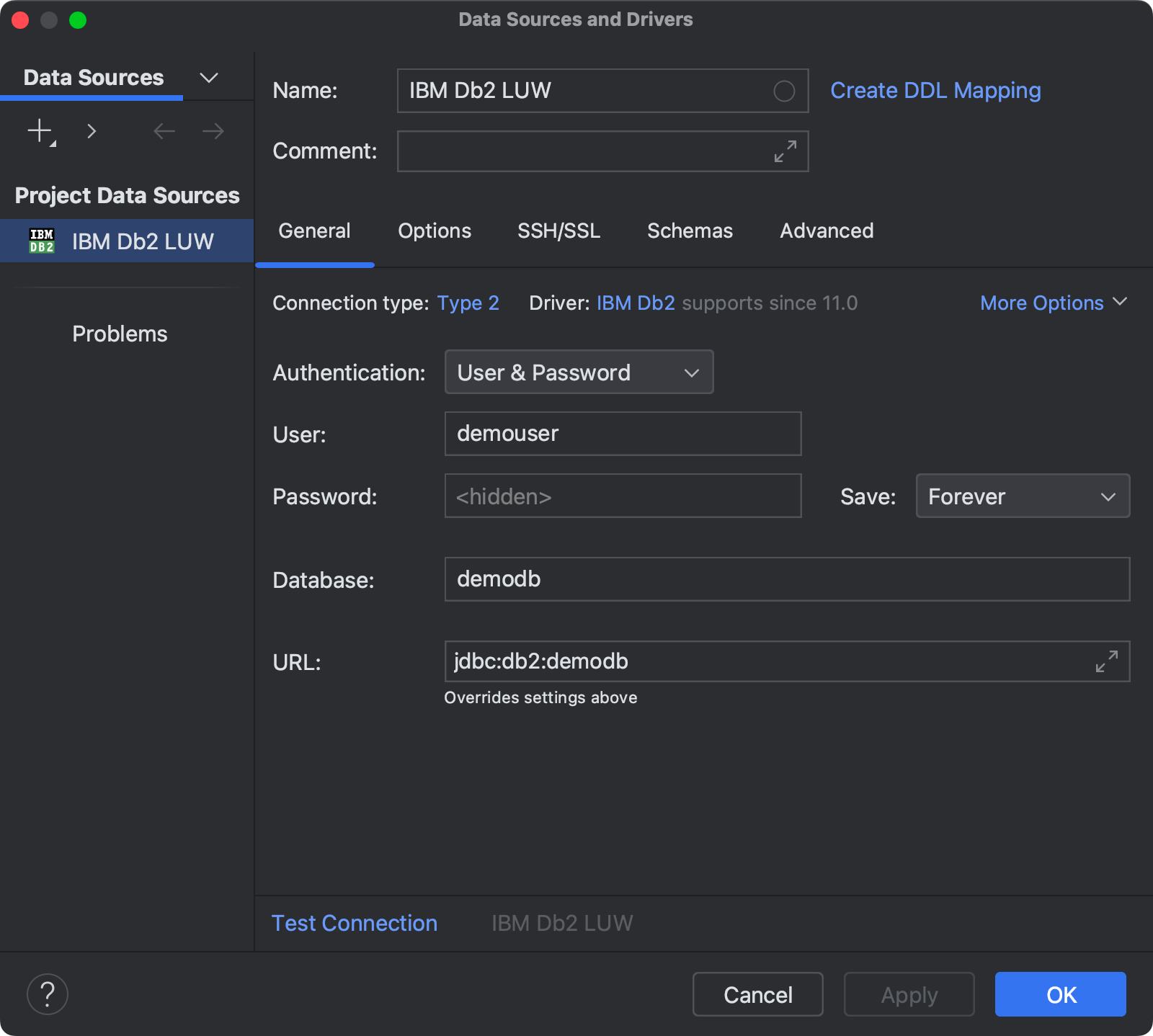
- Third-Party IDEs: Tools like DBeaver, Aqua Data Studio, and DataGrip connect to Db2 via JDBC/ODBC drivers, automatically parsing the instance catalog upon successful connection to render a tree view of all accessible databases.
Steps to View via GUI
- Launch your preferred database IDE or management console.
- Establish a connection profile by providing the hostname, port number, active instance name, administrator credentials, and protocol type.
- Expand the server or instance node in the object explorer tree.
- Locate the Databases container to view the complete, categorized inventory of databases associated with that connection profile.
7. Step 5: Verify and Troubleshoot Common Listing Issues
Encountering errors when attempting to retrieve a list of Db2 databases is common, particularly in multi-user environments or when transitioning between different versions of Db2. Understanding how to diagnose and resolve these issues ensures administrative efficiency.
Common Issues and Solutions
| Symptom / Error Code | Potential Root Cause | Corrective Action |
|---|---|---|
| SQL1063N ("Bad command or file name") | The operating system cannot locate the Db2 binary paths because environment variables are not loaded. | Run the instance profile script (e.g., . ~db2inst1/sqllib/db2profile) or open the dedicated Db2 Command Window. |
| SQL1032N ("No start database manager command was issued") | The Db2 database manager instance is currently stopped or inactive. | Start the instance manually by executing db2start from an authorized administrative shell. |
| SQL1013N ("The database alias name does not exist") | The database has not been cataloged in the local database directory or the alias is misspelled. | Catalog the database manually using catalog database as or verify the spelling. |
| Permission Denied / Authorization Error | The connected user lacks SYSADM, DBADM, or directory inspection privileges. |
Switch to the instance owner account or request appropriate privilege grants from your security administrator. |
Frequently Asked Questions
How do I list databases if I am connected remotely to a Db2 instance?
When connected remotely, you can execute list database directory to see databases cataloged on your local client machine pointing to remote nodes, or query system catalog views on the remote server directly if your session is actively connected to that specific database.
What is the difference between list db directory and list node directory?
The list database directory command displays databases and their physical or logical locations within the instance, whereas the list node directory command displays communication parameters and remote server destinations used to reach external database servers.
Can I script the database listing process for automation?
Yes. You can pipe Db2 CLP commands into shell scripts (Bash, PowerShell, or Python) by using batch execution flags. For example, running db2 -t -f list_db.sql allows you to automate inventory collection across multiple enterprise database servers.
Why does list database directory return an empty list?
An empty list typically indicates that either no databases have been created yet within the currently attached instance, or you are logged in under an operating system user account that does not have access permissions to the instance registry.
Is there a way to list databases across all instances on a single physical server?
Db2 instances operate independently of each other. You must switch user contexts or attach to each individual instance separately to list the databases housed within each distinct workspace.
Conclusion
Managing an IBM Db2 environment requires precise knowledge of instance structures, administrative commands, and authorization requirements. By mastering the sequence of initializing your environment, launching the CLP, executing directory commands, and troubleshooting common errors, you can maintain an accurate inventory of your enterprise databases. Regularly auditing your database instances ensures better security, optimized resource allocation, and streamlined operational workflows across your database infrastructure.