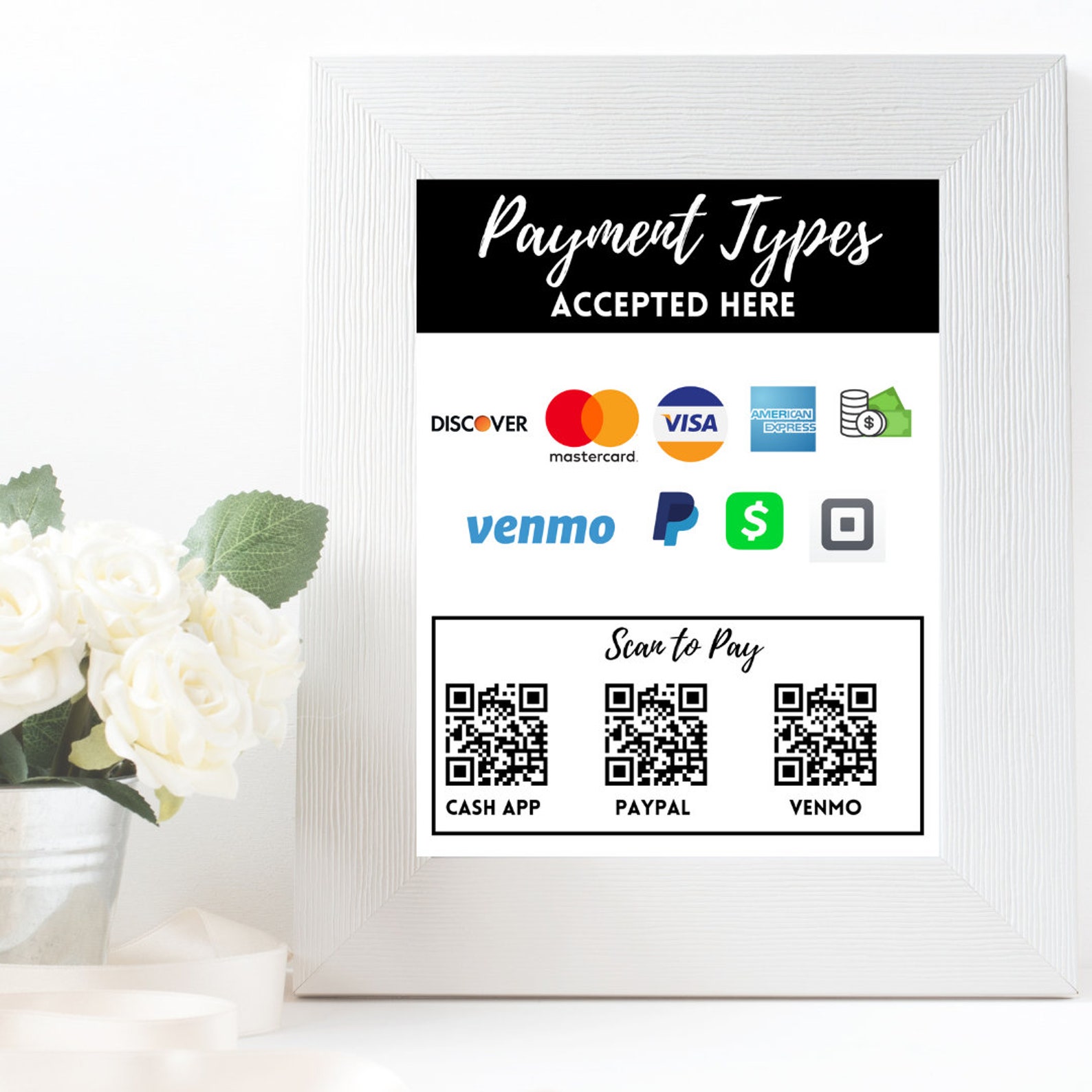
To accept credit cards on an Android device in 2026, you must install a compatible payment processing app—such as Square, Helcim, or Stripe—and either utilize the phone's built-in NFC chip for Tap to Pay on Android or connect a Bluetooth card reader. Once registered with a merchant service provider, you can process EMV chips, contactless cards, and mobile wallets like Google Pay directly through your smartphone or tablet.
Accepting payments on the go has evolved from a luxury for tech-savvy entrepreneurs into a fundamental requirement for businesses of all sizes. Whether you are a solo contractor, a popup retail shop, or a large-scale enterprise, your Android device is no longer just a communication tool; it is a fully functional Point of Sale (POS) terminal. As we move through 2026, the technology has reached a point where specialized, bulky hardware is often optional, thanks to significant advancements in software-based encryption and Near Field Communication (NFC).
Understanding the Methods of Accepting Payments on Android
There are three primary ways to transform an Android device into a credit card terminal. Each method serves different business needs based on volume, mobility, and budget.
1. Tap to Pay on Android (NFC)
This is the most modern and streamlined method. It utilizes the NFC chip built into most Android devices produced over the last several years. With Tap to Pay, the customer simply taps their contactless card or their own smartphone (using Google Pay or Apple Pay) against the back of your Android device. There is no external hardware required. By 2026, this has become the standard for micro-merchants and service providers who value portability above all else.
2. Mobile Card Readers (Bluetooth/USB-C)
While Tap to Pay is convenient, many businesses still prefer or require a dedicated mobile card reader. These small devices connect to your Android phone or tablet via Bluetooth or the USB-C port. They allow you to "dip" EMV chip cards or "swipe" legacy magstripe cards. High-volume businesses often prefer these because they provide a dedicated interface for the customer and can be more reliable for processing a high frequency of transactions without draining the phone's battery as quickly.
3. Manual Entry and Virtual Terminals
For businesses that take orders over the phone or via email, Android payment apps offer a "Manual Entry" or "Virtual Terminal" feature. You type the credit card number, expiration date, and CVV code directly into the app. While this requires no hardware, it is important to note that these transactions carry the highest fees because they are classified as "Card-Not-Present" (CNP), which carries a higher risk of fraud.
Essential Prerequisites for Android Credit Card Processing
Before you can process your first transaction, you must meet specific hardware and software requirements. Not every Android device is capable of every type of payment processing.
Hardware Requirements
- NFC Capability: To use "Tap to Pay" without a reader, your device must have an NFC chip. You can verify this in your Android settings under "Connected Devices" or "Connection Preferences."
- Operating System Version: Most payment processors in 2026 require a minimum of Android 11.0 or higher to ensure the latest security patches and encryption protocols are active.
- Internet Connectivity: You must have a stable internet connection via 4G/5G or Wi-Fi. Payment processing involves a real-time "handshake" with the issuing bank to authorize funds.
The Merchant Service Provider (MSP)
An Android app is simply the interface; the backend is handled by a Merchant Service Provider. You must apply for an account with a provider like Square, Shopify, Clover, or Zettle. During the application, you will need to provide:
- Business Identification: Your EIN (Employer Identification Number) or Social Security Number for sole proprietors.
- Banking Information: A linked bank account where your processed funds will be deposited (usually within 1-2 business days).
- Legal Documentation: Depending on your jurisdiction and business Type, you may need to provide a business license or proof of address.
Comparative Analysis of Leading Android Payment Providers
Choosing the right provider depends on your monthly sales volume and whether you need integrated inventory management.
| Provider | Best For | Hardware Cost (Approx.) | Standard Transaction Fee (Card-Present) |
|---|---|---|---|
| Square | Small Businesses & Beginners | $0 (Tap to Pay) / $49+ (Reader) | 2.6% + $0.10 |
| Helcim | High-Volume Merchants | $0 (Tap to Pay) / $109 (Reader) | Interchange + 0.30% + $0.08 |
| Shopify POS | E-commerce & Retail Sync | $0 (Tap to Pay) / $49 (Reader) | 2.4% - 2.7% (Depends on plan) |
| Stripe | Developers & Custom Apps | $0 (Tap to Pay) / $59+ (Reader) | 2.9% + $0.30 |
| PayPal Zettle | Occasional Sellers | $0 (Tap to Pay) / $29+ (Reader) | 2.29% + $0.09 |
Step-by-Step Guide to Setting Up Payments on Android
Once you have chosen a provider, the setup process is generally standardized across the industry. Follow these steps to get started:
Step 1: Download and Install the App
Navigate to the Google Play Store and download the official app for your chosen processor. Warning: Never download payment apps from third-party websites or "APKs," as these can be compromised by malware designed to steal credit card data.
Step 2: Create and Verify Your Account
Open the app and follow the prompts to create an account. You will likely need to go through a "Know Your Customer" (KYC) verification process. This often involves uploading a photo of your ID and waiting a few hours (or up to two days) for the provider to verify your business identity.
Step 3: Configure "Tap to Pay" or Pair Your Reader
If you are using Tap to Pay, the app will request permission to use your device's NFC and Location services. This is mandatory for security and tax compliance. If you are using a Bluetooth reader, turn on the reader and navigate to the "Hardware" or "Settings" section of the app to pair the device. Ensure the reader is fully charged before its first use.
Step 4: Run a Test Transaction
Most apps allow you to process a "Test Sale" for a small amount (like $1.00). This ensures that the connection to the bank is active and that you understand the workflow before a customer is standing in front of you. You can usually void or refund this transaction immediately.
Fee Structures and Hidden Costs
Understanding how you are charged is critical to maintaining your profit margins. Payment processing fees are rarely just a single percentage.
Flat-Rate Pricing
Providers like Square and PayPal typically use flat-rate pricing. You pay a fixed percentage of every sale regardless of the type of card used (Visa, Amex, Rewards cards, etc.). This is simple to track but can be more expensive for businesses with high transaction volumes.
Interchange-Plus Pricing
Providers like Helcim use interchange-plus pricing. You pay the base fee set by the card networks (Visa/Mastercard) plus a small markup from the provider. This is generally the most transparent and cost-effective model for businesses processing over $5,000 per month, as it allows you to benefit from the lower costs of debit cards.
Additional Fees to Watch For
- Chargeback Fees: If a customer disputes a charge, processors often charge a fee ranging from $15 to $25 while they investigate.
- Instant Deposit Fees: While standard deposits take 1-2 days, "instant" deposits to your bank account usually cost an additional 1% to 1.75% of the total amount.
- PCI Compliance Fees: Some legacy processors charge a monthly fee to ensure you are compliant with security standards. Most modern mobile-first providers include this for free.
Security and Compliance (PCI DSS)
When you accept credit cards on Android, you are handling sensitive financial data. The Payment Card Industry Data Security Standard (PCI DSS) governs how this data must be handled.
The primary advantage of using established providers like Square or Stripe is that they "outsource" the security burden. The credit card data is encrypted the moment it touches your phone's NFC sensor or card reader. The actual card number is never stored on your phone's internal storage or in your photo gallery. This process, known as tokenization, replaces sensitive data with a one-time-use digital token.
To remain compliant, you should:
- Keep your Android OS updated: Security patches protect against "screen scraping" or keyboard-logging malware.
- Use a dedicated device: If possible, use a tablet or phone solely for business transactions to minimize the risk of malware from personal web browsing or app downloads.
- Enable Biometric Locks: Use fingerprint or facial recognition to lock the payment app itself, ensuring that even if your phone is stolen, your merchant account remains secure.
Troubleshooting Common Issues
Even with the best technology, you may encounter technical hurdles when trying to accept payments.
NFC Read Failures
If "Tap to Pay" isn't working, ensure the customer is holding their card or phone near the NFC antenna. On most Android devices, this is located near the top of the phone or centered on the back. Thick phone cases can also interfere with the signal; if a transaction fails repeatedly, ask the customer to tap without their case or use a different part of the phone.
Bluetooth Pairing Issues
Bluetooth card readers can occasionally lose their "handshake" with the Android app. The most effective fix is to "Forget" the device in your Android Bluetooth settings and then re-pair it from within the payment app's internal menu, rather than the phone's general Bluetooth menu.
Declined Transactions
A "Declined" message usually comes from the customer's bank, not your app. Common reasons include insufficient funds, suspected fraud (especially if the customer is traveling), or expired cards. In these cases, it is best to ask for another form of payment rather than attempting to override the system.
FAQs
Can I accept credit cards on Android without a monthly fee?
Yes. Many providers, such as Square and Helcim, offer "pay-as-you-go" models where there are no monthly subscription fees. You only pay a percentage of each transaction you process. This is ideal for seasonal businesses or freelancers.
Is it safe to enter a customer's card details manually?
While it is technically safe if you are using a reputable, PCI-compliant app, it is the least secure method for the merchant. Manual entry is prone to "friendly fraud" or chargebacks, as there is no physical proof that the card was present. Furthermore, fees are significantly higher for manual entry (often 3.5% or more).
Do I need a special bank account to accept payments on my phone?
No. Most mobile payment processors can link to a standard personal or business checking account. However, having a dedicated business bank account is highly recommended for tax purposes and to keep your professional and personal finances separate.
Can I accept international credit cards on my Android device?
Yes, most major providers allow you to accept international Visa, Mastercard, and American Express cards. The processor will handle the currency conversion automatically, though the customer may be charged a foreign transaction fee by their own bank.
Practical Recommendation
For most small to medium businesses in 2026, the most efficient way to start is by using Tap to Pay on Android through a provider like Square or Helcim. This allows you to begin accepting payments immediately without waiting for hardware to arrive in the mail. Start by verifying your device’s NFC compatibility in settings, then download your chosen app and complete the identity verification. Once you exceed $3,000–$5,000 in monthly sales, evaluate moving to an interchange-plus pricing model to optimize your transaction costs.