When Windows 10 abruptly drops your wired internet access, displays a yellow warning triangle, or shows a persistent "Unidentified Network" status, the culprit is almost always a corrupted, frozen, or misconfigured network stack. The most effective, single common fix for this issue is releasing, renewing, and resetting your IP and Winsock configurations using the Windows Command Prompt. By clearing cached network data and forcing your PC to re-establish a fresh handshake with your router, you can instantly resolve the vast majority of software-based ethernet failures without needing advanced technical interventions or replacing expensive hardware components.
Understanding Windows 10 Ethernet Failures
Before diving into technical fixes, it helps to understand why wired network connections fail in Windows 10. Unlike wireless connections prone to interference, physical ethernet links rely on stable hardware paired with complex software layers. An ethernet cable bridges your computer’s Network Interface Card (NIC) directly to a router, switch, or modem. When data packets stop flowing, the root cause generally falls into one of three categories: physical hardware integrity, driver corruption, or network stack anomalies.
Software glitches are by far the most frequent reason for sudden disconnection. The Windows network stack—comprising protocols like TCP/IP and Winsock—handles how data packets are formatted, addressed, and delivered. Over time, corrupt registry entries, interrupted Windows updates, conflicting VPN software, or faulty third-party firewalls can disrupt these protocols. When this happens, your physical hardware works fine, but your operating system cannot translate or route data traffic, resulting in the dreaded "No Internet" status.
The Definitive Fix: Resetting the Network Stack and IP Configuration
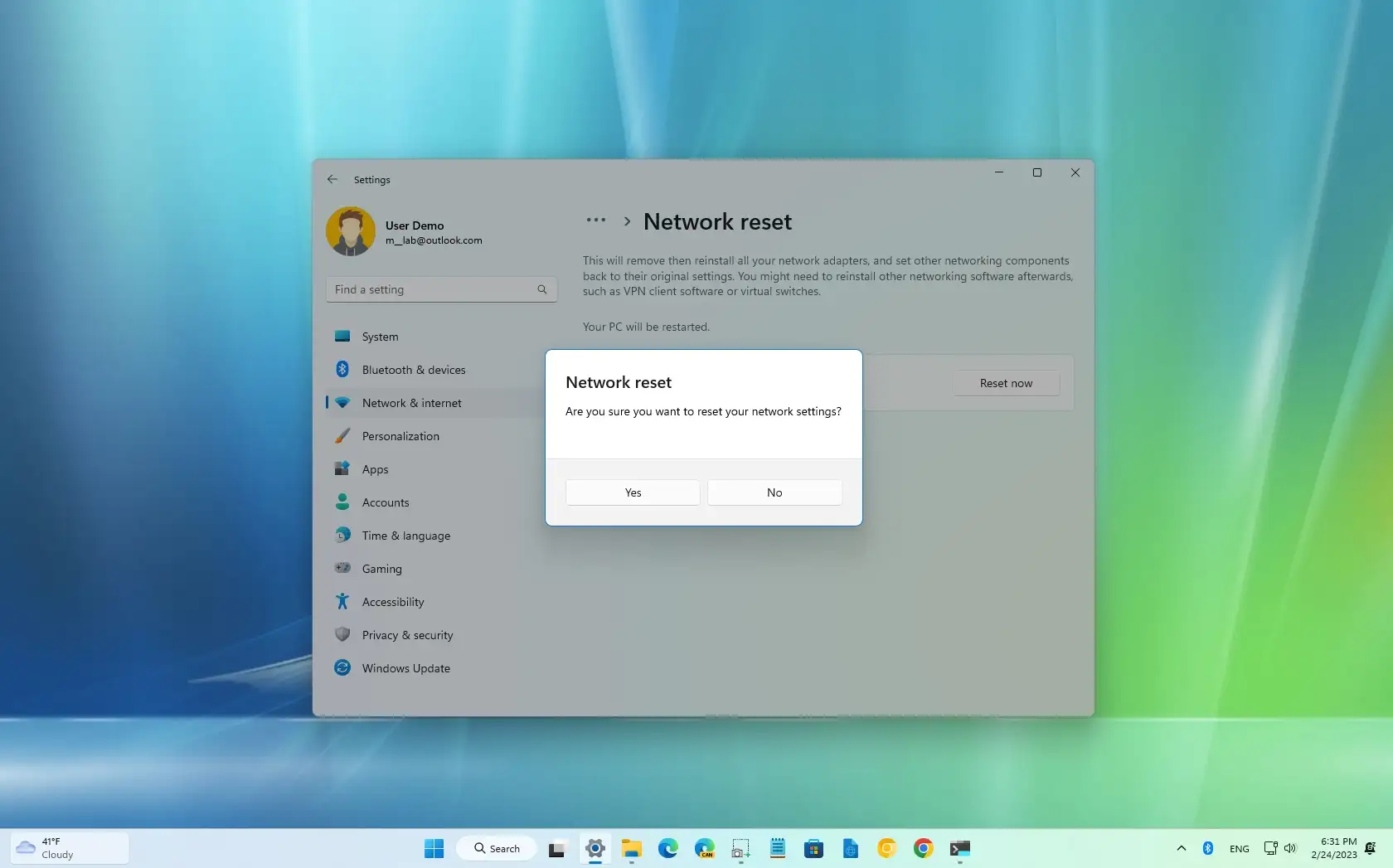
When your ethernet connection vanishes despite a firmly plugged-in cable and active router lights, resetting the local network configuration via the Command Prompt is the most direct solution. This multi-step command sequence flushes bad DNS entries, releases stale IP leases, and restores the underlying socket architecture to its factory-default state.
Step 1: Launch Command Prompt with Administrator Privileges
To modify low-level network configurations, you must run the Command Prompt with elevated administrative rights. Standard user permissions will block the registry edits and network resets required for this procedure.
- Click the Windows Start button in the lower-left corner of your screen.
- Type
cmdinto the search bar. - Right-click on Command Prompt in the search results list.
- Select Run as administrator.
- If the User Account Control (UAC) prompt appears asking, "Do you want to allow this app to make changes to your device?", click Yes.
Step 2: Execute the Network Commands
With the elevated Command Prompt window open (showing C:\WINDOWS\system32> as the prompt), you will enter a series of specific commands. Type each command precisely as shown below, pressing Enter after each one.
ipconfig /release
What this does: This command instructs your computer to release its current IP address lease back to your local router or DHCP (Dynamic Host Configuration Protocol) server. If your IP address has become corrupted or conflicted with another device, releasing it clears the slate.
ipconfig /renew
What this does: This command requests a brand-new IP address from your router. It forces your network card to actively communicate with the router, verifying that the physical link and DHCP services are responding correctly.
ipconfig /flushdns
What this does: This clears the local DNS (Domain Name System) resolver cache. Corrupted DNS data can prevent your browser from translating web addresses into IP addresses, making it look like your ethernet connection is completely broken.
netsh winsock reset
What this does: Winsock (Windows Sockets API) is a programming interface that handles input/output requests for internet applications. Resetting Winsock repairs the catalog of network protocols, removing corrupt entries often left behind by uninstalled VPNs, malware, or failed software updates.
netsh int ip reset
What this does: This command resets the TCP/IP stack to its default state, repairing corrupted registry keys that govern how Windows manages internet traffic.
Step 3: Restart Your Computer
Once you have executed all five commands successfully, close the Command Prompt window and perform a full system restart. A simple sign-out or sleep cycle is insufficient; a complete reboot ensures that Windows reinitializes all network services using the newly cleaned configuration files.
Verifying and Troubleshooting Secondary Ethernet Issues
If executing the network stack reset does not bring your ethernet connection back online, the issue likely stems from hardware friction, physical damage, or driver conflicts. Working through a systematic verification process ensures you isolate the precise point of failure.
| Troubleshooting Step | What to Check | Expected Outcome |
|---|---|---|
| Physical Link Lights | Examine the RJ45 port LEDs on your PC and router. | Solid or blinking green/amber lights indicate active electrical link. |
| Cable Integrity | Test your ethernet cable on a known working device or swap it. | Eliminates damaged copper wires or broken locking clips as the cause. |
| Router Port Check | Move the ethernet cable to a different LAN port on your router. | Rules out a dead or misconfigured port on networking hardware. |
| Driver Status | Check Device Manager for yellow warning flags on network adapters. | Ensures Windows is communicating properly with your physical NIC. |
Examining Physical Hardware and Port Status
Network cables undergo significant wear and tear. Constant tugging, being pinched under furniture, or exposure to pets can sever the internal copper strands while leaving the outer plastic jacket intact. Furthermore, static electricity or power surges can damage the physical ethernet ports on either your motherboard or your router.
Check the small LED indicator lights embedded directly into your computer's ethernet port. Typically, one light shows link connectivity while the other flashes to indicate data transfer. If these lights are completely dark regardless of whether the cable is plugged in, you are dealing with a physical hardware failure—either a dead cable, a fried port, or a disabled network adapter in your BIOS/UEFI settings.
Updating or Reinstalling Network Adapters
Outdated or corrupted hardware drivers can prevent Windows 10 from interfacing with your ethernet chip (manufacturers commonly include Realtek, Intel, or Qualcomm chips).
- Right-click the Start button and select Device Manager.
- Expand the Network adapters section.
- Locate your ethernet controller (it will typically be named something like Intel Ethernet Connection or Realtek PCIe GBE Family Controller).
- Right-click the adapter and select Uninstall device. Check the box that says "Attempt to remove the driver for this device" if prompted, then click Uninstall.
- Restart your computer. Upon reboot, Windows 10 will automatically detect the hardware and reinstall a clean, default driver stack.
Frequently Asked Questions
What causes a Windows 10 ethernet connection to drop suddenly?
Sudden drops are typically caused by corrupted network stack files, outdated network drivers, power management settings putting the adapter to sleep, or temporary router glitches. Resetting the Winsock catalog and IP configurations via the Command Prompt resolves the vast majority of these software-based drops.
Do I need an internet connection to run the ipconfig and netsh commands?
No. These commands operate entirely on your local machine, modifying local registry keys, temporary caches, and system drivers. You can execute them successfully even when your computer has zero internet access or local network connectivity.
How can I stop Windows 10 from turning off my ethernet adapter to save power?
Open Device Manager, expand Network adapters, right-click your ethernet controller, and select Properties. Navigate to the Power Management tab and uncheck the box labeled "Allow the computer to turn off this device to save power." This prevents Windows from cutting power to the port during low-activity states.
What should I do if the command prompt says "Access is denied"?
This error occurs when the Command Prompt window is not running with administrative rights. Close the window, search for cmd in the Windows Start menu, right-click it, and choose Run as administrator before attempting to type the commands again.
Is it possible my ethernet cable is simply too long?
Standard Cat5e and Cat6 ethernet cables support error-free data transmission up to 100 meters (328 feet) without amplification. If your cable is within this limit and was working previously, length is not the issue; focus instead on physical damage, connector pins, or software configurations.
Next Actions
If you have executed the network stack reset, verified your physical cabling, and reinstalled your network drivers without success, the problem may lie outside your Windows 10 operating system. Your next logical step is to restart your home router and modem by unplugging them for 60 seconds. If other devices in your home also lose wired connectivity, contact your Internet Service Provider (ISP) to check for local line outages or hardware modem failures.