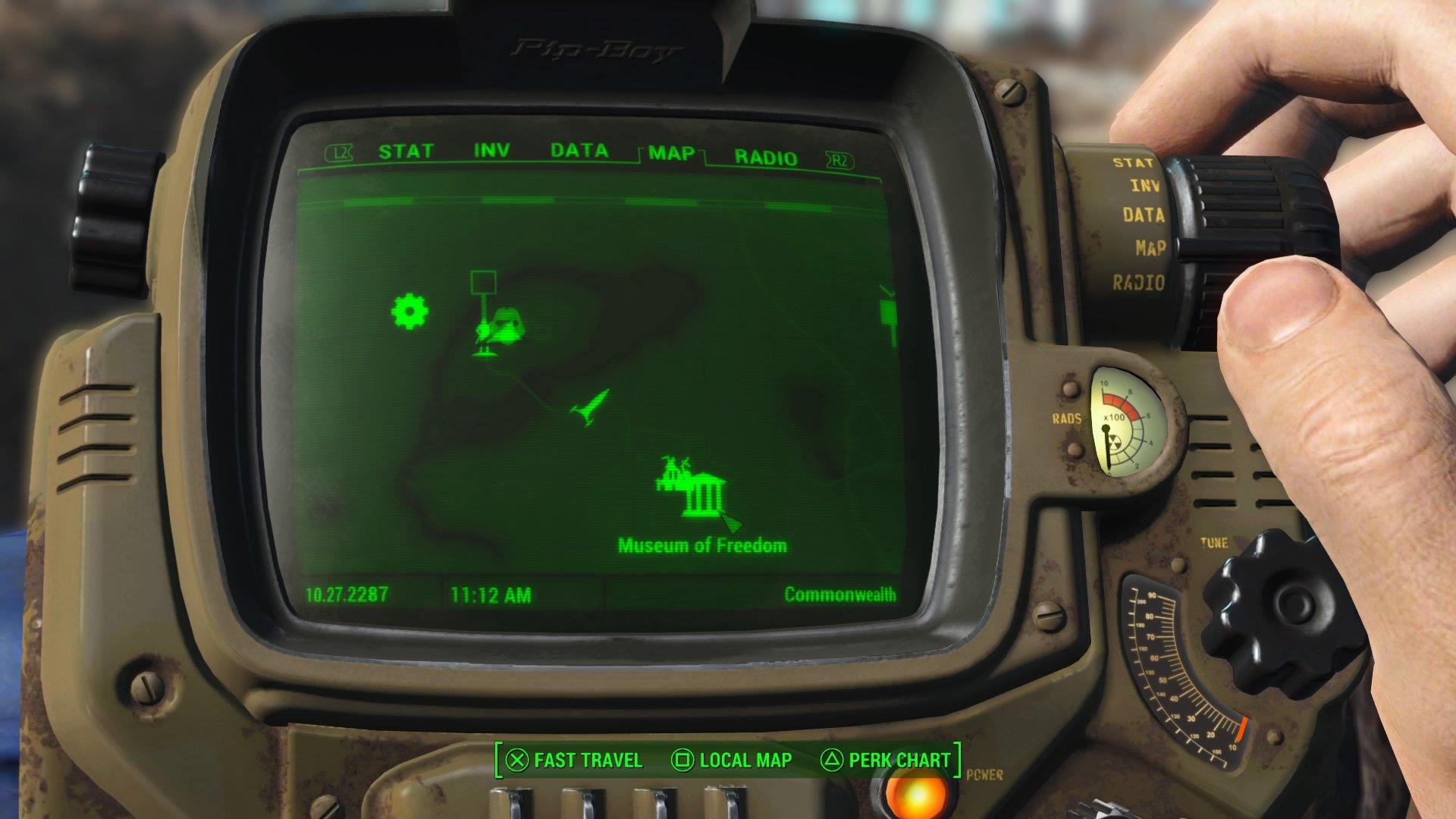
To change the time of day in Fallout 4 using console commands, press the tilde (~) key to open the command console, type set timescale to [number], and press Enter. This allows you to accelerate, slow down, or pause the passage of time relative to real-time. For an instant change to a specific hour, use the set gamehour to [number] command.
Understanding the Fallout 4 Time System
In the world of the Commonwealth, time is not merely a background aesthetic; it is a fundamental mechanic that governs NPC schedules, store availability, shadow length, and visibility. The game engine utilizes a default "timescale" setting that dictates how fast the in-game clock progresses relative to the player's real-world time. By default, Fallout 4 is set to a timescale of 20, meaning that one minute of real-world time is equivalent to 20 minutes of game time.
Understanding how to manipulate this system is a powerful tool for players looking to troubleshoot quests, capture cinematic screenshots, or simply skip past the darkness of night. While the game provides beds and chairs to pass time naturally, console commands offer granular control that goes far beyond simple sleeping. Whether you are attempting to trigger a time-sensitive event or waiting for a merchant to reopen their shop, the console provides the necessary levers to bend the game world to your specific needs.
Accessing the Console Interface
The command console in Fallout 4 is a developer tool built directly into the Creation Engine. It is intended for testing and debugging, but it remains fully accessible to players on the PC version of the game. To open it, locate the tilde (~) key on your keyboard, typically found just below the Esc key.
Once pressed, the game will pause, and a semi-transparent command bar will appear at the bottom-left of the screen. You can type commands directly into this field. It is important to note that the console interface is sensitive to case—though most commands work regardless of capitalization—and requires you to use the exact syntax to function. After typing a command, always press the Enter key to execute it. If a command is entered correctly, you will see no immediate visual notification other than the effect taking place; if there is an error in the syntax, the game will return an error message, usually indicating that the command is unknown.
Using the Set Timescale Command
The primary command for controlling the flow of time is set timescale to X, where X is your desired numerical value. This value dictates the relationship between real-world seconds and in-game minutes.
- Default Value (20): This is the intended game experience.
- Real-time (1): Setting the timescale to 1 makes the game clock sync perfectly with real-world time. This is excellent for immersive exploration, though it may cause some scripted events to feel sluggish.
- Paused Time (0): Setting the timescale to 0 effectively freezes the game clock. While NPCs will continue to move and react to you, the sun will not set or rise, and the date will remain stagnant.
Caution: While extreme values (such as 1000) can be used to skip entire days in seconds, they are highly discouraged. Rapidly accelerating the timescale can cause issues with quest triggers, NPC AI packages, and the game’s internal weather engine. If you notice "flickering" lighting or characters behaving erratically, revert the timescale back to the default of 20.
Using the Set Gamehour Command for Immediate Changes
While the timescale command changes the speed of time, it does not instantly jump the clock to a specific moment. For that, you must use the set gamehour to [number] command. This is particularly useful if you need to be at a specific location, such as a quest site, that requires it to be night or day to progress.
The gamehour command uses a 24-hour clock system (0–23).
set gamehour to 6will shift the time to 6:00 AM (Sunrise).set gamehour to 12will shift the time to 12:00 PM (Noon).set gamehour to 18will shift the time to 6:00 PM (Dusk).
This command is instantaneous. When you press Enter, the lighting in the environment will shift immediately to reflect the new time. This is the most efficient way to bypass waiting periods without having to look for a bed or chair.
Comparison Table: Time Manipulation Commands
| Command | Function | Ideal Use Case |
|---|---|---|
set timescale to 20 |
Resets to default speed | Restoring normal game behavior |
set timescale to 1 |
Sets clock to real-time | Immersive exploration and screenshots |
set timescale to 0 |
Freezes the clock | Stopping time for base building or testing |
set gamehour to 0 |
Sets time to Midnight | Night-based stealth or photography |
set gamehour to 12 |
Sets time to Noon | Bright-light exploration or merchant interaction |
Practical Applications and Troubleshooting
The most common reason players use these commands is to force a change in environmental conditions. For instance, some stealth-focused missions are significantly easier to complete under the cover of darkness. By using set gamehour to 0, you can instantly provide yourself with the tactical advantage of night without needing to find a place to sleep.
However, there are risks associated with persistent usage of these commands. The game’s quest system relies on time-stamped events. If you manipulate the game clock frequently, you may inadvertently skip over NPC dialogue windows or trigger quest failures. If you are in the middle of a complex quest, it is highly recommended that you make a manual save before using console commands. If the game begins to behave in a "glitchy" manner—where NPCs are walking into walls or light sources are popping in and out of existence—the first troubleshooting step should always be to reset your timescale to the default of 20 and save/reload your game.
Addressing Common Questions
Does using the set time command disable Achievements? No, using console commands in Fallout 4 does not disable achievements on the PC version of the game. You are free to use these commands without worrying about locking yourself out of Steam or GOG achievements.
Why does the sun move so quickly when I set a high timescale? The game engine updates the position of the sun and the moon based on the timescale. If you set the timescale to 500, the game is calculating hundreds of minutes of environmental lighting changes every real-world second, resulting in a rapid, strobing effect as the lighting engine tries to catch up.
Can I use these commands while in combat? Yes, you can open the console during combat, but it is not recommended. Changing the time or the timescale while the game engine is processing complex NPC AI and combat scripts can lead to a crash to desktop (CTD) or corrupted state for that specific combat encounter.
What happens if I set the timescale to a negative number? Avoid using negative numbers for the timescale. The game engine is not designed to run in reverse, and doing so will almost certainly result in an immediate game crash or a logic error where the game clock stops functioning entirely.
Is there a way to verify the current time?
Yes, you can check the current in-game time by opening your Pip-Boy. The clock is located in the bottom-right corner of the Stats/Status screen. This is the most accurate way to verify the effect of your set gamehour commands.
Maintaining Game Integrity
While the console provides freedom, the integrity of your save file remains paramount. When manipulating time, remember that the "Settlement" system often relies on timers for resource production and happiness calculations. Excessive manipulation of time—especially setting the timescale to very high numbers—can disrupt these background processes, causing your settlements to stop producing food or water or leading to sudden drops in settler happiness.
Always treat the console as a surgical tool rather than a playground. When you are done taking your screenshots or completing your specific task, revert your settings to the defaults. By keeping the timescale at 20, you ensure that the game’s internal economy, quest pacing, and lighting systems function as the developers intended.
For players seeking a more dynamic experience without the need for manual console inputs, consider exploring mods that manage time more naturally. Several mods available in the 2026 gaming landscape allow for dynamic timescale changes based on your location (e.g., slower time in settlements, faster time in the wilderness), which can automate the process and keep your gameplay smooth without the need for repetitive keyboard commands.
Next Action: Verification
Once you have executed a time command, immediately check your Pip-Boy to confirm the change. If you have altered the timescale, spend a few minutes walking through the world to ensure the lighting transitions smoothly and that NPCs are behaving normally. If any visual stuttering persists, immediately return the timescale to 20 to preserve the stability of your save file. If you are satisfied with the new time, proceed with your mission, but ensure you create a hard save point to prevent any potential data loss caused by aggressive engine manipulation.