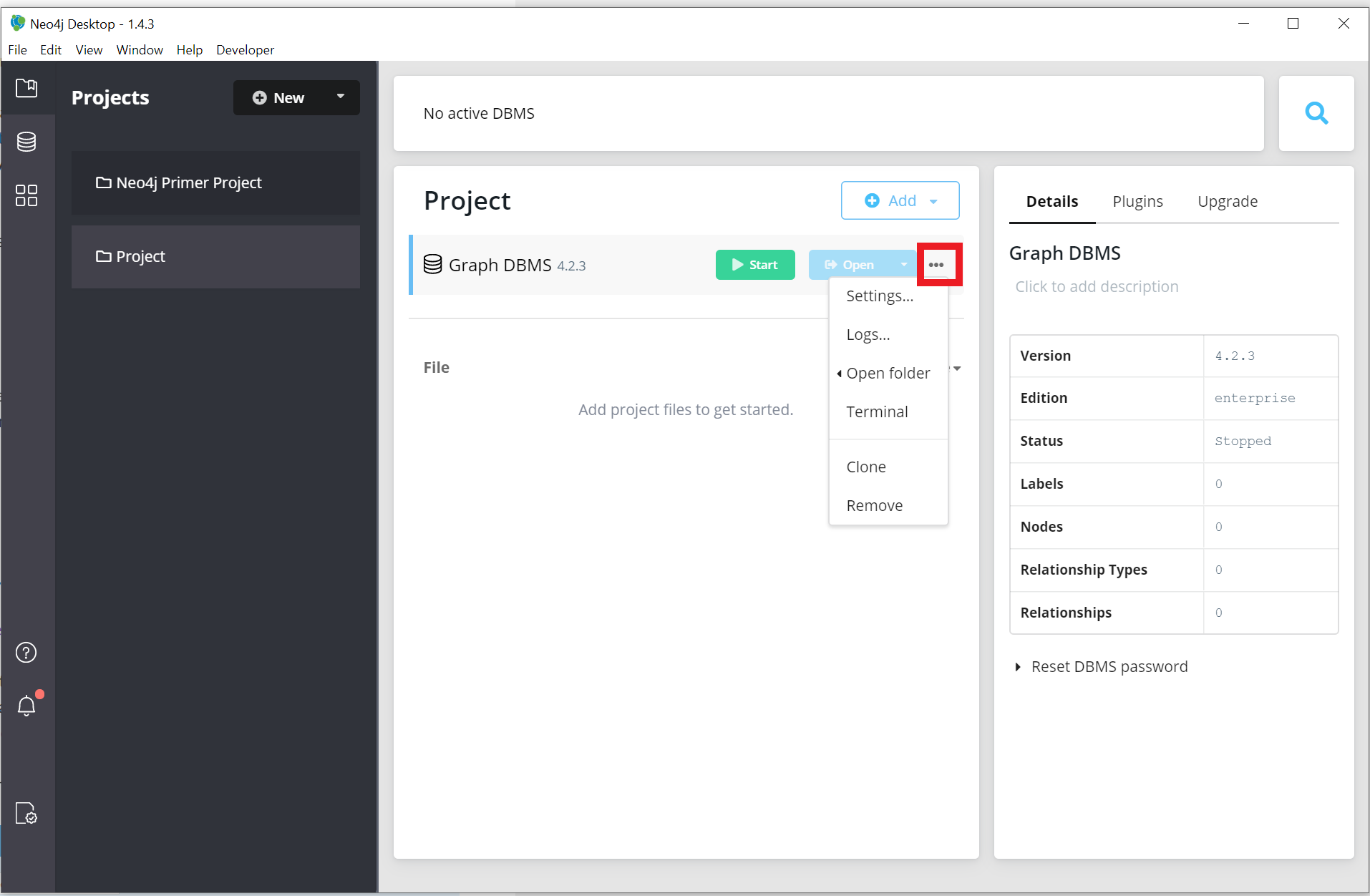
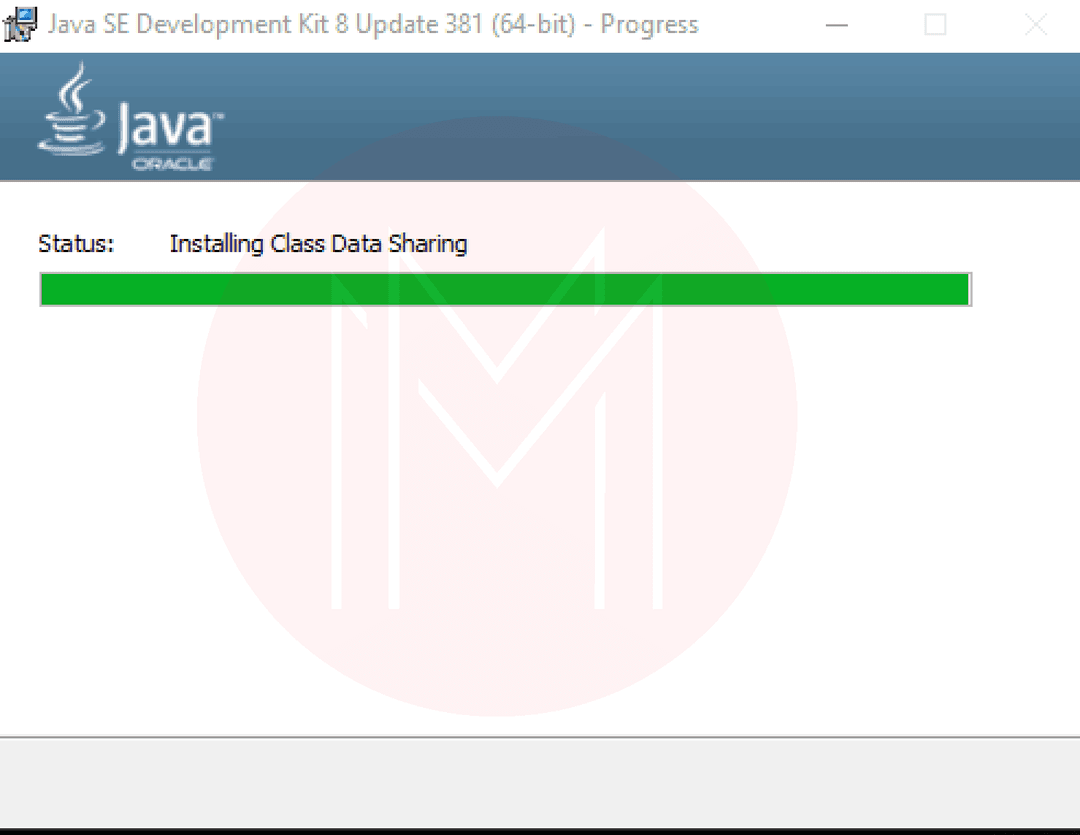
Installing Neo4j involves selecting the appropriate edition for your workload—Community or Enterprise—and configuring the environment to support the Java Virtual Machine requirements. The process typically requires downloading the binary package, installing a compatible Java Development Kit, setting environment variables, and initializing the database service to enable data ingestion and graph query execution via Cypher.
Understanding Neo4j Deployment Architectures
Neo4j is a native graph database management system designed to handle highly connected data. Unlike relational databases that rely on tables and rows, Neo4j uses nodes, relationships, and properties. Before you begin the installation, it is essential to distinguish between the two primary distribution models: the Community Edition and the Enterprise Edition.
The Community Edition is designed for individual developers, small projects, and academic research. It provides the core graph database functionality, including the Cypher query language and support for ACID (Atomicity, Consistency, Isolation, Durability) transactions. However, it lacks advanced features such as comprehensive cluster management, advanced security controls, and high-availability backups.
The Enterprise Edition is intended for production environments. It offers advanced performance tuning, robust security features like role-based access control, and sophisticated replication capabilities. When deciding how to install Neo4j, consider the long-term scaling requirements of your application. While the installation process is technically similar, the configuration parameters for memory allocation and security differ significantly between the two versions.
System Prerequisites and Dependencies
The most frequent hurdle during the installation process is the configuration of the underlying runtime environment. Neo4j is built on Java, meaning the Java Virtual Machine (JVM) must be correctly configured on your host system before the database will launch.
As of 2026, Neo4j remains strict regarding supported Java versions. Most recent releases require the Java Development Kit (JDK) 17 or 21. Installing an outdated or incompatible version of Java is the primary cause of service failure upon startup.
Essential Checklist Before Installation
- Operating System Compatibility: Neo4j supports major Linux distributions (Ubuntu, Debian, RHEL), Windows Server, and macOS for local development.
- Java Runtime Environment: Ensure that JAVA_HOME is correctly set in your system environment variables. Use
java -versionin your terminal to verify the active installation. - Hardware Allocation: Graph databases are memory-intensive. For development, a minimum of 4GB of RAM is recommended, while production environments require significantly more based on the expected size of the graph.
- Port Availability: By default, Neo4j utilizes port 7474 for HTTP and 7687 for the Bolt protocol. Ensure these ports are not occupied by other services or blocked by local firewalls.
Step-by-Step Installation Process
The following steps outline a general installation using the binary tarball or MSI installer. While distribution methods vary by platform, the logical sequence remains consistent.
1. Downloading the Distribution
Navigate to the official Neo4j download portal. Select the edition matching your requirements. For Linux users, the .tar.gz package is the standard, while Windows users generally prefer the .msi or .exe installer, which simplifies the configuration of the service.
2. Configuring Environment Variables
For Linux systems, extract the contents of the download to your preferred installation directory, such as /usr/share/neo4j or /opt/neo4j. Once extracted, you must define the NEO4J_HOME variable. This tells your shell where the binary executables and configuration files reside. Edit your shell profile file (e.g., .bashrc or .zshrc) to include the export path.
3. Verification of the Binary
After extraction, navigate to the bin directory within your installation folder. Execute the version check command:
./neo4j --version
If the system returns the version number, the environment is correctly linked. If the command fails, verify your Java installation or the NEO4J_HOME path.
4. Service Initialization
To run the database, you can use the built-in console mode for testing or install it as a system service. Installing as a service is recommended for any permanent installation, as it ensures the database automatically restarts following a system reboot. Use the neo4j install-service command (with appropriate root or administrator permissions) to register the database with your operating system’s service manager.
Comparison of Installation Methods
| Method | Recommended Use | Pros | Cons |
|---|---|---|---|
| MSI / Installer | Windows / Beginners | Simple GUI, auto-config | Limited customization |
| Tarball / Binary | Linux / Developers | Full control, portable | Manual configuration required |
| Docker Container | Microservices / CI/CD | Isolated, fast deployment | Requires Docker knowledge |
| Neo4j Desktop | Local Development | Visual UI, multi-project | Not for production use |
Managing Configuration and Initial Setup
Once the software is installed, the neo4j.conf file (located in the conf/ directory) becomes the most important file for your database. This file controls memory settings, connection limits, and network interfaces.
One of the most critical settings for new users is dbms.default_listen_address. By default, Neo4j may be configured to listen only on localhost. If you intend to access your database from a remote client or a different machine on your network, you must update this setting to 0.0.0.0. Failure to do so will result in connection refused errors, despite the service running successfully on the host machine.
Additionally, pay close attention to the heap size configuration. The dbms.memory.heap.initial_size and dbms.memory.heap.max_size parameters dictate how much RAM the database is allowed to consume. Setting these too low will lead to performance degradation, while setting them too high can result in system instability.
Troubleshooting Common Installation Failures
Even with careful preparation, users may encounter obstacles. Below are the most common scenarios and their resolutions.
- Port Conflicts: If Neo4j fails to start, verify if another application is using port 7474. You can change the default ports in the
neo4j.conffile under theserver.connector.bolt.listen_addressandserver.connector.http.listen_addresssections. - Permission Denied Errors: On Linux, ensure the user account running the Neo4j service has ownership permissions for the database data folder. Use
chown -R neo4j:neo4j /var/lib/neo4jto rectify ownership issues. - Java Incompatibility: If you see "Exception in thread main" errors upon startup, it often indicates a mismatch between the Java version and the Neo4j build. Check the official Neo4j compatibility matrix to ensure your JDK version is supported.
- Database Corruption: If you previously had an installation that did not shut down properly, a lock file may prevent a new instance from starting. Removing the
store_lockfile within the data directory can often resolve this, provided the previous process is truly terminated.
Frequently Asked Questions
Is there a free version of Neo4j available for use?
Yes, the Neo4j Community Edition is free and open-source. It provides full access to the graph engine and Cypher query language, making it sufficient for personal projects, startups, and evaluation purposes before moving to the Enterprise edition for production scale.
How do I access the Neo4j browser after installation?
Once the service is running, open a web browser and navigate to http://localhost:7474. You will be prompted to log in. The default username is neo4j, and you will be required to set a password upon your first successful login.
Can I install Neo4j on a cloud server?
Absolutely. Neo4j is commonly deployed on cloud instances such as AWS, Google Cloud, or Azure. When doing so, ensure you configure the cloud provider's security groups or firewall rules to allow traffic on the ports configured in your neo4j.conf file.
How do I upgrade from an older version?
Upgrading requires a deliberate process. You must stop the database, back up your data/databases folder, and run the migration tools provided with the new version. Always review the specific release notes for the target version, as breaking changes to the storage engine or configuration parameters can occur between major releases.
Should I use Docker for Neo4j?
Using Docker is highly recommended for developers who want to avoid environmental conflicts. By using the official Neo4j Docker image, you bypass the need to manually install Java or manage system paths, as the container includes a pre-configured, tested environment.
Next Steps for Success
After completing the installation, your focus should shift toward data modeling and query optimization. Begin by exploring the Cypher language, as it is the foundation for all interactions with the database. Use the built-in Neo4j Browser to run basic commands like MATCH and CREATE to test your connectivity. If your application requires high-performance data retrieval, investigate indexing strategies early in your development cycle, as these significantly impact query response times as your graph grows in complexity.