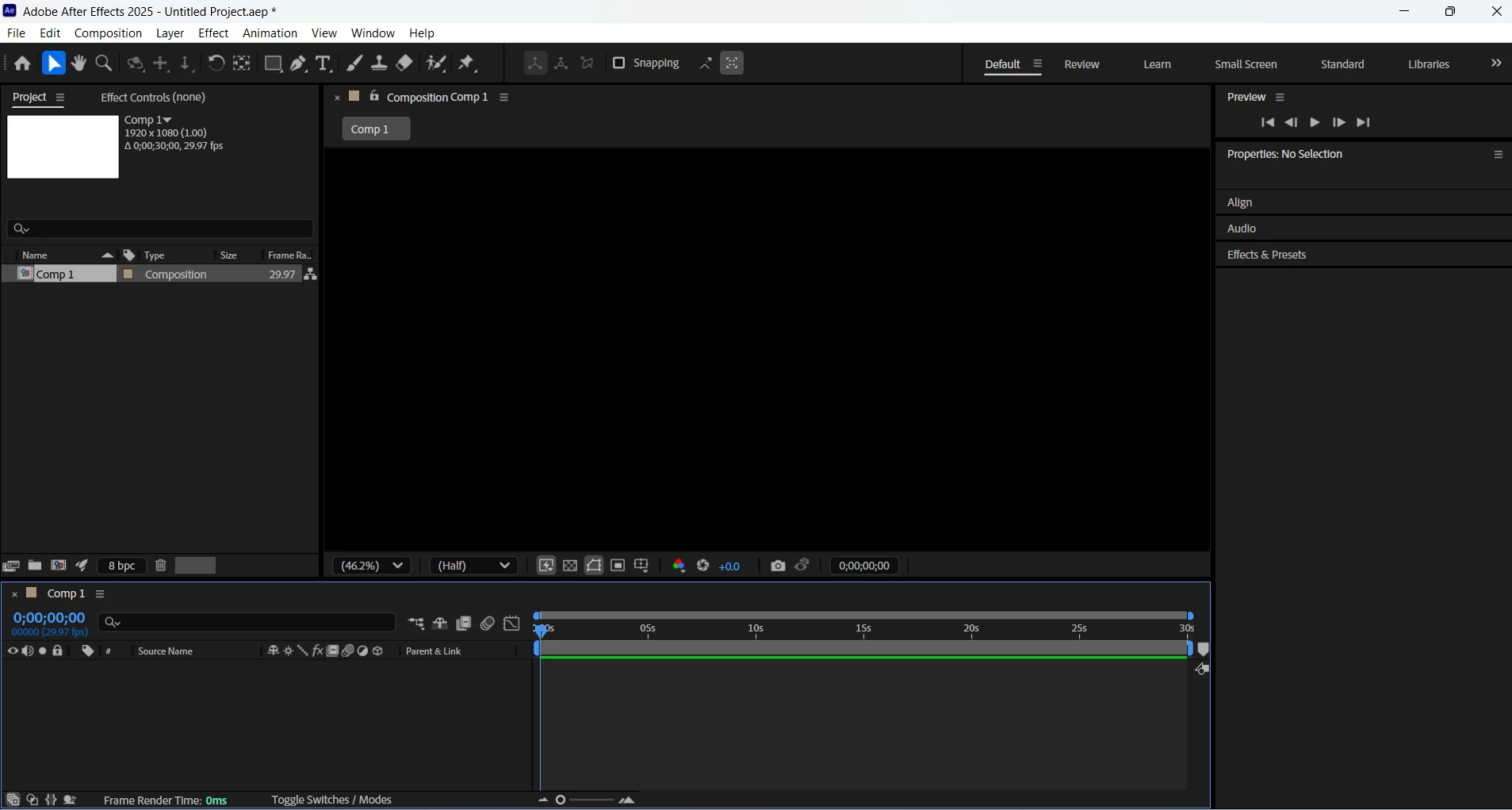
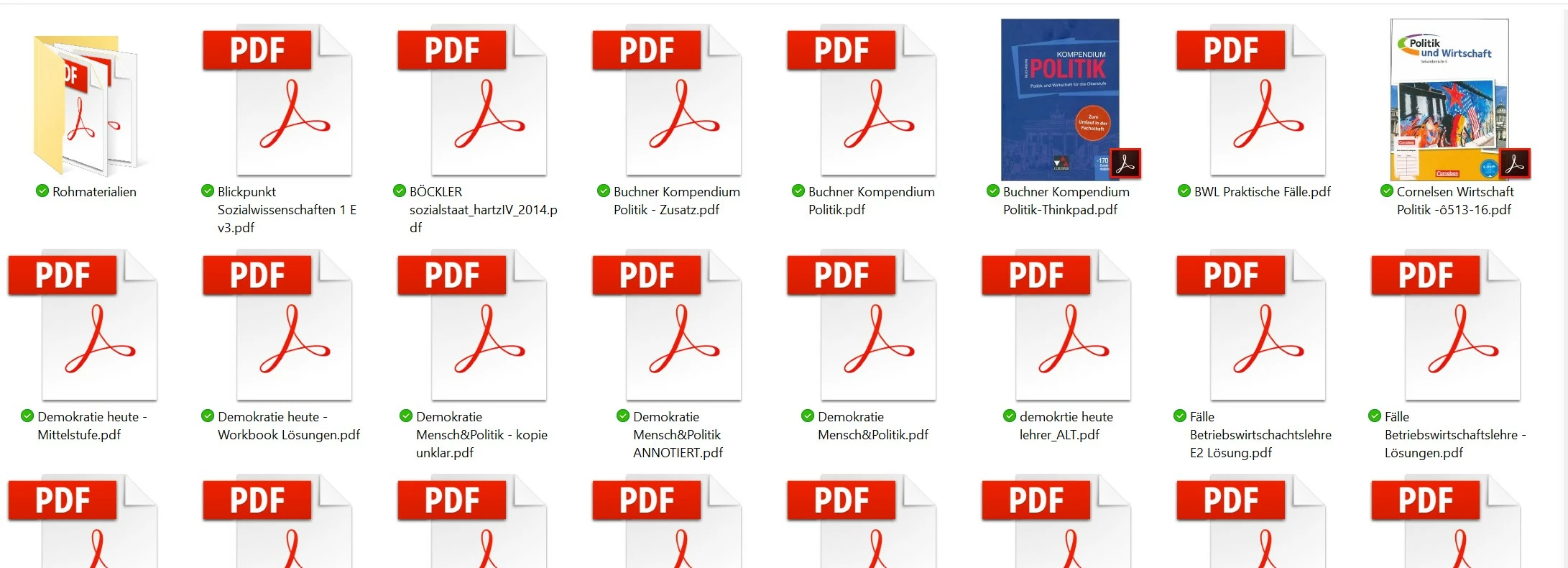
When Adobe previews fail to load in your file explorer or Creative Cloud applications, the issue is typically caused by a corrupted thumbnail cache, disabled shell extensions, or a conflict in the operating system's default file handler settings. To resolve this, you must verify your application preferences, reset the system’s preview handler registry (on Windows), or purge the Quick Look cache (on macOS).
Understanding Why Adobe Previews Fail to Load
The "Adobe preview not working" error is a multi-layered issue that can occur within the operating system’s native file manager (Windows File Explorer or macOS Finder) or within Adobe’s own ecosystem, such as Adobe Bridge or the Creative Cloud desktop app. In 2026, despite significant improvements in software stability, the handshake between Adobe’s proprietary file formats (PDF, PSD, AI, INDD) and the OS remains a common point of failure.
At its core, a preview is generated by a shell extension or a preview handler. These are small pieces of code that allow the operating system to "peek" inside a file without fully launching the parent application. If these handlers are deregistered during a software update, or if the file’s metadata is saved without a "preview thumbnail" included, the system displays a generic icon instead of the visual content. Understanding whether the problem lies with the file itself, the Adobe software, or the operating system is the first step toward a permanent fix.
Troubleshooting Windows File Explorer Preview Issues
Windows users frequently encounter "No preview available" in the Preview Pane. This is often due to the Adobe PDF Preview Handler becoming unregistered or shadowed by another third-party PDF reader.
Enabling the Preview Pane and File Settings
Before diving into technical fixes, ensure that Windows is actually configured to show previews. It is a common mistake to overlook simple view settings that may have been toggled off during a system update.
- Open File Explorer and click on the View tab (or the "Options" icon in modern Windows versions).
- Ensure that "Preview pane" is toggled on.
- Select Options > Change folder and search options.
- In the View tab, ensure that the checkbox "Always show icons, never thumbnails" is unchecked.
- Ensure the checkbox "Show preview handlers in preview pane" is checked.
If these settings are correct but the preview remains blank, the issue is likely rooted in the Adobe Acrobat settings or the Windows Registry.
Resetting the Adobe Acrobat Preview Handler
Adobe Acrobat and Reader have a built-in setting that forces the registration of the preview handler. This is the most effective "soft" fix for PDF-specific issues.
- Launch Adobe Acrobat or Acrobat Reader.
- Navigate to Edit > Preferences (Ctrl + K).
- Select the General category from the left-hand sidebar.
- Locate the option: Enable PDF thumbnail previews in Windows Explorer.
- If it is already checked, uncheck it, click OK, and then return to check it again. This action forces the application to re-write the necessary registry keys to the operating system.
- You may be prompted to "Repair" the installation; if so, allow the process to complete.
Advanced Registry Fix for 64-bit Systems
A historical conflict exists between 32-bit preview handlers and 64-bit Windows environments. While Adobe has streamlined this, registry corruption can still occur.
Warning: Always back up your registry before making changes.
- Press
Win + R, typeregedit, and hit Enter. - Navigate to:
HKEY_LOCAL_MACHINE\SOFTWARE\Microsoft\Windows\CurrentVersion\PreviewHandlers. - Look for the String Value associated with Adobe (usually
{DC6EFB56-9CFA-464D-8880-44885D7DC193}). - If the value is missing or points to an incorrect path, the handler will fail. For many users, ensuring that the AppID matches the correct Adobe version is critical.
- Often, simply reinstalling the "Adobe PDF iFilter" from the official Adobe website can resolve these deep-level registration errors without manual registry editing.
Resolving macOS Quick Look and Finder Preview Issues
On macOS, the "Quick Look" feature (activated by pressing the Spacebar) is the primary method for previewing Adobe files. When this fails, it is usually due to a hung quicklookd process or a conflict with the Spotlight index.
Clearing the Quick Look Cache
The Quick Look system maintains a cache to speed up the rendering of previews. If this cache becomes bloated or corrupted, it will stop generating new previews for AI or PSD files.
- Open Terminal (found in Applications > Utilities).
- Type the following command and press Enter:
qlmanage -r - This command resets the Quick Look server.
- To clear the actual cache files, type:
qlmanage -r cache - Restart Finder by holding the Option key, right-clicking the Finder icon in the Dock, and selecting Relaunch.
Checking for Plugin Conflicts
macOS uses "Generators" located in /Library/QuickLook to handle specific file types. If you have installed third-party plugins for older versions of Creative Cloud, they may conflict with 2026 standards. Navigate to this folder and temporarily move any non-Apple or non-Adobe .qlgenerator files to the desktop to see if functionality returns.
Fixing Previews in Adobe Bridge and Creative Cloud
If the previews are working in your OS but not within Adobe’s own management tools, the problem is localized to the Adobe Central Cache. Adobe Bridge, in particular, relies on a high-performance cache to render thumbnails for massive folders of RAW or high-resolution PSD files.
Purging the Adobe Bridge Cache
- Open Adobe Bridge.
- Go to Edit > Preferences (Windows) or Adobe Bridge > Settings (macOS).
- Select the Cache tab.
- Click Purge Cache to clear all locally stored thumbnails.
- For a more thorough fix, go to the Cache Management section and select Compact Cache. This removes redundant data and optimizes the database.
Resolving Creative Cloud Sync Previews
For files stored in the Creative Cloud, previews are often generated server-side. If you see a "generic cloud icon," it usually means the file has not fully synced or the background "CoreSync" process has stalled.
- Open the Creative Cloud Desktop app.
- Click on the Cloud icon in the top right to check sync status.
- If sync is stuck, go to Preferences > Services and toggle "Creative Cloud Sync" off and back on.
- Ensure your local storage is not full, as the system needs a small amount of buffer space to generate and store local preview thumbnails.
Technical Comparison of Preview Failure Causes
| Symptom | Primary Cause | Recommended Tool |
|---|---|---|
| Blank white icons in Windows | Disabled Thumbnail Settings | Folder Options / Registry |
| "No Preview Available" message | Handler Unregistered | Acrobat Preferences / Repair |
| Spacebar preview fails on Mac | Quick Look Process Hang | Terminal (qlmanage) |
| Pixelated or outdated thumbnails | Corrupted Cache | Adobe Bridge Cache Purge |
| Previews missing for new files only | Metadata Saving Options | App "Save As" Preferences |
| Files show as generic icons on CC | Sync Latency / Storage | CC Desktop Sync Toggle |
Optimizing File Saving for Better Preview Compatibility
Sometimes, the reason "Adobe preview is not working" is because the file itself does not contain a preview image. This is a setting controlled at the time of the "Save" or "Save As" operation within Photoshop, Illustrator, or InDesign.
Photoshop (PSD/PSB)
In Photoshop, navigate to Preferences > File Handling. Ensure that Image Previews is set to Always Save. You should also check "Maximize PSD and PSB File Compatibility," as this allows other applications (and the OS) to read a flattened version of the file for previewing purposes.
Illustrator (AI/EPS)
When saving an Illustrator file, the "Illustrator Options" dialog box appears. You must ensure that Create PDF Compatible File is checked. Most OS preview handlers actually read the PDF data stream inside the .ai file to generate the preview. If this is unchecked, the file becomes "invisible" to the Windows Preview Pane and macOS Quick Look.
InDesign (INDD)
InDesign files often show as generic icons because the preview preference is off by default for large documents to save file size. Go to Preferences > File Handling and ensure Save Preview Images with Documents is checked. You can also adjust the "Preview Size" to "Extra Large" for better clarity in the 2026 high-resolution display environments.
Advanced Maintenance: The Role of COM Surrogate
In Windows, the process responsible for extracting thumbnails and previews is the COM Surrogate (dllhost.exe). If you frequently see "COM Surrogate has stopped working" errors, your Adobe preview issues are a symptom of a larger system stability problem.
This usually happens when a specific file is corrupted, and the COM Surrogate crashes while trying to read it. To isolate this:
- Identify if the preview failure happens in all folders or just one.
- If it is one folder, a corrupted file is the culprit. Move files out one by one to find the "poison" file.
- Update your Graphics Drivers. In 2026, many preview handlers leverage GPU acceleration to render thumbnails of complex 3D or vector files. An outdated driver can cause the shell extension to fail silently.
Frequently Asked Questions
Why can't I preview Adobe Illustrator (.ai) files in Windows 11/12?
Illustrator files require the "Create PDF Compatible File" option to be checked during the save process. Without this, the Windows Preview Handler cannot interpret the proprietary vector data. Additionally, ensure you have Adobe Acrobat installed, as it often provides the specific shell extension needed for .ai files.
Will clearing my thumbnail cache delete my actual Adobe files?
No. Clearing the thumbnail cache only removes the temporary image files the operating system creates to show you what is inside a document. Once you reopen the folder, the system will automatically regenerate these thumbnails from the original source files.
Why did my previews stop working after a Creative Cloud update?
Updates often overwrite registry keys or file associations. If an update finishes and previews vanish, the best course of action is to open Acrobat or Bridge and use the "Repair Installation" or "Reset Preferences" feature, which re-registers the software with the operating system's shell.
Can I preview Adobe files without having an active Creative Cloud subscription?
Yes, as long as you have the free Adobe Acrobat Reader installed on Windows or if you are using macOS (which has native support for many Adobe formats). The "Preview Handler" is a function of the software's installation on the disk, not the active status of your subscription.
How do I fix previews for Adobe InDesign files?
InDesign previews are specifically tied to the "Save Preview Images" setting in the app's Preferences. If this was off when the file was saved, no preview exists to be shown. You must open the file, change the setting, and save it again to generate the thumbnail.
Final Recommendations for 2026
If you have followed all the steps above and your Adobe previews are still not working, perform a Clean Reinstall of the affected Adobe application using the Adobe Creative Cloud Cleaner Tool. This utility removes deep-seated registry entries and corrupted host files that a standard uninstaller might miss. For professional workflows, keeping a dedicated "Preview" folder with optimized, PDF-compatible versions of your assets is the best way to ensure consistent visibility across different operating systems and devices.