To print 1099 forms from QuickBooks Online, navigate to the Payroll or Expenses menu and select Contractors. Click Prepare 1099s, verify your company information, and map your expense accounts to the appropriate 1099 boxes. After reviewing contractor totals, select the Print and Mail option to generate the forms.
The 1099 filing season in 2026 requires precision and early preparation. For businesses that utilize independent contractors, freelancers, or consultants, issuing Form 1099-NEC or 1099-MISC is a critical compliance task. QuickBooks Online (QBO) streamlines this process by aggregating payment data recorded throughout the year. However, the software does not automate the physical printing and verification process entirely; it requires a structured approach to ensure the data aligns with Internal Revenue Service (IRS) standards.
Prerequisites for 1099 Processing in 2026
Before initiating the 8-step printing guide, you must ensure your ledger is prepared for the 2025 tax year. The IRS has maintained strict regulations regarding the classification of nonemployee compensation.
- Form W-9 Compliance: You must have a signed Form W-9 from every contractor. This form provides the Legal Name, Address, and Taxpayer Identification Number (TIN)—either an Employer Identification Number (EIN) or a Social Security Number (SSN)—required for the 1099.
- Tracking Settings: Within each Vendor or Contractor profile in QuickBooks, the checkbox "Track payments for 1099" must be enabled. If this was not checked during the year, payments made to that vendor will not automatically flow into the 1099 wizard.
- Payment Method Awareness: 1099s are only required for payments made via cash, check, or ACH. Payments made via credit card, debit card, or third-party processors like PayPal are reported by the payment settlement entity on Form 1099-K. QuickBooks generally attempts to exclude these, but manual verification is recommended.
- IRS Thresholds: For the 2025 tax year (being filed in 2026), the standard threshold remains $600 for most 1099 types, including Nonemployee Compensation (NEC) and Rents.
Step 1: Data Audit and Vendor Cleanup
The foundation of an accurate 1099 is the vendor list. In QuickBooks Online, navigate to Expenses and then Vendors. Use the "1099 Transaction Detail" report to identify any missing information.
During this audit, focus on identifying "missing" contractors. If a contractor was paid over $600 but does not appear in your 1099 reports, it is usually because their profile is not marked for 1099 tracking or the payments were coded to an account that has not yet been "mapped" to a 1099 box.
Check for duplicate profiles. If you have "John Doe" and "John Doe LLC" as two separate entries for the same individual, their combined payments might exceed the threshold, but QuickBooks might treat them as two separate entities below the threshold. Consolidate these profiles before proceeding.
Step 2: Launch the 1099 Wizard
QuickBooks Online uses a guided "wizard" to handle the complexities of 1099 preparation. To access it, go to the Payroll menu on the left-hand navigation bar and select Contractors. Alternatively, if you do not use QuickBooks Payroll, go to Expenses > Vendors.
In the top right corner, you will see a button labeled Prepare 1099s. Clicking this initiates the workflow. For the 2026 filing season, ensure you are selecting the 2025 tax year. The wizard is designed to prevent you from missing critical steps, acting as a filter that narrows down your entire vendor list to only those who potentially qualify for a 1099.
Step 3: Verify Company Information
The third step involves confirming your own business details. The IRS uses your EIN and company address to match the 1099s you issue against your own tax returns.
- Legal Name: Ensure this is the legal name registered with the IRS, not necessarily your "Doing Business As" (DBA) name, unless the DBA is legally registered under that EIN.
- Tax ID: Double-check that your EIN is 9 digits and correctly formatted.
- Address: This address will be the return address on the 1099 forms and where the IRS will send any correspondence regarding filing errors.
Step 4: Map Your Expense Accounts
This is the most technical and critical phase. QuickBooks needs to know which categories in your Chart of Accounts represent 1099-reportable payments.
In the mapping screen, you will see a list of 1099 boxes. For most small businesses, the primary focus is 1099-NEC, Box 1: Nonemployee Compensation. You must select the expense accounts (e.g., "Subcontractors," "Professional Fees," "Legal & Accounting") that apply.
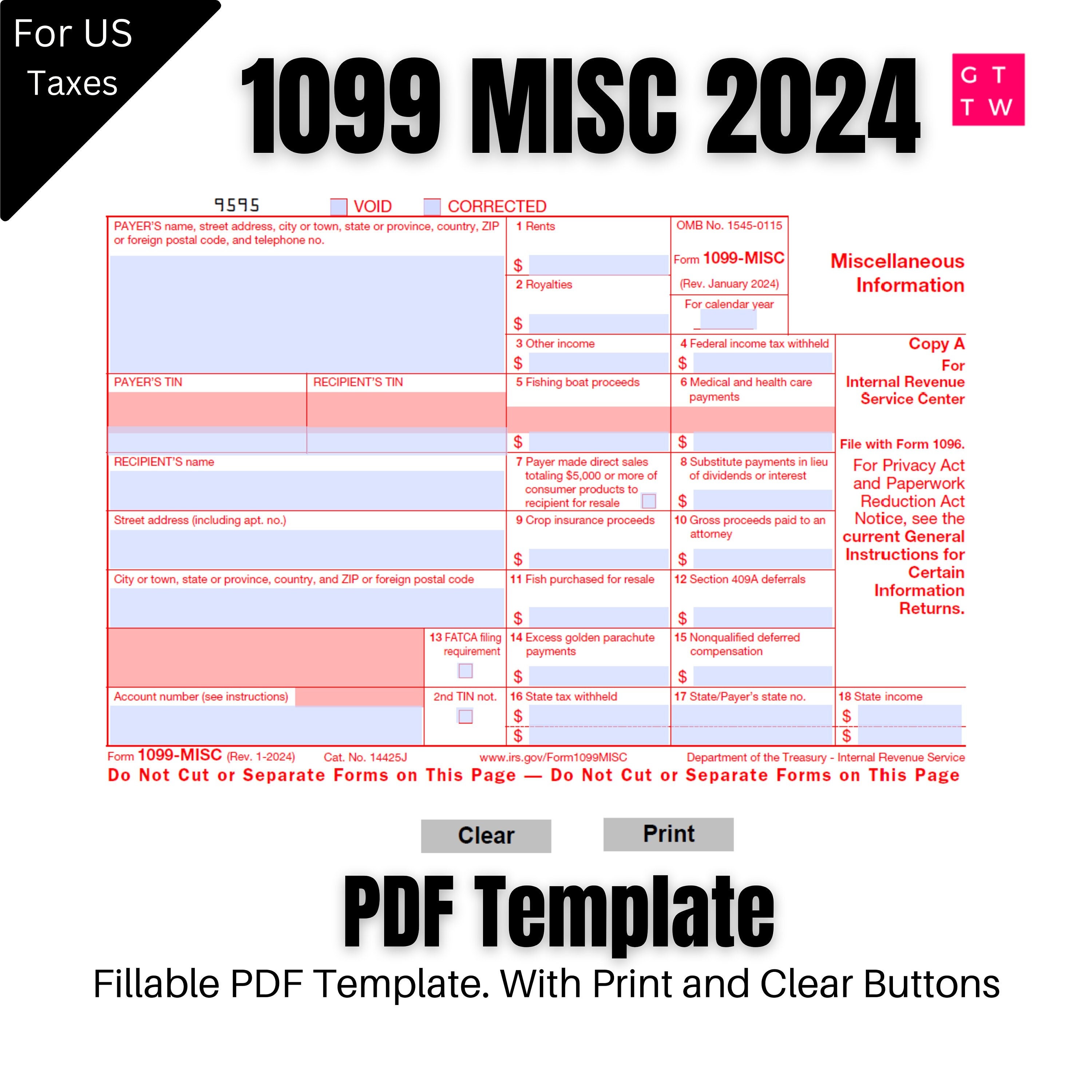
If you pay rent to a landlord who is not incorporated, you must also map those accounts to 1099-MISC, Box 1: Rents. Note that if you select "All Expense Accounts," you may inadvertently include payments for materials or utilities that are not reportable, leading to over-reporting and potential confusion for your contractors.
Step 5: Review Contractor Information and Thresholds
Once the accounts are mapped, QuickBooks will display a list of contractors and the total amount paid to each within the selected tax year.
- The Threshold Filter: By default, QuickBooks only shows contractors who met the $600 threshold. However, you can toggle this to show all contractors to ensure no one was missed due to a mapping error.
- Missing Info Alerts: QuickBooks will flag contractors who are missing addresses or TINs with a red exclamation mark. You can click on these contractors to update their information directly within the wizard without leaving the workflow.
- Review Totals: Compare the totals in the wizard against your "1099 Transaction Detail" report. If there is a discrepancy, it is likely due to the exclusion of credit card payments or unmapped accounts.
Step 6: Choose Your Filing and Printing Method
After confirming the data, QuickBooks will present options for filing. In 2026, the IRS mandates electronic filing for any business filing 10 or more information returns (aggregated across all types like 1099, W-2, etc.).
Even if you choose to e-file through QuickBooks (which is highly recommended for accuracy and speed), you may still need to print physical copies to mail to your contractors, unless they have consented to electronic delivery.
Select the option for "I'll provide copies to my contractors" or "Print and Mail." If you choose to e-file via the QuickBooks "E-file Service," the system will handle the submission to the IRS and the Social Security Administration, and you can often opt to have QuickBooks mail the physical copies to contractors for an additional fee. If you prefer to print them yourself, proceed to the printing alignment screen.
Step 7: Align and Print a Sample
1099 forms are highly structured. If the data is shifted even a few millimeters, the IRS's optical scanners may misread the TIN or the payment amount.
Before printing on your expensive pre-printed 1099 forms, print a sample on plain white paper.
- Select Print sample on plain paper.
- Hold the plain paper sample up against the pre-printed 1099 form in front of a light source.
- Check if the numbers fall neatly into the boxes.
- If the alignment is off, use the Fine-tune alignment tool in QuickBooks to shift the text up, down, left, or right.
Step 8: Final Printing and Distribution
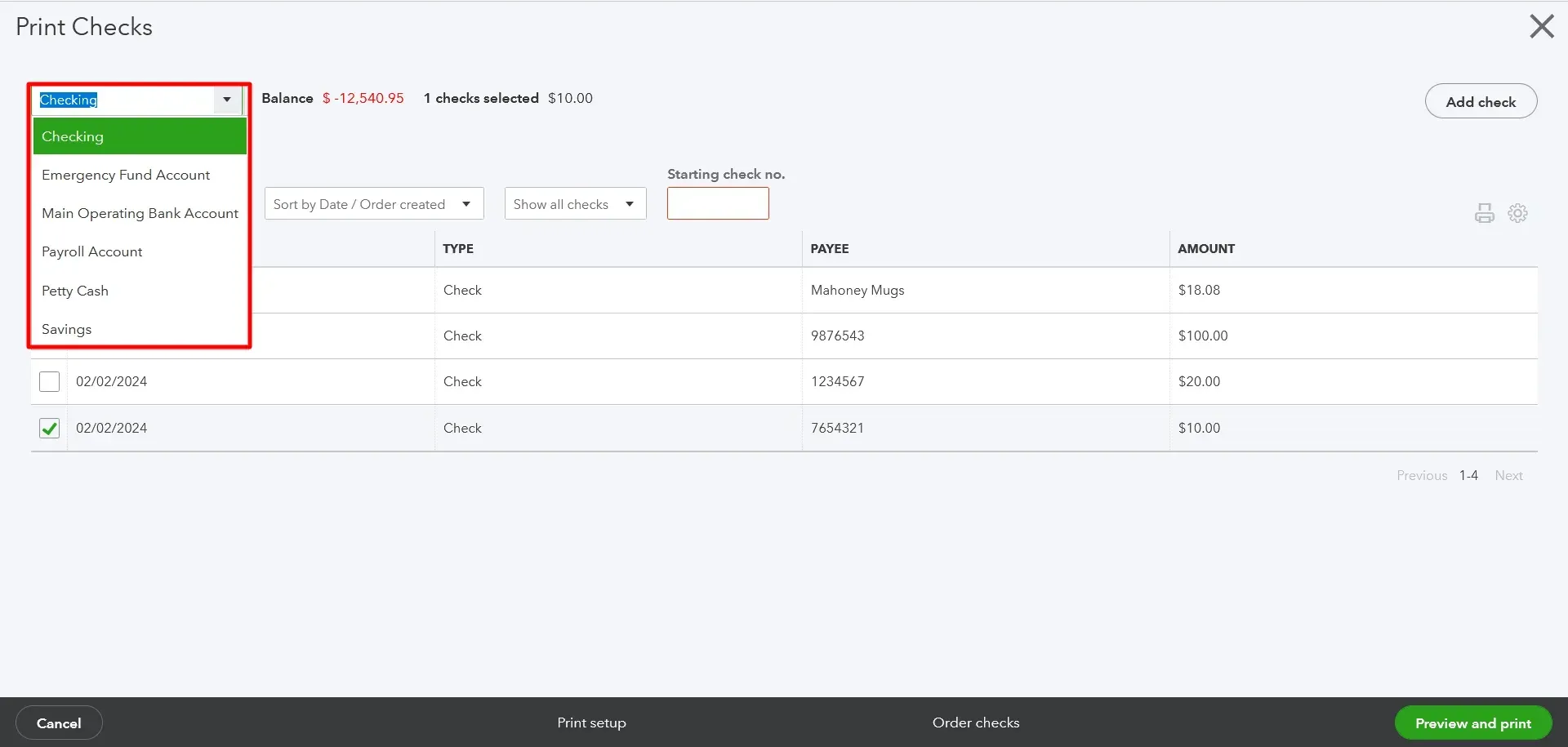
Once the alignment is perfected, load your pre-printed forms into the printer.
- Recipient Copies (Copy B and Copy 2): These are the copies you must provide to the contractor. Many modern 1099 forms are "3-up" or "2-up," meaning multiple copies or different recipients appear on one sheet.
- Payer Copy (Copy C): This is for your records. You should save this as a PDF and keep a physical copy if required by your document retention policy.
- IRS Copy (Copy A): If you are NOT e-filing, you must print Copy A on the special "scannable" red-ink forms provided by the IRS. You cannot print the red-ink version on plain paper from a standard inkjet or laser printer; the IRS requires the official forms because the red ink is non-reflective to their scanners.
Comparison of 1099-NEC and 1099-MISC (2026 Requirements)
| Feature | 1099-NEC (Nonemployee Compensation) | 1099-MISC (Miscellaneous Information) |
|---|---|---|
| Primary Use | Payments to independent contractors for services. | Rents, prizes, awards, and legal settlements. |
| Common Box | Box 1: Nonemployee Compensation. | Box 1: Rents; Box 3: Other Income. |
| IRS Deadline | January 31, 2026. | Jan 31 (Recipients); Mar 31 (E-file to IRS). |
| Recipient Type | Individuals, Solopreneurs, Partnerships. | Individuals, Landlords, some Attorneys. |
| Threshold | Generally $600 or more. | Generally $600 or more ($10 for royalties). |
Troubleshooting Common Printing Issues
Contractor Does Not Appear in the List
If a vendor is missing from the 1099 wizard, first check the Vendor Profile. Ensure the "Track payments for 1099" box is checked. Second, check the Mapping. If you paid the contractor out of an account called "Office Supplies" but you only mapped "Subcontractor Labor," that contractor will not appear.
Alignment Issues with Different Browsers
QuickBooks Online is a web-based application, and different browsers (Chrome, Firefox, Safari) handle PDF printing differently. Chrome is generally the most stable for QBO. Always ensure the "Scale to Fit" or "Fit to Page" setting is turned off in your printer dialog box. It should be set to "Actual Size" or "100%" to maintain the alignment of the 1099 boxes.
Printing the "Red" Copy A
Many users mistakenly try to print the IRS Copy A onto plain paper. The IRS uses specific "drop-out" red ink for Form 1099-NEC Copy A. Standard printers cannot replicate this. If you are not e-filing, you must order these forms from the IRS or an office supply store. However, by 2026, the 10-form e-file mandate makes physical filing of Copy A nearly obsolete for most active businesses.
Understanding the 2026 E-Filing Mandate
As of 2026, the IRS has significantly lowered the threshold for mandatory electronic filing. Previously, businesses only had to e-file if they had 250 or more forms. That threshold was reduced to 10 forms in recent years. This count is "aggregate," meaning if you have 5 W-2s and 6 1099s, you have 11 forms total and must e-file.
QuickBooks Online provides a seamless e-filing service that submits the data to the IRS and State agencies. While this guide focuses on the 8 steps to printing, it is professionally recommended to utilize the e-file path to reduce the risk of "lost in the mail" scenarios and to satisfy the 10-form mandate.
FAQ
What is the deadline for mailing 1099s in 2026? The deadline for mailing 1099-NEC forms to contractors is January 31, 2026. This is also the deadline for filing them with the IRS. For 1099-MISC, the recipient copy is due January 31, but the IRS e-file deadline is March 31, 2026.
Can I print 1099s on plain paper? You can print the Recipient Copies (Copy B and Copy 2) on plain paper if your contractors have consented to it or if you are using specific software-generated layouts that the IRS accepts for recipient copies. However, you cannot print the IRS Copy A on plain paper; it must be the official red-ink form or e-filed.
Why does QuickBooks say I have $0 in 1099 payments for a contractor I know I paid? This usually happens because the payments were made via credit card or a third-party processor like PayPal or Venmo (marked as "Service"). QuickBooks automatically excludes these because those processors are responsible for issuing a 1099-K. Another reason could be that the account used for the payment isn't mapped to a 1099 box in the wizard.
How do I handle a contractor who changed their business structure mid-year? If a contractor moved from a sole proprietorship to an S-Corp, you should ideally have two vendor profiles or update the profile to the current legal status. S-Corps generally do not receive 1099s (except for legal fees), so you would only report the payments made while they were a sole proprietor.
Do I need to print and mail a 1096? Form 1096 is a "Annual Summary and Transmittal of U.S. Information Returns." You only need to print and mail a 1096 if you are physically mailing paper 1099s to the IRS. If you e-file through QuickBooks, the 1096 is not required because the data is transmitted digitally.
Practical Recommendation for 2026 Filing
For the 2026 tax season, the most efficient path is a hybrid approach. Use the 8-step guide to verify your data and map your accounts within QuickBooks Online. However, instead of physically printing and mailing the forms to the IRS, utilize the QuickBooks E-file service. This ensures compliance with the 10-form mandate and provides an electronic audit trail. If you still wish to provide physical copies to your contractors, you can print the "Recipient Copies" onto plain paper or pre-perforated 1099 paper directly from the final stage of the wizard, providing a professional and timely document to your vendors without the hassle of red-ink forms and manual 1096 transmittals.
For official guidance on 1099 requirements and specific box instructions, refer to the IRS Instructions for Forms 1099-MISC and 1099-NEC.