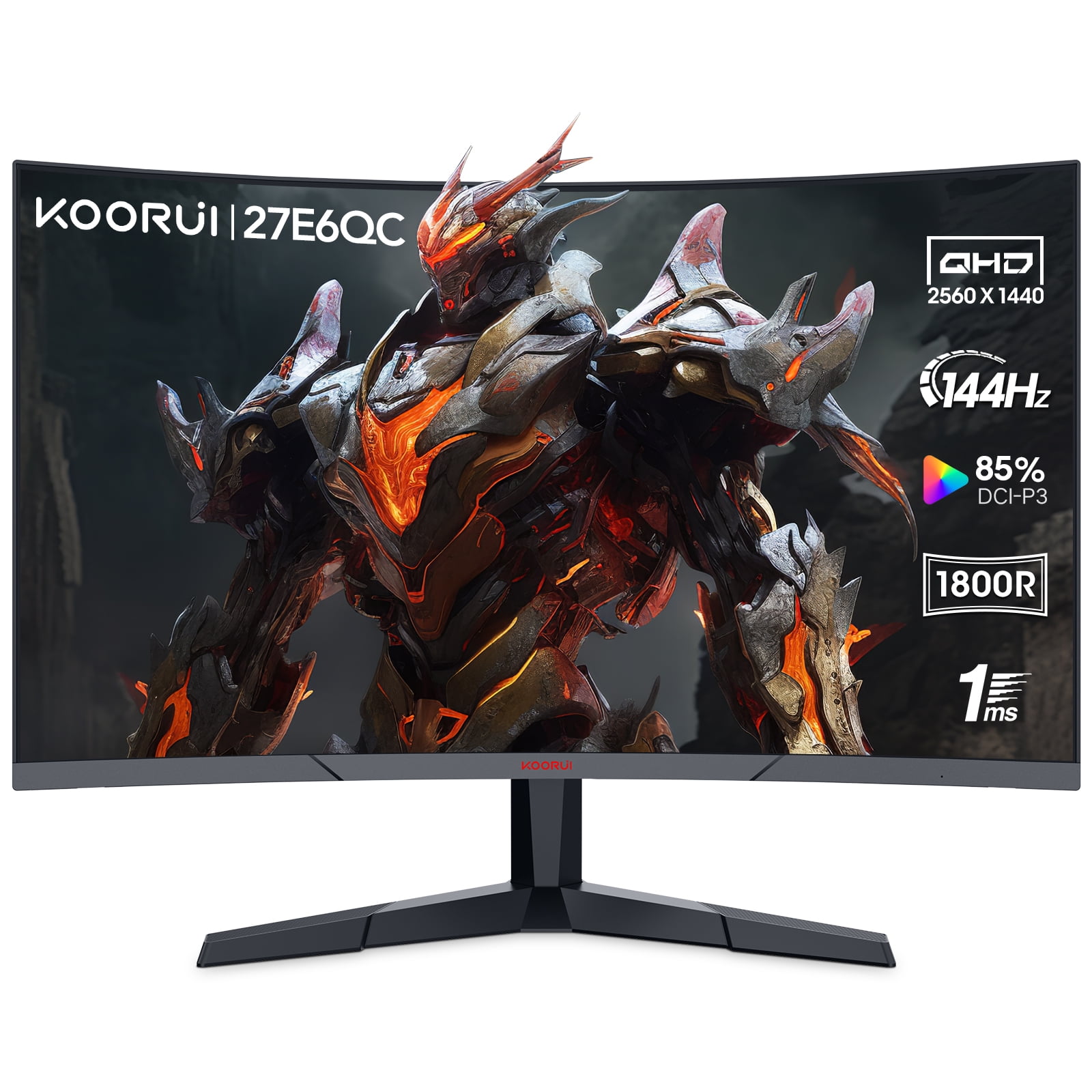
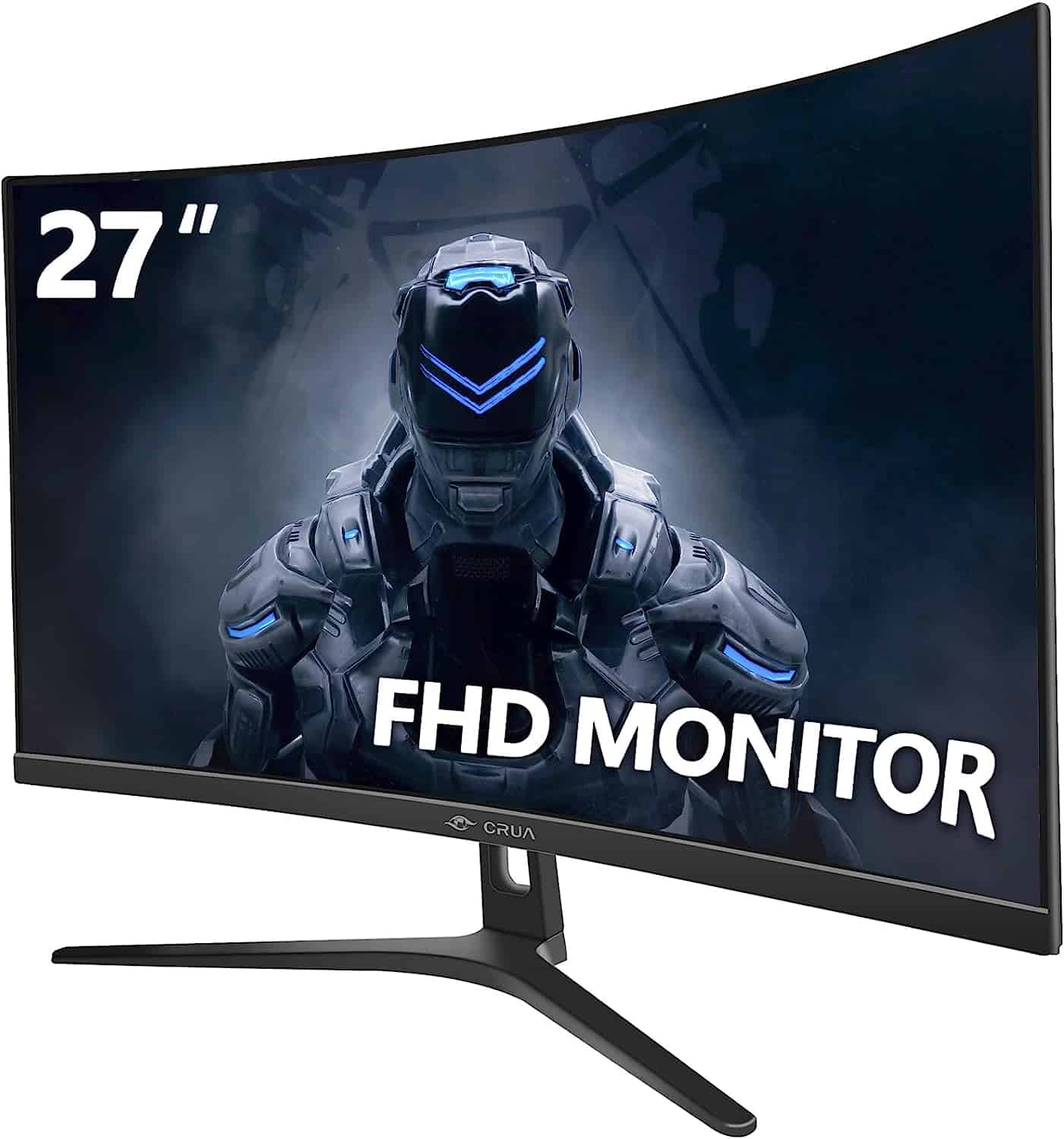
A 27-inch 144Hz gaming monitor serves as the definitive "sweet spot" for modern PC gaming, balancing immersive screen real estate with fluid motion performance. This configuration typically pairs a 2560 x 1440 (QHD) resolution with a high refresh rate to provide a sharp, responsive experience that suits both competitive eSports and atmospheric single-player titles without overtaxing mid-range graphics hardware.
Why 27 Inches and 144Hz is the Industry Standard
As we navigate the hardware landscape of 2026, the 27-inch 144Hz monitor remains the most popular choice for gamers seeking a balance between price and performance. While larger 32-inch displays or ultra-fast 360Hz panels exist, they often require significant compromises in desk space or extreme GPU power. The 27-inch form factor fits comfortably on standard desks and provides a field of view that encompasses the player's peripheral vision without forcing excessive head movement.
The 144Hz refresh rate is a transformative jump from the traditional 60Hz office standard. A monitor’s refresh rate refers to how many times per second the screen updates the image. At 144Hz, the monitor updates every 6.94 milliseconds, compared to the 16.67 milliseconds of a 60Hz panel. This reduction in frame time results in significantly smoother motion, reduced input lag, and a competitive edge in fast-paced games where every millisecond counts. In 2026, many monitors marketed as "144Hz" actually feature factory-overclocked panels reaching 165Hz or 170Hz, though the core benefits remain rooted in that 144Hz baseline.
Resolution Matters: The Critical Choice Between 1080p and 1440p
When selecting a 27-inch 144Hz monitor, the most impactful technical decision is the resolution. This determines the pixel density, which directly affects image clarity and the workload placed on the computer's Graphics Processing Unit (GPU).
1080p (Full HD) on a 27-Inch Screen
Choosing 1920 x 1080 resolution on a 27-inch panel is generally discouraged for users who sit close to their monitors. At this size, the pixel density drops to approximately 81 Pixels Per Inch (PPI). This lower density can make text appear jagged and images look slightly "soft" or pixelated. However, 1080p remains a viable choice for budget-conscious gamers or those who prioritize maximum frame rates in eSports titles using older or entry-level GPUs.
1440p (QHD) on a 27-Inch Screen
The 2560 x 1440 resolution is widely considered the "Goldilocks" zone for 27-inch monitors. It offers a pixel density of roughly 108 PPI, which provides a crisp, detailed image where individual pixels are nearly indistinguishable from a standard viewing distance. This resolution offers 77% more screen workspace than 1080p, making it superior for multitasking, video editing, and immersive gaming. By 2026, 1440p has become the standard target for mid-range gaming builds.
Understanding Panel Technology: IPS vs. VA vs. OLED
The "panel type" refers to the specific technology used to display colors and light. This choice dictates the monitor's color accuracy, contrast ratio, and speed.
IPS (In-Plane Switching)
IPS panels are the most common choice for 27-inch 144Hz monitors. They are prized for their excellent color reproduction and wide viewing angles (typically 178 degrees). Whether you are sitting directly in front of the screen or off to the side, the colors remain consistent. The primary drawback of IPS technology is "IPS glow," a faint light leakage visible in dark scenes, and a relatively low contrast ratio (usually around 1000:1), which can make blacks look dark gray.
VA (Vertical Alignment)
VA panels are known for their superior contrast ratios, often reaching 3000:1 or 4000:1. This results in deep, "inky" blacks, making them excellent for gaming in dark rooms or enjoying cinematic experiences. However, older or cheaper VA panels suffer from "black smearing," where dark objects leave a trail during fast movement. In 2026, high-end VA panels have largely mitigated this issue, but it remains a consideration for competitive gamers.
OLED (Organic Light Emitting Diode)
In 2026, OLED technology has migrated into the 27-inch 144Hz (and higher) segment. OLEDs offer the best performance across almost all metrics: near-instantaneous response times, infinite contrast ratios because each pixel can turn off completely, and vibrant colors. The trade-offs include a much higher price point and the potential for "burn-in" if static elements are left on the screen for thousands of hours, though modern pixel-shifting technologies have made this less of a concern for the average user.
Motion Clarity: Response Time and Overshoot
A high refresh rate of 144Hz is only effective if the pixels can change colors fast enough to keep up. This is where "Response Time" comes in, usually measured in Gray-to-Gray (GtG).
- GtG Response Time: This measures how long it takes a pixel to change from one shade of gray to another. For a 144Hz monitor, a GtG of 1ms to 4ms is ideal. If the response time is too slow, you will see "ghosting" or blurring behind moving objects.
- MPRT (Moving Picture Response Time): This measures how long a pixel is visible. Some monitors use "Backlight Strobing" (also known as ULMB or ELMB) to reduce MPRT, which flickers the backlight to clear the human eye's retinal persistence, resulting in much clearer motion.
- Overshoot: When manufacturers push a panel too hard to achieve a "1ms" marketing claim, the pixels might "overshoot" their target color, causing a bright trail or "inverse ghosting." Finding a monitor with well-tuned "Overdrive" settings is essential for a clean 144Hz experience.
Adaptive Sync: G-Sync and FreeSync
To ensure a tear-free experience, 27-inch 144Hz monitors utilize Adaptive Sync technology. Screen tearing occurs when the GPU's frame delivery doesn't match the monitor's refresh cycle.
- AMD FreeSync: This is an open standard that works over HDMI and DisplayPort. It is widely available and usually adds little to the cost of the monitor.
- NVIDIA G-Sync: Originally requiring a proprietary hardware module, most 2026 monitors are now "G-Sync Compatible." This means they use the Adaptive Sync standard to work seamlessly with NVIDIA graphics cards.
- The Benefit: Adaptive Sync allows the monitor to dynamically adjust its refresh rate to match the GPU's output. If your game drops to 90 FPS in a demanding scene, the monitor will drop to 90Hz, keeping the motion smooth and eliminating the stutter associated with traditional V-Sync.
Connectivity and Port Standards
In 2026, the ports on the back of your monitor are as important as the panel itself. To achieve 144Hz at 1440p resolution, you need the correct cables and versions.
- DisplayPort 1.4: This is the preferred connection for PC gaming. It easily handles 1440p at 144Hz and supports high bit-depth color and HDR.
- HDMI 2.1: While HDMI 2.0 can handle 1440p at 144Hz (with some limitations on color compression), HDMI 2.1 is the modern standard. It is essential if you plan to connect a PlayStation 5 or Xbox Series X to your monitor, as it supports Variable Refresh Rate (VRR) and 4K at 120Hz (which the monitor will downsample to 1440p).
- USB-C / Thunderbolt: Some 27-inch gaming monitors now include a USB-C port with "Power Delivery." This allows you to connect a laptop with a single cable that carries the video signal, data for peripherals, and charges the laptop simultaneously.
Comparison Table: 27-Inch 144Hz Panel Technologies
The following table compares the primary panel types available in the 27-inch 144Hz market as of 2026 to help you decide based on your specific gaming habits.
| Feature | IPS (In-Plane Switching) | VA (Vertical Alignment) | OLED (Organic LED) |
|---|---|---|---|
| Color Accuracy | Excellent | Good | Best |
| Contrast Ratio | Average (1000:1) | Great (3000:1+) | Infinite |
| Viewing Angles | Wide (178°) | Narrower | Excellent |
| Response Time | Fast (1ms - 4ms) | Moderate (4ms - 10ms) | Instant (<0.1ms) |
| Motion Blur | Low | Potential Smearing | Minimal |
| Price Point | Mid-Range | Budget to Mid-Range | Premium |
| Best Use Case | Content Creation & Gaming | Movies & Dark-Room Gaming | High-End Enthusiast |
Ergonomics and Build Quality
A frequently overlooked aspect of a 27-inch monitor is the stand. Because 27 inches is a substantial size, the ability to adjust the height, tilt, swivel, and pivot is crucial for maintaining proper posture.
- Height Adjustment: The top third of the monitor should be at eye level to prevent neck strain.
- VESA Mounting: Ensure the monitor has a 100x100mm or 75x75mm VESA mount pattern. This allows you to replace the stock stand with a monitor arm, freeing up desk space and providing greater flexibility.
- HDR (High Dynamic Range): Many 27-inch 144Hz monitors claim "HDR400" support. In 2026, it is important to know that HDR400 is often a marketing term with limited impact. For "true" HDR that makes lights pop and shadows deep, look for "HDR600" or higher, which requires local dimming zones or an OLED panel.
Common Mistakes to Avoid
When purchasing a 27-inch 144Hz monitor, avoid these common pitfalls:
- Ignoring Cable Quality: Using an old HDMI cable from a decade ago may limit you to 60Hz. Always use the DisplayPort or HDMI 2.1 cable included in the box.
- Forgetting to Enable 144Hz: By default, Windows often sets new monitors to 60Hz. You must manually go into "Display Settings" > "Advanced Display" to select the 144Hz refresh rate.
- Mismatched Hardware: Ensure your GPU is capable of pushing 144 frames per second at 1440p. If you have an entry-level card, you might be better off with a 1080p 144Hz monitor to ensure consistent performance.
- Overlooking Brightness: If your gaming setup is in a sunlit room, look for a monitor with a peak brightness of at least 350-400 nits. Lower brightness levels can lead to glare and eye strain.
Frequently Asked Questions
Is 144Hz significantly better than 120Hz?
The difference between 120Hz and 144Hz is marginal and difficult for the human eye to perceive in isolation. However, since 144Hz is the standardized ceiling for most affordable high-speed panels, it has become the default. The jump from 60Hz to 120Hz/144Hz is much more noticeable than the jump from 144Hz to 240Hz.
Can I run a 27-inch 144Hz monitor on a laptop?
Yes, provided your laptop has a modern HDMI 2.0/2.1 port, DisplayPort via USB-C, or a dedicated Mini-DisplayPort. You should check your laptop's integrated or discrete GPU specifications to ensure it supports the resolution and refresh rate of the external monitor.
Does a 144Hz monitor help with non-gaming tasks?
Absolutely. Even simple tasks like moving the mouse cursor or scrolling through a long PDF feel significantly smoother and more "connected" at 144Hz. It can also reduce eye fatigue during long work sessions because the image is updated more frequently, reducing perceived flicker.
What is the ideal viewing distance for a 27-inch monitor?
The recommended viewing distance is typically between 20 and 30 inches (50–75 cm). This distance allows you to see the entire screen comfortably while benefiting from the increased detail of a 1440p resolution without straining your eyes to see small text.
Do I need a special GPU for a 144Hz monitor?
You do not need a "special" GPU to display the 144Hz desktop, but to play games at 144 FPS at 1440p, you generally need a mid-range or high-end graphics card (such as an NVIDIA RTX 3070/4070 series or AMD RX 6800/7800 series or better). If your frame rate is lower than 144, the monitor will still work, but you won't be utilizing its full potential.
Final Recommendation
For the vast majority of gamers in 2026, the ideal purchase is a 27-inch 1440p IPS monitor with a 144Hz (or 165Hz) refresh rate. This specific combination offers the most versatility for gaming, work, and media consumption. If you primarily play competitive shooters in a dark room, a VA panel might be a better budget choice for its contrast. For those with a flexible budget seeking the absolute best visual fidelity and motion clarity, an OLED panel in this size and refresh rate remains the premium gold standard. Before purchasing, always verify the VESA compatibility and port versions to ensure the monitor fits your current ergonomic setup and hardware capabilities.