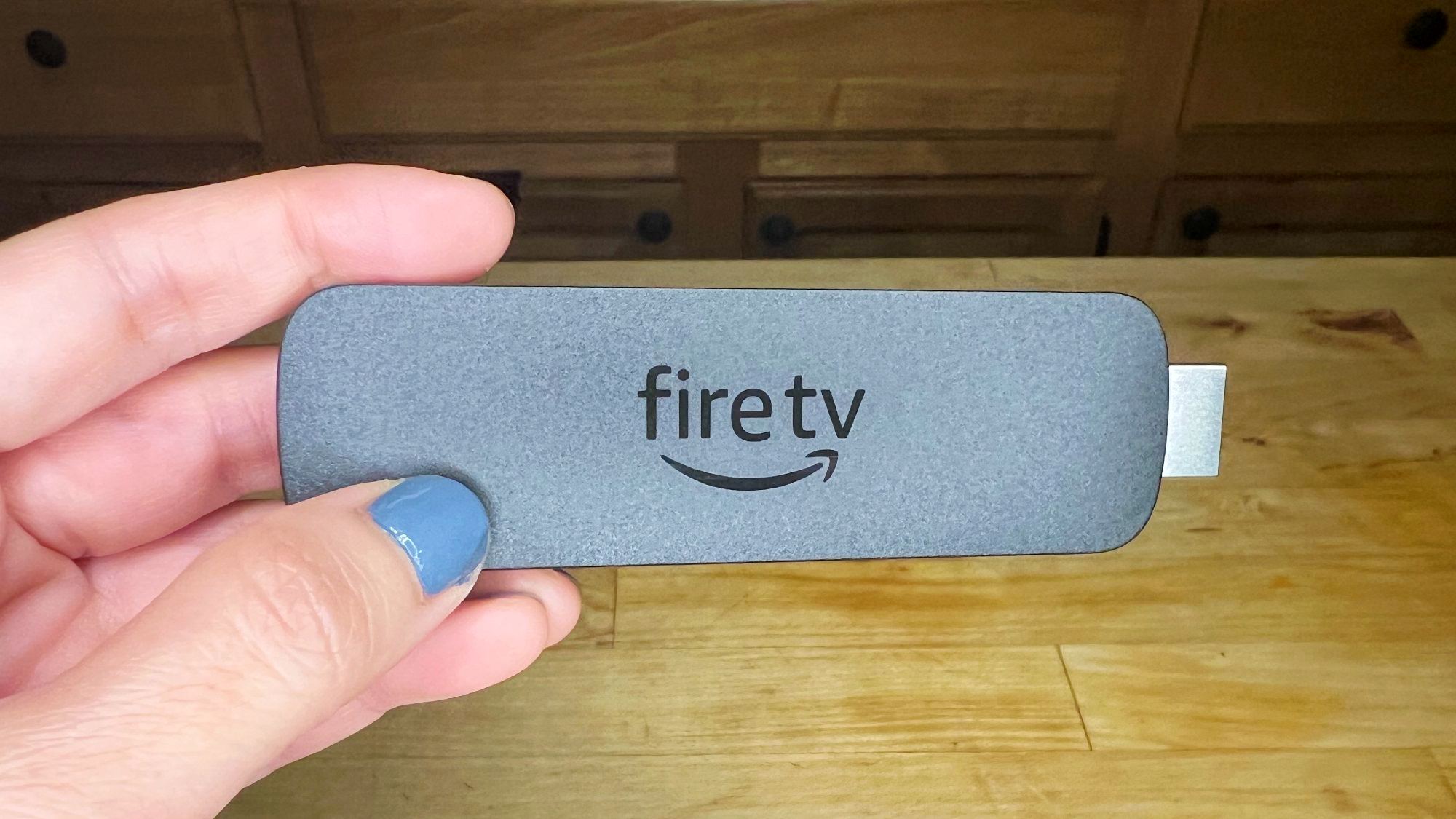
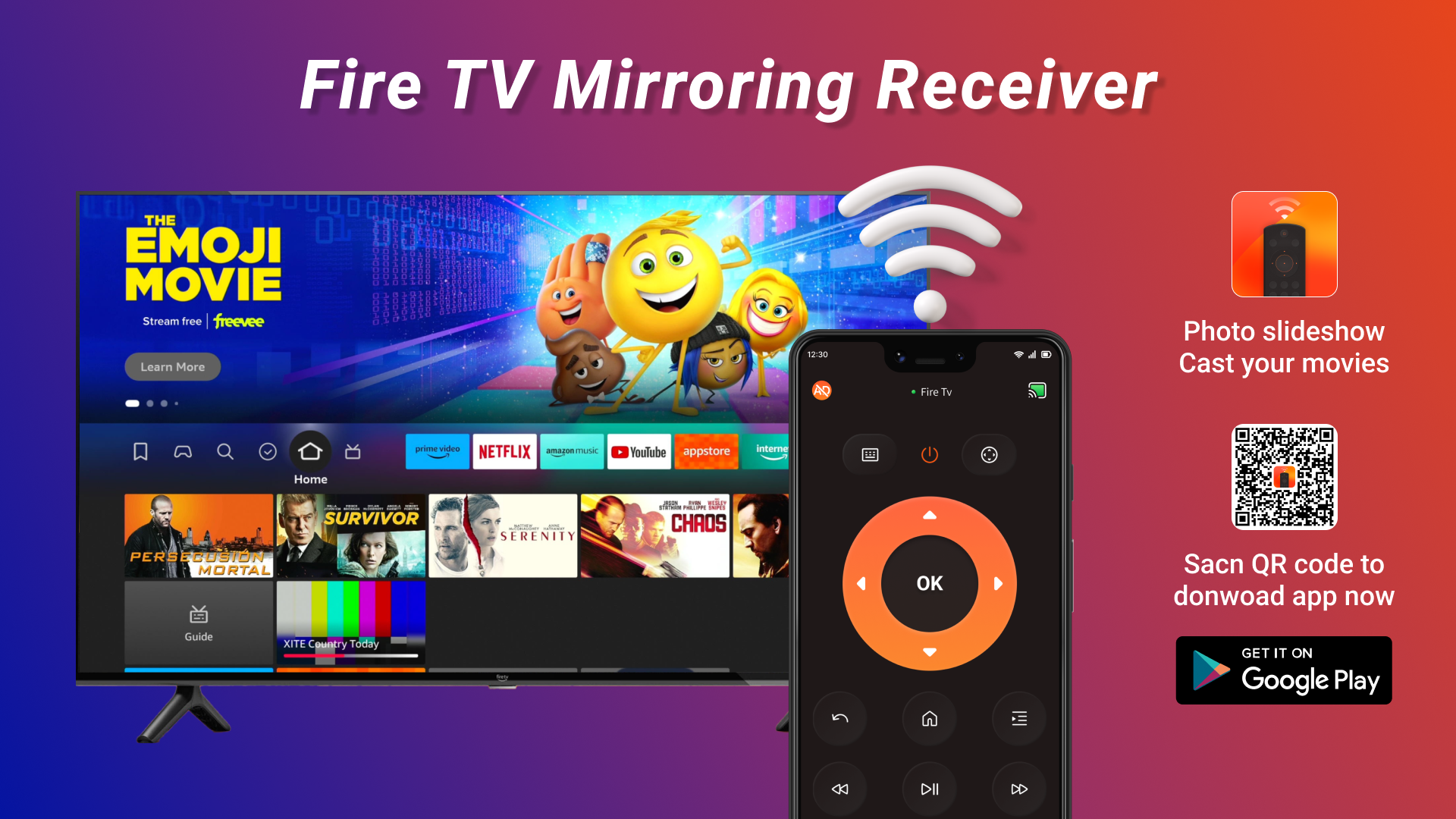
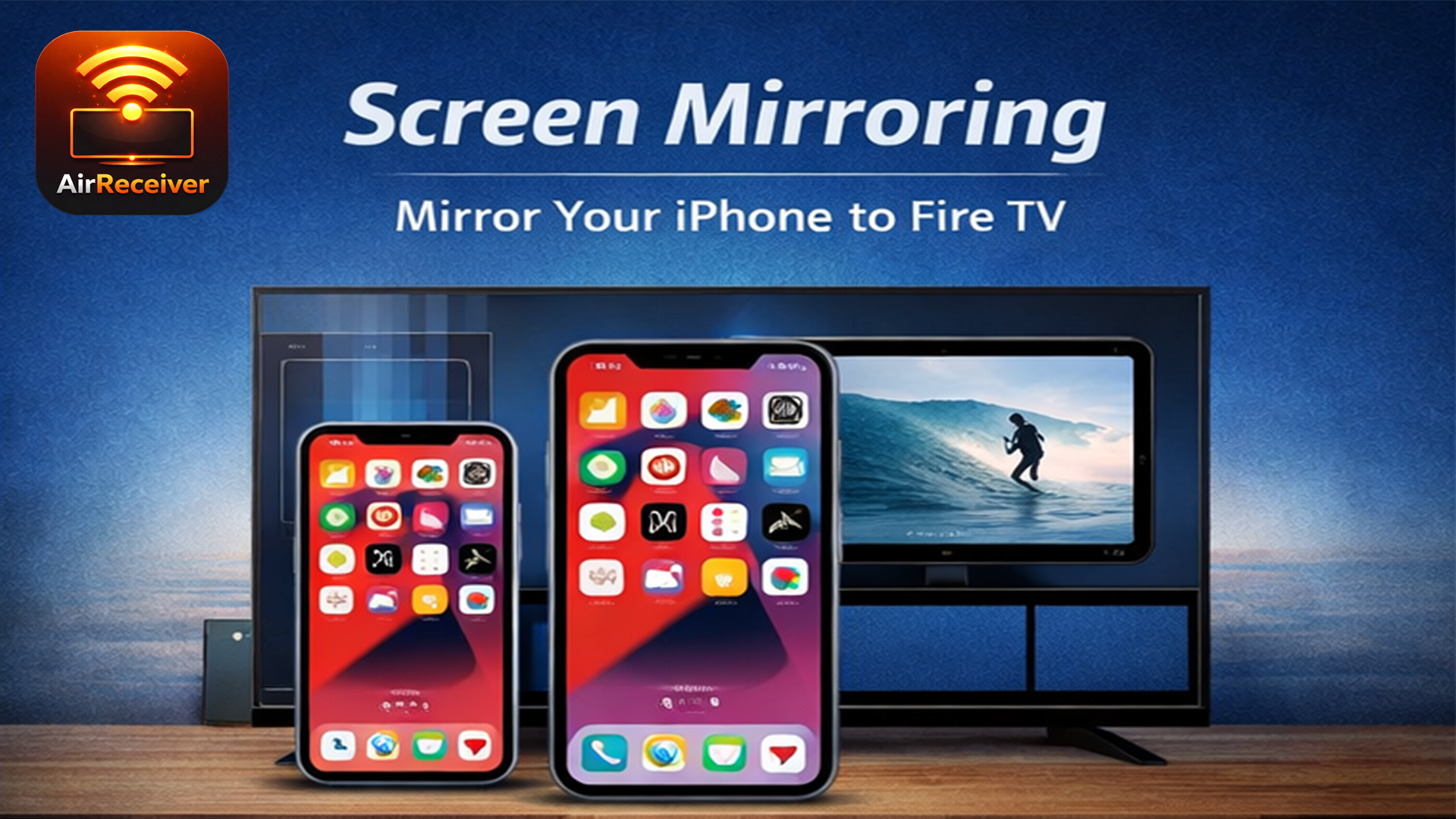
Screen mirroring to an Amazon Fire TV Stick allows you to display your smartphone, tablet, or computer screen directly onto your television. While Android and Windows devices utilize native Miracast technology to connect directly, Apple iOS and macOS devices require a third-party receiver application to bridge Apple AirPlay with Fire OS.
Understanding Amazon Fire Stick Screen Mirroring Protocols
Screen mirroring technology transmits high-definition audio and video signals over a local network or direct wireless link without physical cables. However, the connection process varies across operating systems because tech ecosystems rely on different underlying protocols.
Amazon Fire TV devices natively implement the Miracast standard. Miracast forms a peer-to-peer Wi-Fi Direct connection between your source device (such as an Android phone or Windows PC) and the Fire Stick. Because Wi-Fi Direct builds an ad-hoc connection between the two devices, native Miracast screen mirroring does not strictly require an active internet connection, though both devices must have Wi-Fi turned on.
Apple hardware operates on AirPlay, a proprietary protocol stack designed by Apple for audio and video streaming across iOS, iPadOS, and macOS. Fire OS does not include native, out-of-the-box AirPlay receiver capabilities. To bridge this gap, third-party developers publish AirPlay emulation applications on the Amazon Appstore. These apps turn your Fire Stick into a virtual AirPlay target on your local Wi-Fi network.
Google Pixel smartphones represent another unique case. Although built on Android, Pixel phones omit the Miracast protocol in favor of Google Cast (Chromecast protocol). Pixel users must rely on casting individual app media or downloading third-party receiver apps to mirror their full screen to a Fire Stick.
| Device / Operating System | Connection Protocol | Native Support on Fire Stick? | Additional Apps Required? | Primary Connection Method |
|---|---|---|---|---|
| Android (Samsung, LG, Xiaomi) | Miracast | Yes | No | Quick Settings (Smart View / Screen Share) |
| Android (Google Pixel) | Google Cast / Web Cast | No | Yes (e.g., AirScreen) | Third-party Cast Receiver App |
| Apple iOS / iPadOS | AirPlay 2 | No | Yes (e.g., AirScreen, AirReceiver) | iOS Control Center -> Screen Mirroring |
| Apple macOS | AirPlay 2 | No | Yes (e.g., AirScreen, AirReceiver) | macOS Control Center -> Display Mirroring |
| Windows 10 / Windows 11 | Miracast | Yes | No | Action Center / Windows Key + K |
Prerequisites for Successful Fire Stick Mirroring
Before attempting to mirror your screen, verify that your environment meets basic hardware and networking requirements to prevent connection drops, latency, and pairing failures.
- Local Wi-Fi Alignment: For AirPlay and app-based casting, your source device and Fire Stick must be connected to the exact same Wi-Fi SSID (network name). If your router broadcasts separate 2.4 GHz and 5 GHz frequency bands, ensure both devices connect to the same band—preferably 5 GHz for optimal wireless bandwidth.
- Access Point (AP) Isolation Settings: Some Wi-Fi routers feature "AP Isolation" or "Guest Mode," which prevents wireless devices on the network from communicating with one another. Disable AP Isolation in your router's administration portal.
- Fire TV OS Status: Keep your Fire Stick updated to the latest software version by navigating to Settings > My Fire TV > About > Check for System Update.
- Distance and Line of Sight: Physical barriers between your device, the router, and the Fire Stick introduce latency and packet loss. Keep your streaming source within reasonable range of your wireless router.
How to Enable Native Display Mirroring on Fire TV
Before pairing a Miracast-compatible device (such as an Android phone or Windows laptop), you must put the Fire Stick into discovery mode.
- FIRE TV QUICK MENU
- Options: Sleep, Mirroring, Inputs, Settings
- DISPLAY MIRRORING
- Preparing display mirroring...
- Device Name: Display_Name's Fire TV
Method 1: Remote Shortcut
- Press and hold the Home button on your Fire TV remote for 3 seconds.
- A quick-access menu will pop up on your TV screen containing options like Sleep, Apps, Settings, and Mirroring.
- Select Mirroring.
- A screen will appear displaying the wireless identity of your Fire Stick and stating that it is ready to receive a signal.
Method 2: System Settings Menu
- From the Fire TV home screen, navigate to Settings (gear icon).
- Select Display & Sounds.
- Choose Enable Display Mirroring.
- Leave this screen open while initiating the connection from your source device.
How to Mirror Android Devices to Amazon Fire Stick
Most Android smartphones and tablets ship with native Miracast support. Manufacturer UI skins label this feature under different names, such as Smart View (Samsung), Screen Cast, Wireless Display, or Screen Share.
Step-by-Step Instructions for Standard Android Devices
Put your Fire TV Stick into Display Mirroring mode using the steps outlined above.
On your Android phone or tablet, swipe down from the top of the screen to reveal the Quick Settings panel.
Locate the screen mirroring tile:
- Samsung: Tap Smart View.
- LG / Motorola / Xiaomi: Tap Cast, Screen Share, or Wireless Display.
If the tile is not visible, tap the edit icon (pencil) in the Quick Settings menu to add it.
Your phone will scan for nearby Miracast receivers. Select your Fire TV Stick from the list of available devices.
A prompt may appear on your TV. Confirm the connection request if prompted.
Your phone screen will replicate on your television in real-time.
Android Quick Settings
Select Smart View / Cast
Choose Fire Stick
Screen Mirrored
The Google Pixel Workaround
Google Pixel devices lack native Miracast stack integration. If you attempt to use the built-in "Cast" feature on a Pixel, it will look exclusively for Chromecast receivers. To mirror a Pixel to a Fire Stick:
- Open the Amazon Appstore on your Fire Stick.
- Search for and download AirScreen.
- Launch AirScreen on your Fire TV and follow the on-screen initialization prompts.
- On your Google Pixel, open the Google Home app (ensure both devices are on the same Wi-Fi network).
- Tap your Fire Stick profile or select Devices > Cast my screen.
- Alternatively, open media applications (like YouTube or Chrome) and use the in-app Cast icon to stream specific video streams directly.
How to Mirror iPhone, iPad, and Mac to Fire Stick
Because Apple devices rely on AirPlay, they cannot connect directly to the Fire Stick's built-in Miracast receiver. To solve this, you must install a third-party AirPlay receiver app on your Fire TV.
Step 1: Install an AirPlay Receiver on Fire TV
- Select the Find or Search tool from the Fire TV home menu.
- Type AirScreen (or use voice search on your Alexa Remote).
- Select AirScreen from the search results, click Get or Download, and open the application once installed.
- AirScreen will display a welcome screen displaying the server name (e.g.,
AS-FireTV). Ensure the app remains active.
Step 2: Mirror an iPhone or iPad
iOS Control Center
Tap Screen Mirroring Icon
Select AS-FireTV
AirPlay Stream Active
Connect your iPhone or iPad to the same Wi-Fi network as your Fire Stick.
Open the Control Center:
- iPhone X or newer / iPad running iPadOS: Swipe down from the top-right corner of the screen.
- iPhone 8 or older: Swipe up from the bottom edge of the screen.
Tap the Screen Mirroring icon (two overlapping rectangles).
Select the name of your Fire Stick receiver app from the list (e.g.,
AS-FireTV).If prompted, enter the 4-digit passcode displayed on your TV screen.
To end mirroring, reopen the Control Center, tap Screen Mirroring, and select Stop Mirroring.
Step 3: Mirror a macOS Computer
- Connect your Mac to the same Wi-Fi network as your Fire Stick.
- Ensure the AirScreen app is running on your TV.
- Open the Control Center in the macOS menu bar (located in the top-right corner next to the clock).
- Click Screen Mirroring.
- Select your Fire Stick device target from the dropdown list.
- Choose whether to Mirror Built-in Display (duplicate your Mac desktop) or Use As Separate Display (extend your desktop space).
For further assistance setting up wireless streaming protocols on Apple systems, review Apple's Official AirPlay Documentation.
How to Mirror Windows 10 and Windows 11 PCs to Fire Stick
Windows 10 and 11 feature native Miracast support, allowing laptops and desktops equipped with compatible Wi-Fi cards to stream wirelessly to a Fire Stick without third-party software.
- Press Win + K
- Select Fire TV Device
- Choose Projection Mode: Duplicate/Extend
Step-by-Step Instructions for Windows
- Put your Fire TV Stick into Display Mirroring mode (hold Home button on remote -> select Mirroring).
- On your Windows PC, press the keyboard shortcut Windows Key + K to launch the Cast / Connect quick sidebar.
- Alternatively, click the Network/Sound/Battery cluster in the system tray (bottom-right) and select the Cast tile.
- Windows will scan for wireless displays. Click on your Fire TV Stick when it appears in the list.
- Once connected, your PC screen will project to the TV.
- To adjust the display output, press Windows Key + P to open the Project menu and choose from:
- Duplicate: Displays the exact same image on your PC monitor and TV screen.
- Extend: Uses your TV as an extra monitor, allowing you to drag windows between screens.
- Second screen only: Blanks out your PC display and outputs exclusively to the TV.
If your Windows PC reports that "Your device doesn't support Miracast," verify that your computer's Wi-Fi adapter drivers are up to date via Microsoft Support.
Screen Mirroring vs. Native App Casting
It is essential to distinguish between Screen Mirroring and App Casting, as users frequently conflate the two features.
SCREEN MIRRORING (Pixel Copy)
- Source Device (Encodes & Streams Full Screen) to Fire TV Stick
- High CPU/Battery usage on source device
- Displays notifications, UI elements, and full interface
APP CASTING (URL Transfer)
- Source Device (Sends Video Link / Command) to Fire TV Stick (Downloads stream directly)
- Low battery consumption on source device
- Leaves phone free for other tasks
Screen Mirroring captures every pixel displayed on your source device's monitor and compresses it into a live video stream sent to the Fire Stick. If your phone receives a text message, the notification pops up on the TV screen. This process taxes your source device's processor and battery life.
App Casting (supported by apps like YouTube, Netflix, and Spotify) uses protocols like DIAL (Discovery and Launch) or Chromecast. When you press the Cast icon within an application, your phone sends a playback URL command to the Fire Stick. The Fire Stick then launches its native app and pulls the video feed directly from the internet. Your mobile device acts merely as a remote control, conserving phone battery and maintaining full 4K playback quality.
Troubleshooting Common Mirroring Failures
If you encounter audio dropouts, screen tearing, black screens, or failed pairings, work through these targeted solutions.
1. Black Screen with Audio (HDCP / DRM Restrictions)
If you attempt to mirror premium streaming apps like Netflix, Disney+, Max, or Hulu, you may experience a black screen while audio continues to play.
Cause: Digital Rights Management (DRM) and High-bandwidth Digital Content Protection (HDCP) block raw video capture across wireless mirroring streams to prevent unauthorized recording.Solution: Do not use screen mirroring to watch DRM-protected movies. Instead, open the native application installed directly on your Fire Stick or use app-level casting.
2. Device Cannot Find Fire Stick
- Wi-Fi Network Mismatch: Ensure both devices are connected to the exact same Wi-Fi network and frequency band (2.4 GHz vs. 5 GHz).
- Fire Stick Not in Discovery Mode: Miracast requires the Fire TV to actively stay on the "Preparing display mirroring..." screen before initiating connection on Android or Windows.
- VPN Interference: Active Virtual Private Networks (VPNs) on either device alter network routing and block local network discovery protocols (mDNS/Bonjour). Disable VPNs on both devices before mirroring.
3. Severe Input Lag, Latency, or Stuttering
- Switch to 5 GHz Wi-Fi: 2.4 GHz networks suffer from heavy radio congestion from neighboring networks, Bluetooth devices, and microwaves. 5 GHz offers significantly higher bandwidth and reduced latency. For standard specifications on wireless throughput, refer to the Wi-Fi Alliance Standards Guide.
- Lower Source Resolution: High-resolution screens (4K laptops or high-DPI tablets) require substantial real-time video encoding. Lower your source device's screen resolution to 1080p (1920x1080) prior to mirroring.
- Clear AirPlay Receiver Cache: On your Fire Stick, navigate to Settings > Applications > Manage Installed Applications > AirScreen > Clear Cache.
Recommended Third-Party Mirroring Apps for Fire Stick
When native Miracast is unavailable (such as on Apple devices or non-standard Android hardware), these Amazon Appstore applications deliver stable performance:
1. AirScreen
- Best For: Overall versatility across iOS, macOS, Windows, and Android.
- Key Features: Supports AirPlay, Miracast, DLNA, and Google Cast protocols simultaneously. Includes recording capabilities and resolution scaling options.
- Cost: Free with ads; optional premium subscription removes ads and unlocks advanced settings.
2. AirReceiver
- Best For: Lightweight performance and low latency.
- Key Features: Runs silently in the background without needing a complex interface. Supports AirPlay audio/video and DLNA.
- Cost: Paid app (one-time purchase).
3. Screen Mirroring for Fire TV (by 2Stable or AirBeamTV)
- Best For: Dedicated web video casting and photo sharing from iOS devices.
- Key Features: Tailored specifically for Fire TV hardware with step-by-step setup wizards.
- Cost: Free trial; requires subscription or full unlock for unlimited mirroring.
Frequently Asked Questions
Can I mirror my phone to a Fire Stick without Wi-Fi?
Yes, but only for Miracast-compatible devices (most Android phones and Windows PCs). Miracast utilizes Wi-Fi Direct, creating an independent ad-hoc wireless link between your device and the Fire Stick. However, Apple devices relying on AirPlay receiver apps require a shared local Wi-Fi router network to communicate.
Why is there no sound when I mirror my PC screen to my Fire Stick?
This usually occurs when Windows does not automatically switch its default audio output endpoint upon establishing the wireless connection. On your PC, click the Sound icon in the taskbar, click the playback device selector, and change the output from your internal speakers to Digital Output / Fire TV.
Does Fire TV Stick 4K Max support display mirroring?
Yes. Modern Fire TV Stick models, including the Fire TV Stick 4K, 4K Max, and Fire TV Cube, support screen mirroring. However, operating system updates occasionally move or adjust how Miracast is accessed. Holding down the Home button on the remote remains the quickest method to toggle mirroring mode across all modern Fire OS hardware.
Why is the screen size cut off or zoomed in on my TV screen?
This is caused by an aspect ratio mismatch or display overscan settings. On your Fire TV, go to Settings > Display & Sounds > Display > Calibrate Display to adjust screen boundaries. Additionally, check your TV's picture menu and set the aspect ratio setting to Direct, Just Scan, or 1:1 Pixel Mapping.
Can I mirror my iPhone without paying for a third-party app?
Yes. Apps like AirScreen can be downloaded and used for free from the Amazon Appstore. While the free version displays occasional banner advertisements before or after mirroring sessions, full video mirroring functionality remains accessible without requiring a paid subscription.
Summary of Next Actions
To establish a clear screen mirroring connection right away:
- For Android or Windows Users: Hold down the Home button on your Fire TV remote, select Mirroring, and use your device's native Smart View, Cast, or Win + K shortcut to connect.
- For iPhone, iPad, or Mac Users: Open the Amazon Appstore on your Fire Stick, install AirScreen, launch the app, and select it from the Screen Mirroring section of your Apple device's Control Center.
- For High-Performance Playback: Verify that both devices use a 5 GHz Wi-Fi network, disable active VPNs, and switch to native apps when watching copyrighted streaming content.