When you upload a high-definition video to a platform like YouTube, Vimeo, or social media, seeing it display in a blurry 360p resolution can be frustrating. This occurs because video platforms prioritize playability by processing lower-resolution versions first. Higher resolutions like 1080p, 4K, or 8K require significantly more server-side processing time before they become available to viewers.
Understanding the Transcoding Process
To understand why your video appears in 360p, you must first understand transcoding. Transcoding is the process where a video platform takes your original uploaded file and converts it into various formats and resolutions to ensure it can play on any device, from a high-end 4K monitor to an older smartphone with a slow internet connection.
When you hit "publish," the platform’s servers begin a massive computational task. They don't just create one version of your video; they create a suite of versions (typically 144p, 240p, 360p, 480p, 720p, 1080p, and higher). Because 360p files are small and require less processing power, they are completed almost instantly. This allows the video to be "live" as quickly as possible, even if the quality isn't optimal yet.
In 2026, even with advanced server infrastructure, the sheer volume of data being uploaded globally means that high-resolution processing—especially for videos utilizing High Dynamic Range (HDR) or high frame rates (60fps)—still takes time.
1. High-Resolution Processing Time
The most common reason a video is stuck in 360p is simply that the platform has not finished processing the High Definition (HD) or Ultra High Definition (UHD) versions.
The Processing Hierarchy
Video platforms follow a specific order when processing your files. They almost always start with the Standard Definition (SD) versions. This includes 144p, 240p, and 360p. Once these are finished, the video becomes "publicly viewable." The server then moves on to the HD versions (720p and 1080p). If you uploaded a 4K or 8K video, those resolutions are processed last because they contain significantly more data.
Factors Influencing Speed
- Video Length: A two-hour documentary will take exponentially longer to process into 4K than a thirty-second clip.
- Frame Rate: Videos shot at 60fps or 120fps have twice or four times the number of frames per second compared to standard 24fps or 30fps video. This doubles or quadruples the workload for the transcoder.
- Platform Traffic: During peak upload hours, server queues can become congested, leading to longer wait times for HD processing.
- File Size: Larger files take longer to ingest into the system before the transcoding even begins.
For creators in 2026, the best practice remains the same: upload your video and save it as "Unlisted" or "Private" for several hours—or even a full day—before making it public. This ensures that when your audience clicks the link, they see the intended high-quality version rather than a pixelated 360p stream.
2. Low-Resolution Source Files
A platform cannot "create" quality that wasn't there to begin with. If your video is displaying only in 360p, it is possible that the source file you uploaded was recorded or exported at a low resolution.
Checking Your Export Settings
Many beginner editors inadvertently export their projects using "Fast Encode" or "Low Quality" presets to save time or disk space. If your project settings in software like Adobe Premiere Pro, DaVinci Resolve, or Final Cut Pro are set to a 640x360 resolution, the resulting file will never trigger an HD option on a streaming platform.
The Upscaling Myth
While you can technically "upscale" a 360p video to 1080p in your editing software, this does not improve the actual visual quality. It simply stretches the existing pixels. Furthermore, if the bitrate of your 1080p export is too low, the platform's compression algorithms might still treat the file poorly, resulting in a visual experience that looks no better than 360p, regardless of what the resolution toggle says.
Resolution Requirements for HD
To ensure your video qualifies for HD labels, it must meet these minimum pixel dimensions:
- 720p (HD): 1280 x 720
- 1080p (Full HD): 1920 x 1080
- 1440p (QHD): 2560 x 1440
- 2160p (4K UHD): 3840 x 2160
3. Unsupported or Inefficient Codecs
The codec (coder-decoder) you use to compress your video plays a massive role in how quickly and effectively a platform like YouTube can process it.
Modern Codec Standards
In 2026, the industry has largely shifted toward AV1 and HEVC (H.265) for high-efficiency compression. However, older standards like H.264 remain the most compatible. If you use an obscure or proprietary codec, the platform's servers may struggle to "read" the file, leading to processing errors that leave the video stuck in a low-resolution "safe mode."
VP9 and AV1 Transcoding
On YouTube, specifically, the platform uses different codecs for different types of creators. High-traffic channels or videos uploaded in 4K are often given priority for VP9 or AV1 transcoding. These codecs offer better visual quality at lower bitrates. If your video is only available in 360p, it may be because the server is struggling to generate the VP9 version of your file due to an incompatible container (like an older .AVI or .MOV with legacy compression).
Recommended Settings for Fast Processing
To minimize the time your video spends in 360p limbo, follow these industry-standard export settings:
- Container: MP4
- Audio Codec: AAC-LC
- Video Codec: H.264 or HEVC (H.265)
- Chroma Subsampling: 4:2:0
- Frame Rate: Match the source footage (avoid converting 24fps to 30fps).
4. Internet Upload Stability and Metadata Errors
Sometimes the problem isn't the platform or the file, but the journey the file took from your computer to the server. A high-resolution video is a massive collection of data packets. If your internet connection fluctuates during the upload, some of those packets may be lost or corrupted.
Partial Uploads
In some cases, the platform may receive enough data to process the "base" version of the video but encounter a "header" error for the high-resolution metadata. This results in the video appearing to be "finished" when in reality, the HD components were never properly ingested.
The Browser Cache and Playback Settings
Before assuming the upload failed, check your playback settings. Many platforms default to "Auto" quality based on your current internet speed. If your local connection is slow at the moment you view your own upload, the player will serve you the 360p version to prevent buffering, even if the 1080p version is available.
To verify this, click the gear icon (Settings) on the video player and manually select the highest resolution. If the higher options (1080p, 4K) aren't even listed in the menu, then the issue is indeed with the server-side processing or the source file.
5. Platform-Specific Compression and "Lite" Modes
Different platforms have different rules for how they handle video. Not every site is built to support high-fidelity playback.
Social Media Limitations
If you are uploading to platforms like X (formerly Twitter), Instagram, or TikTok, be aware that these services apply aggressive compression. Even if you upload a 4K file, these platforms often cap mobile playback at 720p or 1080p to save on bandwidth. In some regions with limited infrastructure, these platforms may default to 360p for mobile users regardless of the upload quality.
YouTube's "SD" Indicator
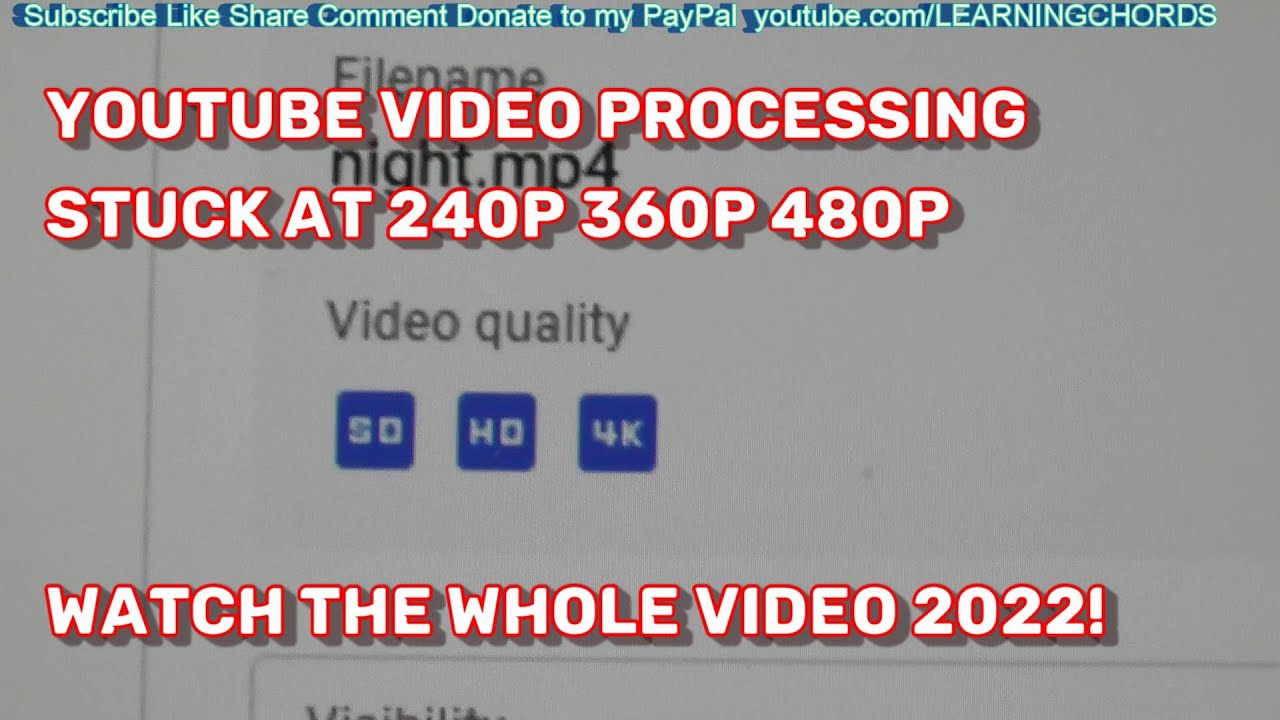
In the YouTube Studio dashboard, you can see specific icons for SD, HD, and 4K. If the SD icon is blue but the HD icon is grey and blinking, the video is still in the transcoding queue. If the HD icon never appears after 24 hours, the platform has likely rejected the high-res version due to a bitrate that was too low or a resolution that didn't meet the HD threshold.
Resolution and Bitrate Comparison Table
The following table outlines the expected requirements for various resolutions as of 2026. If your file falls below these bitrates, platforms may not provide the corresponding resolution option.
| Resolution | Minimum Pixels | Recommended Bitrate (SDR) | Recommended Bitrate (HDR/High FPS) | Est. Processing Time (10 min video) |
|---|---|---|---|---|
| 360p | 640 x 360 | 1 - 1.5 Mbps | 2 Mbps | 1 - 5 Minutes |
| 720p | 1280 x 720 | 5 - 7.5 Mbps | 10 Mbps | 15 - 30 Minutes |
| 1080p | 1920 x 1080 | 8 - 12 Mbps | 15 - 20 Mbps | 30 - 60 Minutes |
| 1440p | 2560 x 1440 | 16 - 24 Mbps | 30 - 35 Mbps | 1 - 3 Hours |
| 4K (2160p) | 3840 x 2160 | 35 - 45 Mbps | 60 - 80 Mbps | 4 - 12 Hours |
| 8K (4320p) | 7680 x 4320 | 80 - 150 Mbps | 200+ Mbps | 24+ Hours |
Frequently Asked Questions
Why is my 4K video only showing 360p after two hours?
4K processing is extremely resource-intensive. Depending on the length of your video and the current load on the platform's servers, it can take anywhere from 4 to 24 hours for 4K to become available. Higher frame rates (like 60fps) and HDR metadata extend this time significantly. Be patient and keep the video unlisted until processing is complete.
Can I "force" a video to update from 360p to 1080p?
No, you cannot force the server to process faster. However, you can ensure a smoother process by using the H.264 or HEVC codec and an MP4 container. If a video has been stuck at 360p for more than 48 hours and you are certain the source was HD, the best course of action is to delete the video, re-export it with a higher bitrate, and re-upload.
Does the 360p version affect my SEO or view count?
If you make a video public while it is still in 360p, it may negatively affect your "average view duration." Viewers who see a blurry video are more likely to click away immediately. This sends a signal to the algorithm that the video is not engaging, which can hurt its long-term reach. Always wait for HD processing to finish before going live.
Does uploading from a mobile device limit resolution to 360p?
Modern mobile apps for YouTube and Vimeo support 4K uploads, provided your phone recorded the video in that resolution. However, mobile uploads are often more prone to "packet loss" on Wi-Fi or cellular data. If "Upload Quality" is set to "Standard" in your app settings, the app will downscale your video to 360p or 480p before it even reaches the server. Check your app's "Upload Quality" settings and set them to "Full Quality."
Why do some older videos only have 360p options?
In the early days of the internet, 360p was the standard. If you are looking at a video uploaded before 2008, it likely does not have an HD version because the source material was recorded in Standard Definition. Additionally, if a platform changes its backend architecture, very old videos may occasionally lose their HD counterparts if they weren't properly migrated to new codecs.
Professional Recommendation for Content Creators
To avoid the "360p trap," incorporate a buffer period into your workflow. After finishing your edit, export your video using the HEVC (H.265) codec for the best balance of quality and file size. Upload the video to your platform of choice at least 12 hours before your scheduled release time. Use the "Schedule" feature available on most platforms; this allows the servers to finish all transcoding (SD, HD, and 4K) in the background so that the very second the video goes public, it is available in its highest possible quality.