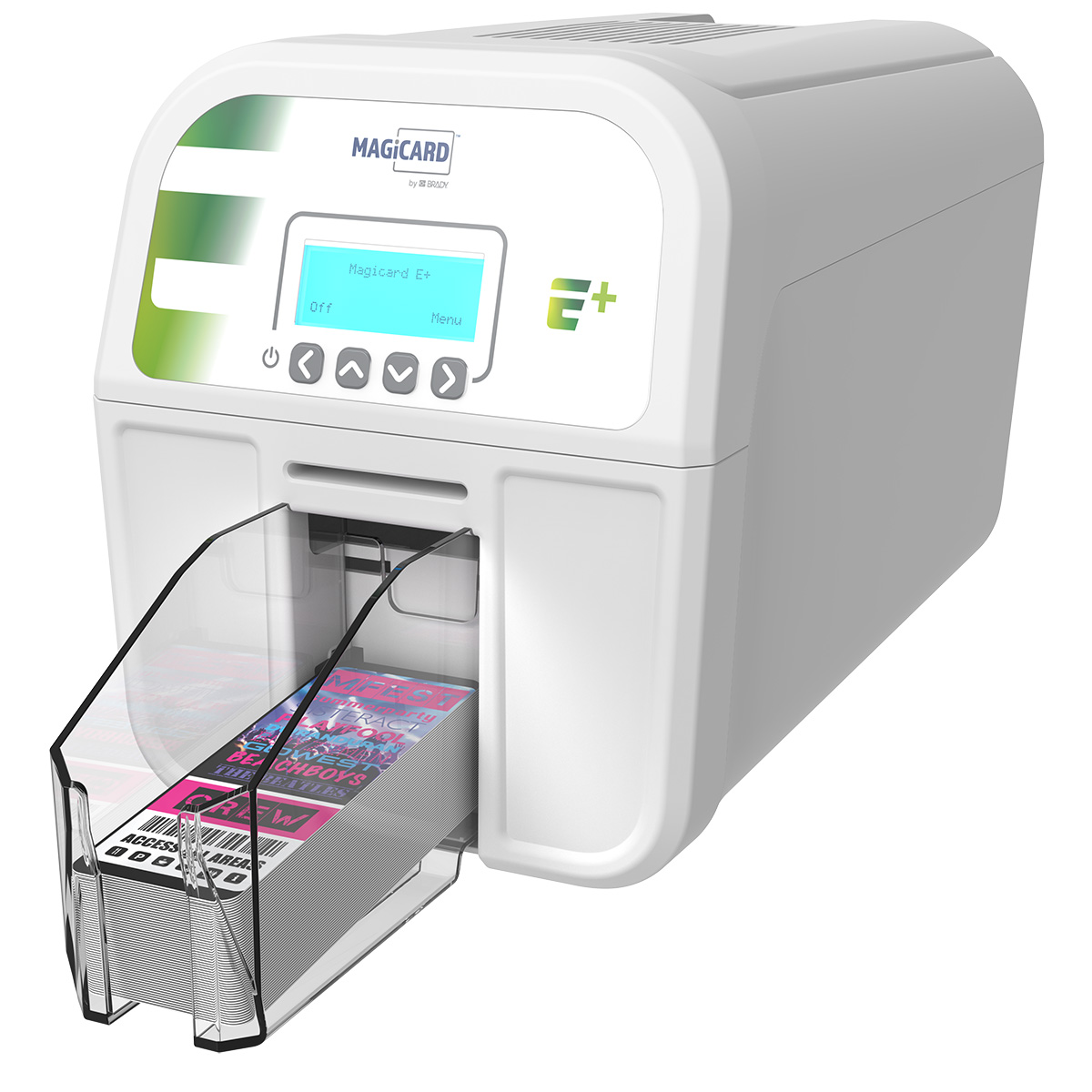
The Magicard LC1 is a legacy, entry-level desktop ID card printer designed for low-volume, manual-feed card issuance. Operating on dye-sublimation and thermal transfer technology, it provides a compact solution for creating basic employee badges, membership cards, and visitor passes where high-speed, automated batch printing is not a primary requirement.
Understanding the Magicard LC1 Architecture
The Magicard LC1 was engineered during a period when desktop ID card printing was transitioning from bulky, industrial machines to compact, "plug-and-play" office peripherals. As of 2026, the LC1 is firmly categorized as a legacy device, yet its mechanical simplicity remains a point of interest for organizations maintaining older security infrastructure or seeking secondary, low-cost backup units.
The physical footprint of the LC1 is remarkably small compared to modern high-capacity printers like the Magicard 600 or 300. It utilizes a "hand-feed" mechanism, meaning there is no input hopper for stacks of blank cards. Instead, the user must insert each plastic card individually through a slot at the front or top of the device. This design choice significantly reduces the printer's size and eliminates the common mechanical failures associated with card-loading rollers and hopper sensors.
Internally, the LC1 uses a standard thermal print head. The chassis is typically constructed from high-impact plastics, designed to be portable and lightweight. This makes the LC1 a frequent choice for temporary events, such as conferences or pop-up registration centers, where the printer needs to be transported frequently and desk space is at a premium.
Core Printing Technologies and Capabilities
The Magicard LC1 utilizes two primary printing methods depending on the ribbon installed: Dye-Sublimation and Resin Thermal Transfer. Understanding these processes is vital for troubleshooting print quality issues in 2026, especially as older print heads may begin to show wear.
Dye-Sublimation (YMCKO)
For full-color photo IDs, the LC1 uses a YMCKO ribbon. The printer applies heat to the ribbon, causing the Yellow, Magenta, and Cyan dyes to sublimate into the surface of the PVC card. The "K" panel represents a black resin used for crisp text and barcodes, while the "O" panel is a clear protective overlay. This overlay is critical for protecting the card against UV fading and physical abrasion. In the context of the LC1, the 300 DPI (dots per inch) resolution ensures that text remains legible, though it lacks the high-definition vibrance of modern retransfer printers.
Monochrome Thermal Transfer
If the goal is simply to print black text or simple logos on pre-printed cards, the LC1 supports monochrome ribbons. This method is much faster and more cost-effective. The printer simply transfers the solid color (usually black, but sometimes red, blue, or gold) directly onto the card. Because the LC1 is a manual-feed machine, monochrome printing is highly efficient for "on-the-spot" personalization of membership cards.
Security Features: The HoloKote Watermark
One of the defining features of Magicard printers, including the LC1, is the HoloKote security system. Unlike other brands that require expensive custom laminates for security, Magicard printers can frost a watermark into the "O" (overlay) panel during the normal print cycle. For the LC1, this was typically a fixed standard pattern (such as globes or keys). This watermark is visible when the card is tilted in the light, providing a layer of visual security that is difficult to counterfeit without specialized equipment.
Connectivity, Drivers, and 2026 Compatibility
A significant challenge for users of the Magicard LC1 in 2026 is software and driver compatibility. The LC1 was originally designed for Windows environments, using the proprietary Magicard "UltraDriver" architecture.
Legacy Connectivity
The LC1 primarily connects via a standard USB 1.1 or 2.0 interface. While modern computers in 2026 have moved toward USB-C, a standard Type-A to Type-B cable with a simple adapter is usually sufficient to establish a physical connection. Some older versions of this hardware may have featured parallel ports, which require specialized PCI cards or USB-to-Parallel converters to function with modern workstations.
Operating System Support
As of 2026, official driver support for the LC1 has ceased from the manufacturer. However, the LC1 often shares driver commonality with the Magicard Pronto series. Users running Windows 10, 11, or even newer iterations may find that the legacy Windows 7 or 8 drivers can be installed using "Compatibility Mode." It is important to note that these drivers do not support macOS or Linux natively, making the LC1 a Windows-centric device.
Software Integration
The printer is compatible with most standard ID badge design software, such as CardPresso, TrustID, or even basic applications like Microsoft Word or Adobe Illustrator. Since the printer appears as a standard document printer in the Windows spooler, any application capable of defining a custom page size of 2.125" x 3.375" (CR-80 standard card size) can technically output to the LC1.
Consumables and Media Requirements
Maintaining an LC1 in 2026 requires a steady supply of specific consumables. Because the printer is discontinued, sourcing original manufacturer (OEM) ribbons may become increasingly difficult, leading many users to turn to "compatible" third-party alternatives.
- Ribbon Types: The most common ribbon for the LC1 is the LC1/YMCKO five-panel ribbon, typically capable of 100 to 350 prints per roll. Monochrome ribbons are also available in larger capacities.
- Card Stock: The LC1 is designed for standard CR-80 PVC cards with a thickness of 20mil to 40mil (0.51mm to 1.02mm). It is not recommended for use with adhesive-backed cards, as the heat from the print head can cause the adhesive to seep, damaging the internal rollers.
- Cleaning Kits: Regular cleaning is the only way to ensure the longevity of the LC1. Cleaning cards saturated with 99.9% isopropyl alcohol should be run through the printer every time a ribbon is changed. This removes dust and debris that can cause "white lines" on prints—a sign of a "blown" pixel on the thermal print head.
Comparative Specifications Table
The following table compares the legacy Magicard LC1 with its spiritual successor in the current 2026 market, the Magicard Pronto 100, to illustrate the technological progression.
| Feature | Magicard LC1 (Legacy) | Magicard Pronto 100 (2026 Standard) |
|---|---|---|
| Feed System | Manual / Hand-feed | Manual / Hand-feed |
| Print Speed (Color) | ~35 Seconds per card | ~23 Seconds per card |
| Print Speed (Mono) | ~7 Seconds per card | ~4.7 Seconds per card |
| Resolution | 300 DPI | 300 DPI (Enhanced Color) |
| Visual Security | Standard HoloKote (Fixed) | Digital HoloKote (3 designs) |
| Interface | USB 1.1 / 2.0 | USB 2.0 / Ethernet |
| Driver Support | Legacy (Limited) | Windows, macOS, Linux |
| Cloud Monitoring | None | Clix Remote Monitoring |
| Average Weight | ~6.0 lbs (2.7 kg) | ~6.4 lbs (2.9 kg) |
Maintenance and Common Troubleshooting
Operating a legacy machine like the LC1 requires a proactive approach to maintenance. In 2026, hardware fatigue is the primary cause of failure.
1. Card Jams: Since the LC1 is a hand-feed printer, jams usually occur if the card is inserted at an angle or if the rollers have lost their grip. Cleaning the rollers with a specialized cleaning pen or card usually resolves this. If the rollers are physically "tacky" or degraded, the printer may require professional refurbishment.
2. Image Quality Issues: If the printed cards show consistent white horizontal lines, it indicates a damaged print head. Unfortunately, replacing a print head on an LC1 in 2026 is often cost-prohibitive, sometimes exceeding the value of the printer itself. If the colors are "fuzzy," it may be a ribbon synchronization issue, which can often be fixed by recalibrating the sensors through the driver's maintenance utility.
3. Ribbon Breaking: In older machines, the print head may become too hot, or the "burn" settings in the driver may be too high, causing the ribbon to melt and snap. Users should ensure they are using the correct power supply, as the LC1 requires a specific voltage and amperage (usually 24V DC). Using a generic power brick can lead to inconsistent heat and ribbon breakage.
Strategic Suitability: Should You Use the LC1 in 2026?
The decision to continue using or purchasing a refurbished Magicard LC1 depends on the specific needs of the organization.
Low-Volume Requirements: If an office only needs to print five badges a month, the LC1 is a perfectly viable, "no-frills" tool. Its manual feed ensures that cards aren't sitting in a dusty hopper for weeks at a time.
Budget Constraints: For non-profits or small clubs, the LC1 represents the lowest possible entry point into professional ID printing. While it lacks the speed of modern machines, the end result (the card itself) is professionally produced and visually identical to cards made by more expensive units to the untrained eye.
Risk Factors: The primary risk in 2026 is the lack of technical support. If the mainboard fails or the driver becomes completely incompatible with a Windows update, the printer becomes a "brick." Organizations with mission-critical security needs (e.g., hospitals or government contractors) should avoid relying on the LC1 as their primary issuance point and should instead look toward current-generation models with active warranties.
Frequently Asked Questions
Can I print double-sided cards with the Magicard LC1?
Yes, but the process is manual. The LC1 is a "simplex" (single-sided) printer. To print on both sides, you must print the first side, wait for the card to be ejected, flip it over manually, and feed it back into the printer for the second pass. You must ensure the back-side design is correctly oriented in your software.
Does the Magicard LC1 support magnetic stripe encoding?
Some variants of the LC1 were manufactured with optional magnetic stripe encoders (ISO 7811). If your unit has this hardware, you can encode HiCo or LoCo magnetic stripes during the print cycle. You will need to ensure your ID software is configured to send the encoding data string (usually denoted by "~" or other prefixes) to the printer.
Where can I find drivers for the LC1 in 2026?
Official drivers are no longer hosted on the main Magicard homepage. Users should look for "Legacy Support" sections on the manufacturer’s website or contact an authorized Magicard dealer. In some cases, the "Magicard Pronto" driver serves as a functional substitute because the internal command languages (MagiCard control language) are nearly identical.
Is the LC1 compatible with smart cards (HID Prox, Mifare)?
The LC1 can print on the surface of smart cards, provided they are the standard CR-80 size and made of PVC. However, the LC1 typically does not include internal contact or contactless chip encoders. If you need to program the chip inside the card, you would usually need to do that using a separate desktop encoder before or after the visual printing process.
Why is my printer showing a "Ribbon Error" even though the ribbon is new?
This is often caused by the "RFID" tag on the ribbon spool. Magicard ribbons contain a small chip that tells the printer the ribbon type and capacity. If the sensor inside the LC1 fails or if you are using a third-party ribbon without a compatible chip, the printer will not recognize the consumable. Ensure the ribbon is seated firmly and the sensors are clean.
Practical Recommendation
If you currently own a functioning Magicard LC1, the best course of action in 2026 is to keep it as a secondary backup unit while upgrading your primary operations to a modern, supported device. To extend the LC1's life, perform a deep cleaning every 100 cards and avoid using it for high-volume batches which may overheat the legacy print head. If you are considering purchasing an LC1 second-hand, ensure that you have access to a workstation running a compatible version of Windows and verify the availability of ribbons from your local supplier before finalizing the acquisition.