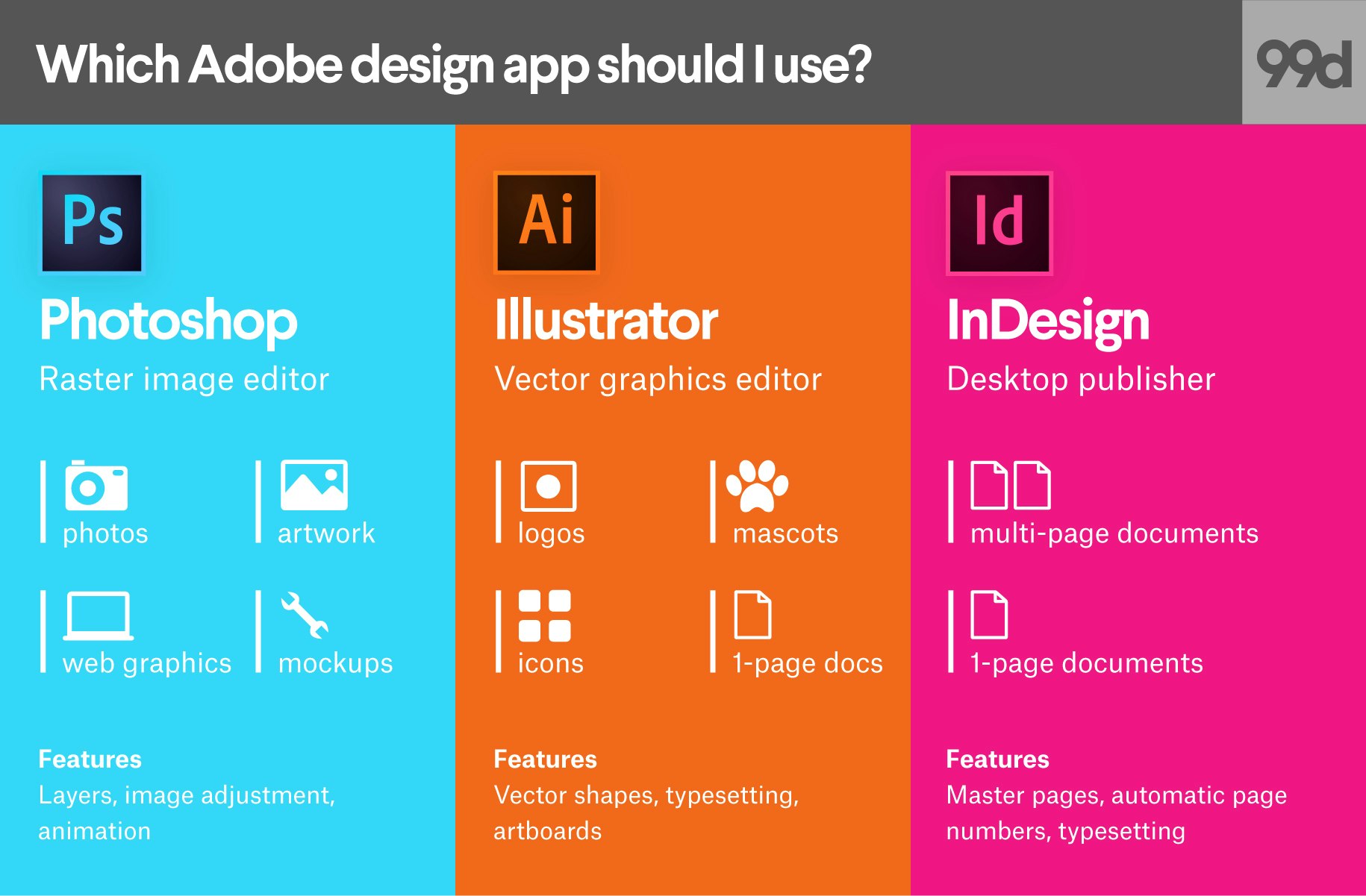
Choosing between Adobe InDesign and Photoshop depends on the structural needs of your project. Photoshop is the industry standard for pixel-based image editing and digital art, while InDesign is the premier tool for layout design and multi-page documents. Use Photoshop to manipulate images and InDesign to arrange those images with complex text.
Understanding the Core Paradigms: Raster vs. Layout
To make an informed decision for your creative projects in 2026, you must first understand the fundamental difference between the two applications. Adobe Photoshop is a raster-based engine. Every element within a Photoshop file is composed of pixels—tiny squares of color data. This makes it peerless for detail-oriented work like photo retouching, but it introduces limitations regarding scalability and text sharpness.
Adobe InDesign, conversely, is a layout and publishing tool. It does not "create" images in the traditional sense; rather, it acts as a sophisticated staging ground where assets from other programs (like Photoshop and Illustrator) are assembled. InDesign treats text and frames as vector-like objects, ensuring that typography remains crisp regardless of the final output size. While Photoshop focuses on the "what" of an image, InDesign focuses on the "where" and "how" of a document.
The Role of Pixels in 2026
In 2026, high-resolution displays and advanced printing technologies demand more from our files than ever before. If you attempt to design a 24-page brochure entirely in Photoshop, you will encounter two major issues: massive file sizes that tax your hardware and "fuzzy" text. Because Photoshop renders text as pixels, zooming in or printing at large scales can reveal jagged edges. InDesign avoids this by using mathematical paths for text, ensuring perfect clarity from a business card to a billboard.
Adobe Photoshop: The Power of Pixel Manipulation
Photoshop remains the world's most powerful tool for digital imaging. In the 2026 creative landscape, its capabilities have expanded significantly through integrated AI and neural processing, yet its core mission remains the same: the manipulation of the pixel.
Photo Retouching and Compositing
If your project involves color correction, removing objects from a background, or merging multiple photographs into a single surreal scene, Photoshop is the only logical choice. Its Layer Masking system allows for non-destructive editing, meaning you can hide or reveal parts of an image without permanently deleting data. Advanced features like Generative Fill, which has seen massive iterations by 2026, allow designers to expand canvases or change elements within an image using simple natural language prompts.
Digital Painting and Texture
For illustrators and concept artists, Photoshop provides a brush engine that InDesign cannot replicate. The ability to simulate wet paint, charcoal, or digital gradients makes it the primary tool for creating "source material." Whether you are designing a book cover or a splash screen for an app, the artistic heavy lifting happens here.
Web and UI Elements
While specialized tools like Adobe XD or Figma exist, Photoshop is still widely used for creating localized web assets. If you need to export a specific set of buttons, banners, or cropped hero images with specific compression settings (like WebP or high-fidelity JPEGs), Photoshop’s Export As functions provide the granular control necessary for web performance.
Adobe InDesign: The Architecture of Information
While Photoshop handles the individual ingredients, InDesign is the kitchen where the meal is prepared. It is designed to handle hundreds of pages, complex grids, and massive amounts of copy without the lag that would paralyze Photoshop.
Master Pages and Consistency
One of InDesign’s most powerful features is the Parent Page (formerly Master Page) system. For a project like a 200-page catalog or a monthly magazine, you need consistent elements—page numbers, headers, and margins—on every page. You define these on a Parent Page, and they automatically populate throughout the document. If you decide to move the page numbers from the bottom right to the top left, you change it once on the Parent Page, and InDesign updates all 200 pages instantly.
Advanced Typography
InDesign offers typographic controls that Photoshop lacks. Features like Optical Margin Alignment, which pulls punctuation slightly outside the text frame to create a cleaner visual edge, and Paragraph Styles, which allow you to update every "Heading 1" in a document simultaneously, are essential for professional publishing. In 2026, InDesign’s integration with Adobe Fonts and its "Typekit" evolution allows for seamless handling of variable fonts, ensuring that line spacing (leading) and letter spacing (kerning) remain perfect across different devices.
Pre-flight and Print Production
InDesign is built for the "output" phase. Its Pre-flight panel constantly checks your work for errors, such as low-resolution images, missing fonts, or text that has been cut off (overset text). When it comes time to send a file to a professional printer, InDesign generates PDF/X files that include bleeds, slugs, and crop marks—technical requirements that are difficult to manage in Photoshop.
Comparison Table: Feature Breakdown
The following table compares the specific technical capabilities of both programs as they stand in 2026.
| Feature | Adobe Photoshop | Adobe InDesign |
|---|---|---|
| Primary File Unit | Pixels (Raster) | Frames and Objects (Layout) |
| Best For | Image editing, retouching, digital art | Brochures, books, magazines, PDFs |
| Multi-page Support | Limited (Artboards) | Extensive (Thousands of pages) |
| Typography Control | Basic (Character/Paragraph panels) | Professional (Styles, Glyphs, Grids) |
| Vector Support | Limited (Vector Smart Objects) | Native (Best for logos and text) |
| AI Integration | Generative Fill, Neural Filters | Generative Expand, Text-to-Layout |
| Output Formats | JPEG, PNG, PSD, TIFF, WebP | PDF, EPUB, Publish Online |
| File Size Efficiency | Heavy (increases with resolution) | Light (links to external assets) |
When to Use Photoshop: Practical Scenarios
To help you decide, let's look at specific creative projects where Photoshop is the superior choice.
- Social Media Graphics: If you are creating a single-square Instagram post or a YouTube thumbnail that relies heavily on a filtered photo and a few words of text, Photoshop is efficient. Its ability to quickly swap backgrounds and apply "Styles" to text layers makes it ideal for high-impact, single-page visual content.
- Product Mockups: If you need to visualize how a label will look on a 3D bottle, Photoshop’s 3D tools and "Smart Objects" allow you to wrap 2D designs around 3D shapes with realistic lighting and shadows.
- Restoring Old Photographs: Photoshop is the gold standard for removing scratches, correcting faded colors, and reconstructing missing parts of historical images.
When to Use InDesign: Practical Scenarios
InDesign should be your primary tool for any project that involves a "reader" rather than just a "viewer."
- Company Annual Reports: These projects require heavy data visualization, charts, and long sections of financial text. InDesign allows you to import Excel data and format it into beautiful tables while keeping the file responsive.
- Interactive PDFs and E-books: If you want a document with clickable buttons, hyperlinks, and embedded videos, InDesign’s "Interactive" workspace is designed specifically for these digital publishing needs.
- Stationery Sets: Designing a business card, letterhead, and envelope? InDesign allows you to see all these pieces side-by-side on different sized "pages" within the same file, ensuring color and brand consistency across the entire suite.
The Hybrid Workflow: Integration within Creative Cloud
In 2026, the most successful creative professionals do not choose one over the other; they use them in tandem. The Adobe Creative Cloud ecosystem is built for "Linked Assets."
The standard professional workflow involves:
- Creating/Editing in Photoshop: You open a raw photo, retouch it, color correct it for CMYK (print) or RGB (digital), and save it as a .PSD or .TIFF.
- Placing in InDesign: Instead of copying and pasting, you "Place" the Photoshop file into an InDesign frame.
- Live Updates: If you later decide the photo in the Photoshop file is too dark, you simply edit the original .PSD. When you save it, InDesign detects the change and automatically updates the image within your layout.
This "linked" approach keeps your InDesign file size small because it isn't actually storing the heavy pixel data of the photo—it is merely pointing to it. This is a critical distinction for large-scale creative projects.
Technical Limitations and Considerations
Resolution and Scaling
A common mistake is designing a poster in Photoshop at a low resolution (e.g., 72 DPI) and then trying to scale it up for print. This results in "pixelation." While AI-upscaling in 2026 has improved this, it is still a destructive process. InDesign avoids this by treating the layout as a coordinate-based system. If you scale a text box or a vector logo in InDesign, the math scales with it, preserving 100% sharpness.
Color Management
Photoshop excels at managing the RGB color space used by screens. InDesign is superior at managing CMYK and Pantone (spot color) systems used by professional printing presses. If your project involves a very specific brand color that must look identical on a t-shirt, a business card, and a billboard, InDesign’s "Swatches" panel and Ink Manager provide the necessary precision.
Cost and Accessibility in 2026
As of 2026, Adobe offers several subscription tiers. For individuals, a single-app subscription for either Photoshop or InDesign typically costs approximately $20.99 to $24.99 per month. However, because creative projects often require both, the Creative Cloud All Apps plan (regularly $54.99 to $59.99 per month) is generally the standard for professionals.
For students and teachers, these prices are significantly discounted, often by up to 60%. When budgeting for a project, consider that InDesign requires a steeper learning curve but offers significant time savings for complex projects, which can translate to lower labor costs in the long run.
FAQ
Can I design a logo in Photoshop?
While possible, it is not recommended. Logos should ideally be created in Adobe Illustrator as vectors. If you must choose between Photoshop and InDesign, InDesign is slightly better because its text handling is vector-based, but Photoshop's pixels will blur if the logo needs to be resized for a large banner.
Is InDesign harder to learn than Photoshop?
InDesign has a different learning curve. Photoshop is "tool-heavy" (lots of brushes, filters, and selection tools), whereas InDesign is "menu-heavy" (lots of settings for typography, grids, and object styles). For those used to word processors, InDesign may feel more familiar in its structure.
Does Photoshop support multi-page documents?
Technically, yes, through the use of Artboards. You can create multiple Artboards within a single Photoshop file. However, this is intended for different versions of a single design (like different banner sizes) rather than a sequential book or magazine. Large Photoshop files with many Artboards become extremely slow and prone to crashing.
Can I edit photos directly in InDesign?
No. InDesign has very basic image tools, such as the ability to change transparency, apply simple shadows, or crop. For any actual pixel changes (brightness, contrast, blemish removal), you must use Photoshop.
Which program is better for social media ads?
Photoshop is generally better for social media ads because they are typically single-page, high-impact visuals that require heavy image manipulation and effects to grab attention in a feed.
How do I ensure my text is sharp in a print project?
Always use InDesign for your final text layout. Even if you edit your background images in Photoshop, bring them into InDesign and overlay your text there. This ensures the printer sees the text as vector paths rather than a grid of pixels.
Practical Recommendation
For your next creative project, begin by assessing the "Text-to-Image" ratio. If your project is 80% image and 20% text (like a poster, a social media post, or a photo collage), start and finish in Adobe Photoshop. If your project is 20% image and 80% text, or if it has more than two pages (like a proposal, a brochure, or a book), use Adobe InDesign as your primary workspace, bringing in images from Photoshop as needed. By respecting the technical strengths of each application, you ensure a professional, high-quality output that is easy to edit and ready for any medium in 2026.