Accessibility dev tools are specialized software suites, browser extensions, and automation libraries used to audit websites for compliance with standards like WCAG 2.2. These tools identify critical barriers such as insufficient color contrast, missing keyboard focus indicators, and improper ARIA (Accessible Rich Internet Applications) implementations. By integrating these tools into the development lifecycle, teams can programmatically detect approximately 30% to 50% of accessibility issues before a site reaches production.
The Role of Accessibility Dev Tools in 2026
As of 2026, web accessibility has shifted from a secondary "nice-to-have" feature to a core requirement of the software development life cycle (SDLC). This transition is driven by both ethical imperatives and strict global regulations, such as the European Accessibility Act (EAA) and updated Section 508 standards in the United States. To meet these requirements, developers rely on accessibility dev tools to interpret the complex interactions between the Document Object Model (DOM), the Accessibility Tree, and assistive technologies like screen readers.
These tools serve as the first line of defense. They analyze the underlying code of a web application to ensure that the semantic structure is sound. For example, a tool might flag a
being used as a button without the appropriate role or keyboard event listeners. Without these specialized utilities, developers would be forced to manually inspect thousands of lines of code for nuanced WCAG (Web Content Accessibility Guidelines) failures, a process that is both prone to error and incredibly time-consuming.
However, it is important to understand the technical limitations of these tools. While automation has become more sophisticated with the integration of machine learning in 2026, accessibility dev tools are not a "silver bullet." They excel at identifying objective failures (e.g., "this image lacks an alt attribute"), but they often struggle with subjective assessments (e.g., "is this alt text meaningful in context?"). Consequently, the most effective development teams use a hybrid approach, combining robust automated tooling with intentional manual testing.
Categories of Accessibility Testing Utilities
The ecosystem of accessibility dev tools is broad, catering to different stages of the development process. Selecting the right tool depends on whether you are in the design phase, active coding, or the final QA (Quality Assurance) stage.
Browser-Based Extensions and Integrated Suites
The most common point of entry for developers is the browser extension. These tools allow for real-time inspection of the rendered DOM. They are particularly useful because they test the "computed" state of an application—the version of the site that users actually interact with after JavaScript has executed.
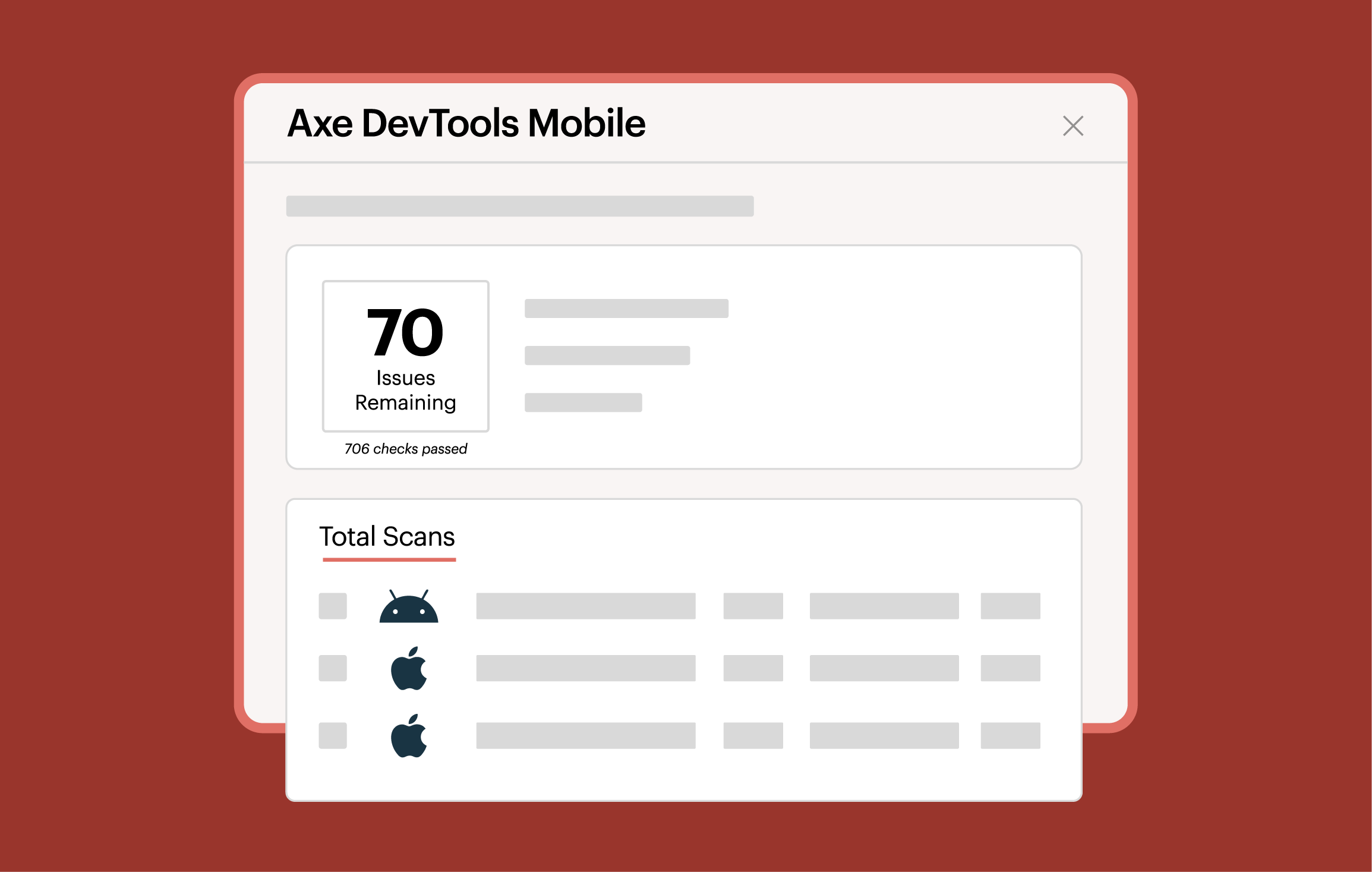
- Axe DevTools (by Deque Systems): Widely considered the industry standard, the axe-core engine powers many other tools. In 2026, the Pro version offers advanced "Intelligent Guided Tests" that bridge the gap between automated and manual testing by walking developers through complex issues like table headers and keyboard traps.
- WAVE (Web Accessibility Evaluation Tool): Developed by WebAIM, WAVE is unique because it provides visual overlays directly on the webpage. It is an excellent tool for developers and content editors alike, as it clearly illustrates where errors occur in the layout.
- Accessibility Insights for Web: Created by Microsoft, this tool is highly structured. It includes a "FastPass" feature for quick checks and a comprehensive "Assessment" mode that guides developers through a full WCAG 2.2 audit, ensuring no requirement is overlooked.
Automation Engines and CI/CD Integration
For enterprise-level development, manual browser checks are insufficient. Teams must prevent "accessibility regressions"—new code that breaks previous accessibility fixes. This is where automation engines come in.
These tools are typically integrated into the Command Line Interface (CLI) or continuous integration/continuous deployment (CI/CD) pipelines. When a developer submits a "pull request," the automation engine scans the new code. If it detects a high-priority accessibility violation, it can automatically fail the build, preventing the error from reaching the live environment. Examples include pa11y, axe-core/cli, and integrated plugins for testing frameworks like Playwright and Cypress.
Design and Pre-Development Tools
Accessibility begins in the design phase. Tools like Stark or Adobe Spectrum allow designers to check color contrast ratios and simulate various forms of color blindness (such as protanopia or deuteranopia) before a single line of code is written. By catching these issues in Figma or Sketch, teams avoid the high cost of "re-tooling" a finished component that is fundamentally inaccessible.
Deep Dive: How These Tools Analyze the Accessibility Tree
To use accessibility dev tools effectively, one must understand how they interact with the browser. When a webpage loads, the browser creates the DOM. Simultaneously, it generates an Accessibility Tree, which is a filtered version of the DOM containing only the information relevant to assistive technologies.
Accessibility dev tools perform three primary types of checks:
- Static Code Analysis: The tool looks at the HTML attributes. It checks if an
tag has analtattribute or if anhas an associated. This is the simplest form of testing. - Computed Style Analysis: The tool calculates the final CSS applied to an element. It checks the foreground color against the background color to determine if the contrast ratio meets the 4.5:1 (AA) or 7:1 (AAA) thresholds.
- State and Interaction Testing: Modern tools can simulate user interactions. They can check if a modal window correctly traps focus, ensuring that a keyboard user cannot accidentally tab "behind" the modal into the background content.
In 2026, many tools have integrated "shadow DOM" support, which is critical for developers using Web Components or micro-frontends. Historically, accessibility tools struggled to peer inside the encapsulated shadow root, but modern iterations of axe-core have solved this, ensuring that encapsulated components are held to the same standards as the rest of the page.
Comparison of Top Accessibility Dev Tools
The following table compares the most prominent accessibility dev tools available in 2026 based on their primary use case and technical capabilities.
| Tool Name | Primary Platform | Best For | CI/CD Support | Key Feature |
|---|---|---|---|---|
| axe DevTools | Chrome/Edge/Firefox | Professional Auditing | Yes (axe-core) | Intelligent Guided Testing (IGT) |
| WAVE | Browser/Online API | Visual Identification | No | Visual icons and structural maps |
| Accessibility Insights | Browser/Windows/Android | Full WCAG Compliance | No | Structured manual audit workflow |
| Pa11y | CLI (Command Line) | Automated CI/CD | Yes | High-speed headless browser scans |
| ARC Toolkit | Chrome Extension | Deep ARIA Inspection | No | Excellent visibility into ARIA relationships |
| Google Lighthouse | Chrome DevTools | Quick "Smoke Test" | Yes | Integrated directly into the browser |
The Limitations of Automated Accessibility Tools
While the tools listed above are powerful, they cannot replace human judgment. It is a common misconception among junior developers that a "100% score" in a tool like Lighthouse means a website is fully accessible. This is rarely the case.
False Positives and False Negatives
A tool may flag a "false positive" when it detects code that looks like an error but is technically accessible through a complex workaround. More dangerous, however, are "false negatives." For example, an automated tool will pass an image if it has alt="image". To the tool, the attribute exists. To a blind user, however, the text "image" provides zero context and is a failure of the W3C Web Content Accessibility Guidelines.
Complex Interactions
Dynamic content remains a challenge. If a single-page application (SPA) updates content without a page refresh, an automated tool might not "see" the new content unless specifically triggered to re-scan. Developers must manually verify that "Live Regions" (aria-live) are correctly announcing these updates to screen reader users.
The "Axe-Core" Standard
It is worth noting that most tools in 2026 are built upon the axe-core open-source library. This is beneficial for consistency—if a bug is fixed in axe-core, it is eventually fixed across the entire ecosystem. However, it also means that many tools share the same blind spots. Diversifying your toolset (e.g., using both WAVE and axe) can help catch a wider variety of issues.
Best Practices for Integrating Tools into Your Workflow
To maximize the impact of accessibility dev tools, they should be used at specific "gates" during the development process.
- Development (IDE Level): Use linters like
eslint-plugin-jsx-a11y. These highlight accessibility errors in your code editor as you type, much like a spell-checker. This provides the fastest feedback loop possible. - Local Browser Testing: Before pushing code, developers should run a "FastPass" or a quick axe scan in their local browser. This catches low-hanging fruit like contrast issues or missing labels.
- Continuous Integration (CI): Configure your CI pipeline to run Pa11y or axe-scan on every build. Set a threshold: if the tool finds "critical" or "serious" issues, the build should fail. This prevents the "accessibility debt" from accumulating.
- Manual Verification: Once automated checks pass, use a screen reader (such as NVDA on Windows, VoiceOver on macOS, or Orca on Linux) to navigate the new feature. If you cannot complete a primary task using only the keyboard and a screen reader, the feature is not ready for production.
Troubleshooting Common Tool Errors
When using these tools, you may encounter confusing results. Here is how to address common issues:
- "Element has insufficient color contrast" (but it looks fine): This often happens when an element is positioned over a background image or a gradient. Automated tools usually calculate contrast based on the background-color CSS property. If that property is set to "transparent" or is hidden by an image, the tool may default to white, leading to an incorrect result. Manual verification with a color-picker tool is required here.
- "Duplicate ID detected": This is a critical error for accessibility because ARIA attributes rely on IDs to form relationships (e.g.,
aria-describedby="ID"). If an ID is duplicated, the screen reader may link to the wrong element. Tools flag this because it breaks the internal map of the page. - "Missing Page Title": While it seems minor, the
</code> element is the first thing a screen reader announces. If your tool flags this, ensure your routing logic in frameworks like React or Vue is correctly updating the document title on every navigation.</li>
</ul>
<h2>Future Trends: AI in Accessibility Dev Tools (2026)</h2>
<p>By 2026, Artificial Intelligence has significantly enhanced the capabilities of accessibility dev tools. We are seeing the rise of "Computer Vision" for accessibility. Instead of just looking at the code, tools can now "see" the rendered page and identify things like:</p>
<ul>
<li>Unlabeled icons that look like "Settings" or "Close" buttons.</li>
<li>The reading order of complex, non-linear layouts.</li>
<li>Potential "Cognitive Load" issues where a layout is too cluttered for users with ADHD or learning disabilities.</li>
</ul>
<p>While these AI-driven features are still maturing, they are helping to reduce the 50% gap that traditional automation could not previously reach. However, even in 2026, the <a href="https://www.w3.org/WAI/">W3C's official guidance</a> remains clear: tools assist humans; they do not replace them.</p>
<h2>FAQ</h2>
<p><strong>What is the best free accessibility dev tool?</strong>
For most developers, the free versions of <strong>axe DevTools</strong> or <strong>WAVE</strong> are the best starting points. <strong>Google Lighthouse</strong>, which is built directly into Chrome's "Inspect" panel, is also a powerful, free resource that provides a quick overview of accessibility health alongside performance and SEO metrics.</p>
<p><strong>Can accessibility dev tools guarantee WCAG compliance?</strong>
No tool can guarantee 100% compliance. Automated tools can only test for things that can be determined by an algorithm. They cannot judge the quality of a description, the logical flow of a page, or the ease of use for a person with a cognitive disability. A manual audit is always required for full legal compliance.</p>
<p><strong>How often should I run accessibility scans?</strong>
Accessibility scans should be run continuously. Ideally, you should have linting in your IDE, automated scans in your CI/CD pipeline, and manual spot-checks during the QA phase of every feature. Waiting until the end of a project to run a scan usually results in "re-work" that is expensive and difficult to implement.</p>
<p><strong>Do I need a screen reader if I have dev tools?</strong>
Yes. Accessibility dev tools are diagnostic, but a screen reader is a functional test. Using a screen reader allows you to experience the site as a user would. It helps you identify "focus order" issues and "announcement" quirks that an automated scanner might miss entirely.</p>
<p><strong>What is the difference between axe-core and axe DevTools?</strong>
<strong>axe-core</strong> is the open-source engine (the ruleset) that performs the actual testing. <strong>axe DevTools</strong> is the specific product (like the browser extension) built by Deque Systems that uses that engine and adds a user interface, reporting features, and guided testing workflows.</p>
<h2>Practical Recommendation</h2>
<p>If you are just beginning your accessibility journey in 2026, start by installing the <strong>Axe DevTools extension</strong> and the <strong>WAVE extension</strong>. Use them daily on every component you build. Once you are comfortable with the feedback they provide, look into integrating <strong>axe-core/playwright</strong> or <strong>Pa11y</strong> into your GitHub Actions or Jenkins pipeline. This ensures that accessibility becomes a permanent, automated part of your development culture rather than a one-time checklist.</p>
<p><strong>