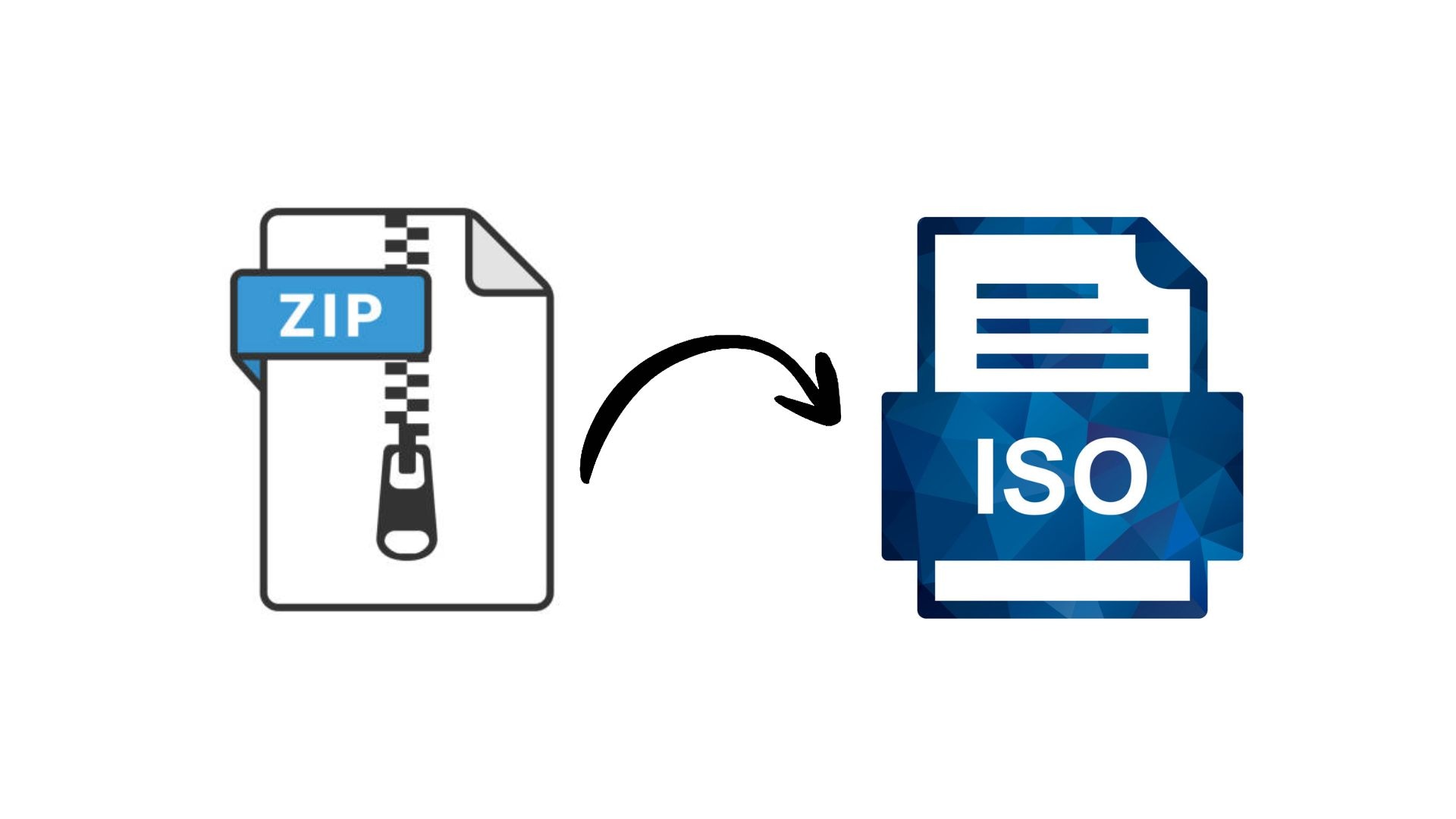
To create an ISO file using 7-Zip, it is important to understand that 7-Zip does not natively support the "Create ISO" function. While 7-Zip is an industry-leading tool for extracting ISO images and creating .7z or .zip archives, it cannot pack files into the ISO 9660 or UDF formats required for optical disc images. To achieve ISO creation, you should use 7-Zip to organize and compress your data, then utilize a dedicated disc imaging utility like ImgBurn or AnyToISO to finalize the ISO file.
The Relationship Between 7-Zip and ISO Files
As of 2026, 7-Zip remains one of the most essential open-source utilities for file compression and archiving. However, a common point of confusion among users is the distinction between a "compressed archive" (like .7z) and a "disk image" (like .ISO).
An ISO file is a sector-by-sector copy of an optical disc (CD, DVD, or Blu-ray). It adheres to specific file system standards such as ISO 9660 or UDF (Universal Disk Format). These standards allow the file to be "mounted" as a virtual drive or burned to physical media in a way that remains bootable or compatible with hardware players.
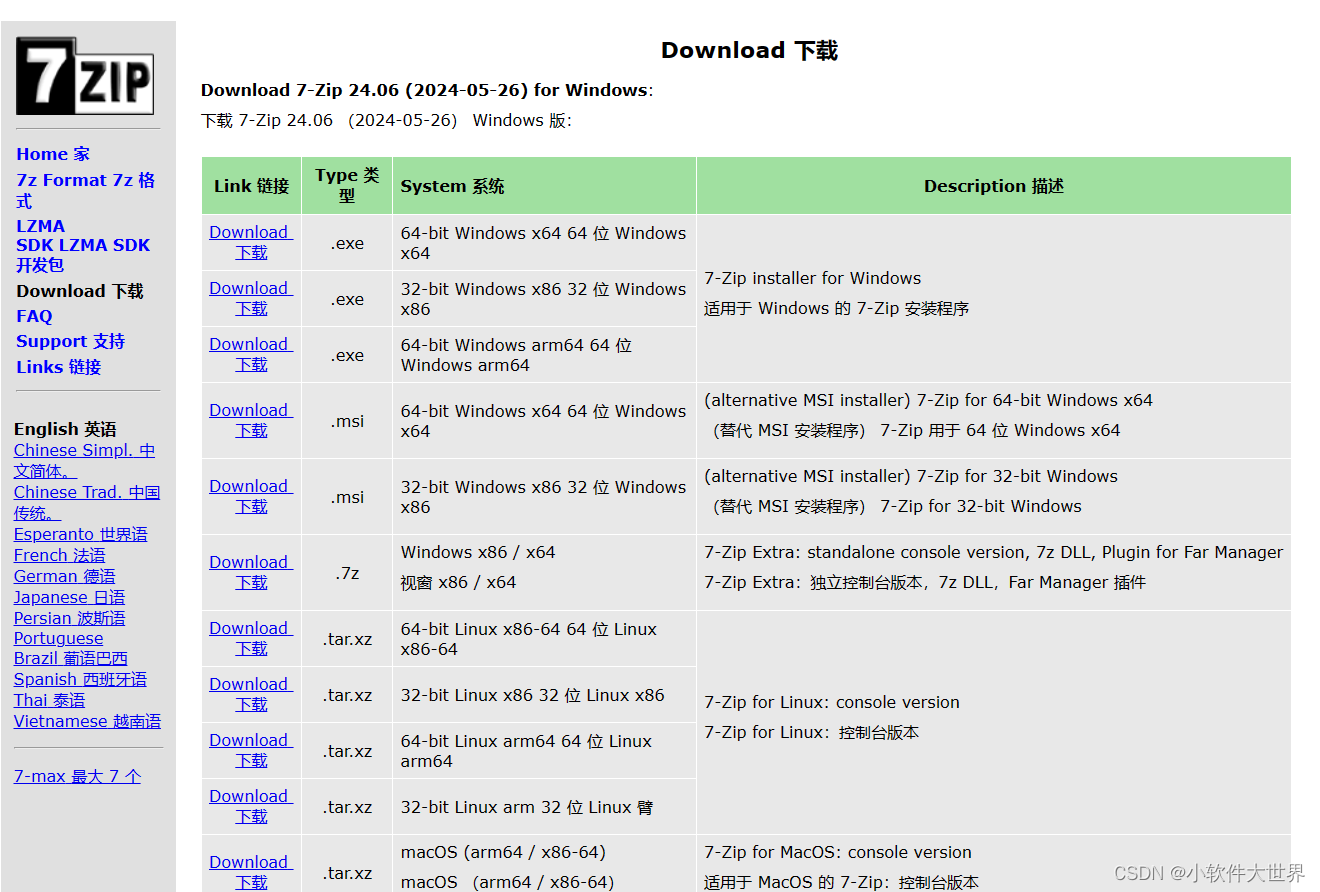
7-Zip, developed by Igor Pavlov, is optimized for high-ratio data compression using the LZMA and LZMA2 algorithms. Its primary purpose is to reduce file size. While 7-Zip's internal engine is incredibly versatile—capable of reading and unpacking over 30 different formats, including ISO, VHD, and DMG—it does not include the specific "mastering" engine required to write the metadata structures that define an ISO file system.
Why 7-Zip Cannot Natively Create ISOs
The technical barrier lies in the file system architecture. When you create a .7z archive, 7-Zip creates a header and a series of compressed data blocks. When you create an ISO, the software must build a specific directory structure that complies with optical media standards, often including boot sectors (El Torito) and specific volume descriptors.
Because 7-Zip focuses on mathematical compression rather than disk geometry emulation, the "Add to archive" dialog box offers formats like 7z, zip, tar, and wim, but excludes ISO.
How to Use 7-Zip to Prepare for ISO Creation
Even though 7-Zip doesn't "finalize" the ISO, it is often the first step in the workflow. If you have a large set of files or an existing archive that you want to turn into an ISO, 7-Zip is the best tool for the preparation phase.
Step 1: Extracting Existing Data
If your goal is to modify an existing ISO (often called "remastering"), you first need to get the files out of the image.
- Right-click the existing ISO file.
- Select 7-Zip > Extract files...
- Choose a destination folder.
- Once extracted, you can add, remove, or modify the files within that folder.
Step 2: Optimizing the Content
Before turning a folder into an ISO, you might want to ensure the files are organized and that no unnecessary system files (like Thumbs.db or .DS_Store) are included. 7-Zip’s File Manager is an excellent environment for browsing hidden files and cleaning up the directory structure before the "mastering" process begins.
Step 3: Compression Considerations
Note that if you compress files into a .7z archive and then put that .7z file inside an ISO, the ISO will be smaller, but you will need 7-Zip to open the contents once the ISO is mounted. If you want the ISO to be natively readable by Windows, macOS, or Linux without extra software, you should place the raw, uncompressed files into the ISO creation tool.
Recommended Alternatives for Creating ISO Files
Since 7-Zip handles the "extraction" and "organization" side of the equation, you need a secondary tool to handle the "creation" side. In 2026, several tools dominate this space, ranging from lightweight open-source options to professional mastering suites.
| Tool | License | Primary Strength | Best For |
|---|---|---|---|
| ImgBurn | Freeware | Highly technical, supports bootable images. | Advanced users and legacy media. |
| AnyToISO | Pro/Lite | Simple "Folder to ISO" conversion. | Quick, one-click operations. |
| PowerISO | Shareware | Mounts, edits, and creates almost any image. | Heavy-duty professional use. |
| Rufus | Open Source | Creates bootable USBs from ISOs. | OS installation and recovery. |
| WinBatch/PS | Native | PowerShell scripts for ISO creation. | System administrators and automation. |
1. ImgBurn: The Power User’s Choice
ImgBurn is perhaps the most famous companion to 7-Zip. To create an ISO using files you’ve managed in 7-Zip:
- Open ImgBurn and select "Create image file from files/folders."
- Drag the folder you prepared into the source window.
- In the "Destination" field, choose where to save your new ISO.
- On the "Advanced" tab, you can set the ISO9660/UDF restrictions and even make the image bootable if you have the correct boot image file.
2. AnyToISO: The Modern Alternative
If you find ImgBurn’s interface too dated, AnyToISO provides a streamlined experience. It features a dedicated tab for "Folder to ISO." You simply point the software to the folder you organized with 7-Zip, click "Make ISO," and the process is complete within seconds.
Technical Deep Dive: ISO 9660 vs. UDF
When using a secondary tool to create an ISO, you will often be asked which file system to use. Understanding these is crucial for compatibility.
ISO 9660 (Level 1, 2, and 3)
This is the legacy standard.
- Level 1: Files must be in 8.3 format (8 characters, a dot, and a 3-character extension) and all uppercase.
- Level 2 & 3: Allow longer filenames but are still restrictive compared to modern systems.
- Joliet: An extension to ISO 9660 (developed by Microsoft) that allows Unicode characters and filenames up to 64 characters.
UDF (Universal Disk Format)
UDF is the modern standard used for DVDs and Blu-rays. In 2026, UDF 2.01 or 2.50 is the recommended choice for almost all data ISOs. It supports large files (over 4GB), which ISO 9660 struggles with, and handles modern naming conventions perfectly. If you are creating an ISO for backup purposes or to store large 7z archives, always choose UDF.
Automated ISO Creation via Command Line
For developers and system administrators, combining 7-Zip’s command-line power with a CLI-based ISO creator is the most efficient path. You can write a batch script or PowerShell script to automate the entire "Compress then Image" workflow.
Example Workflow Script (Conceptual)
You can use 7z.exe to extract a base template, modify it, and then use a tool like oscdimg.exe (from the Windows ADK) to wrap it into an ISO.
- Extract Base:
7z x base_image.iso -oC:\WorkFolder - Add Files:
xcopy C:\NewData C:\WorkFolder /E - Create ISO:
oscdimg -n -bc:\WorkFolder\boot\etfsboot.com C:\WorkFolder C:\FinalImage.iso
This workflow utilizes 7-Zip for the heavy lifting of data extraction and management, while the specialized oscdimg tool handles the sector-level ISO mastering.
Common Mistakes and Troubleshooting
When attempting "7-zip iso creation," users frequently run into hurdles. Here is how to resolve the most common issues:
1. Trying to Rename .7z to .iso
A common misconception is that simply changing the file extension will work. This will not work. A .7z file is a compressed stream of data; an ISO is a sector-mapped disk image. Renaming the file will make it unreadable by both 7-Zip and disc mounting software.
2. File Size Limitations
If you are using an older tool to create your ISO, you might encounter a 4GB file size limit. This is usually because the tool is defaulting to the original ISO 9660 standard. To fix this, ensure your creation tool is set to UDF 2.0 or higher.
3. Missing Bootability
If you extract a bootable Windows or Linux ISO using 7-Zip, modify a few files, and then use a basic "Folder to ISO" tool to put it back together, the new ISO likely will not boot. This is because the boot sector (the first few sectors of the disk) is not a "file" that 7-Zip can see in the standard file list. To preserve bootability, you must use a tool that can extract and re-inject the boot image (like ImgBurn or UltraISO).
4. Permission Errors
When extracting ISOs with 7-Zip, especially those containing system files, ensure you are running 7-Zip as Administrator. Failure to do so may result in "Access Denied" errors during the extraction of symbolic links or protected system files.
Comparison: Why Use ISO Instead of 7z?
In 2026, you might wonder why you would even bother creating an ISO when .7z offers much better compression. The choice depends entirely on the use case.
| Feature | .7z Archive | .ISO Image |
|---|---|---|
| Compression | Extremely High | None (Sector Copy) |
| OS Support | Requires 7-Zip/WinRAR | Native Mounting (Windows/Mac/Linux) |
| Bootable | No | Yes |
| Encryption | AES-256 (Strong) | Minimal/None |
| Speed | Slower (requires decompression) | Fast (instant access to files) |
Use an ISO if: You need to simulate an optical drive, create a bootable installer, or provide a file that can be opened natively on any computer without third-party software.
Use a 7z if: You need to save disk space, encrypt sensitive data, or send large groups of files over the internet.
Frequently Asked Questions
Can 7-Zip open an ISO file?
Yes, 7-Zip is one of the most reliable tools for opening ISO files. It can browse the contents of an ISO just like a folder, allowing you to copy individual files out of the image without having to "mount" it as a virtual drive.
Is there a 7-Zip plugin for ISO creation?
While there have been various community-made plugins over the years, there is no official or widely supported plugin that adds "Create ISO" functionality to the 7-Zip GUI. Users are encouraged to use dedicated tools for mastering.
Why does 7-Zip show "CRC Error" when extracting some ISOs?
A CRC (Cyclic Redundancy Check) error usually indicates that the ISO file is corrupted. This often happens during large downloads. If 7-Zip reports a CRC error, the first step should be to verify the checksum (MD5/SHA-256) of the original ISO file against the source.
Can I create a "Compressed ISO" (CSO)?
7-Zip does not create CSOs. CSO is a compressed ISO format primarily used in gaming emulation (like PSP or PS2 emulators). You will need specialized tools like maxcso or CSO Maker to create these files.
Does 7-Zip support UDF 2.60?
Yes, as of the 2026 builds, 7-Zip has robust support for reading and extracting the latest UDF standards, which are commonly found on 4K UHD Blu-ray images.
Final Recommendation
For those searching for "7-zip iso creation," the most efficient path in 2026 is a two-step process. First, use 7-Zip to aggregate and organize your data, ensuring it is clean and properly structured. Second, use ImgBurn (for advanced features and bootability) or AnyToISO (for simplicity) to wrap those files into a compliant ISO image.
By separating the "data management" and "disk mastering" phases, you ensure that your resulting ISO is both compatible with modern operating systems and optimized for its intended purpose, whether that is data archiving, system deployment, or media playback.