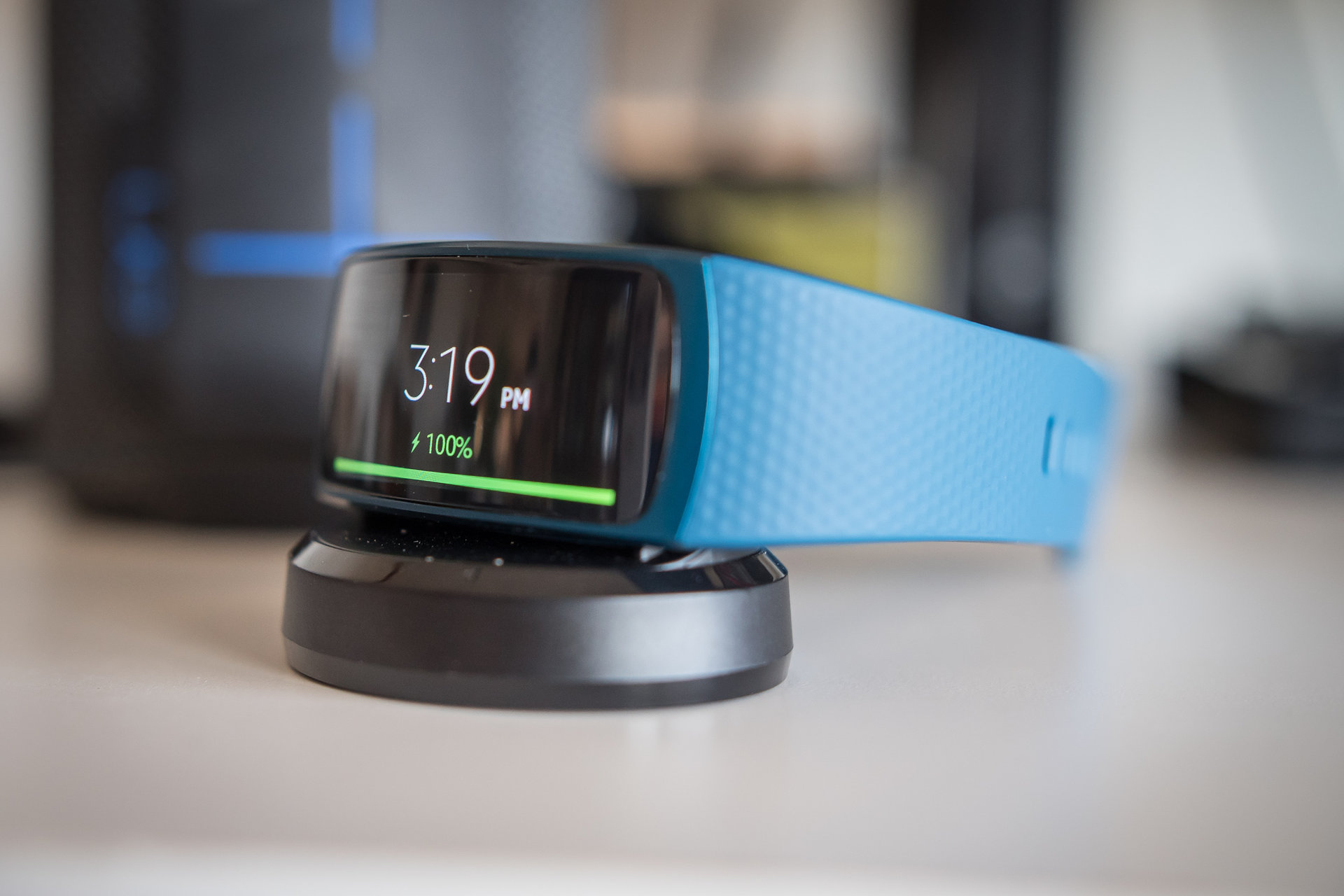
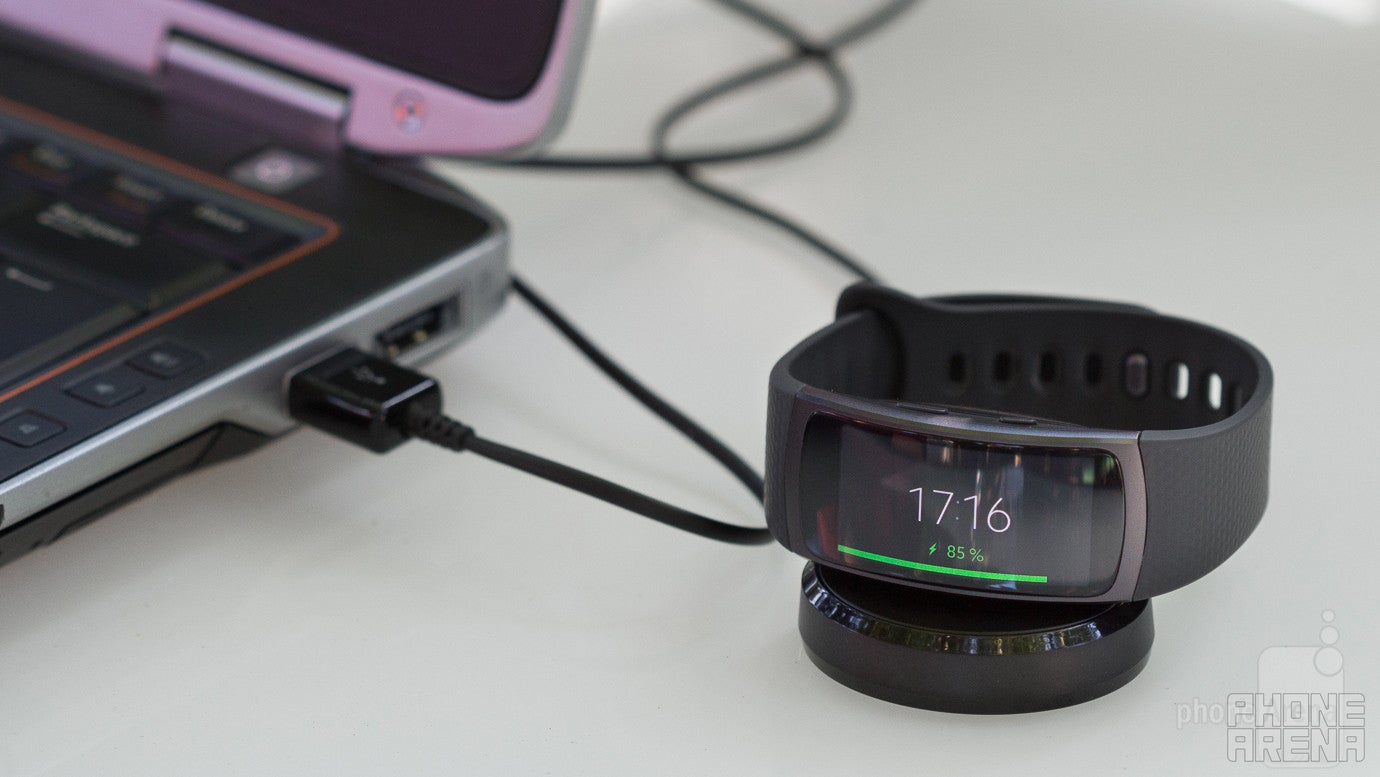
If your Samsung Gear Fit 2 is not charging, the issue usually stems from dirty charging contacts, a faulty power source, or a misaligned connection on the magnetic dock. By systematically cleaning the pins, verifying the integrity of your USB power adapter, and checking the cradle seating, you can often restore functionality without requiring a repair.
The Samsung Gear Fit 2, released in 2016, relies on a proprietary magnetic charging cradle to replenish its lithium-ion battery. Because the device is designed for fitness tracking, it is frequently exposed to sweat, dead skin cells, and environmental debris. Over time, these substances accumulate on the gold-plated pins of both the wearable and the charging dock, creating an insulating layer that prevents electrical current from flowing. Additionally, because the connection relies on magnetic alignment rather than a physical locking mechanism, minor shifts in the cradle can interrupt the charging cycle.
Diagnosing the Connection Interface
Before assuming a hardware failure, you must verify the physical connection. The Gear Fit 2 charging cradle uses four small pogo pins. These pins are spring-loaded to ensure constant contact with the watch back. If one of these pins becomes depressed and gets stuck, or if the metal contacts on the watch itself are oxidized, the device will not register that it is plugged in.
Inspecting the Charging Pins
- Visual Inspection: Use a flashlight to examine the pins on the charging dock. All four pins should appear uniform in height. If one appears shorter or sunk into the housing, it may be damaged, which would prevent the circuit from closing.
- Contact Cleaning: Over months of use, body oils and sweat create a film on the watch's back contacts. Use a soft, dry microfiber cloth to wipe the contacts. For persistent buildup, dampen a cotton swab with a small amount of 70% or higher isopropyl alcohol. Gently scrub the contacts on both the watch and the cradle. Ensure the pins are completely dry before attempting to charge again.
- Debris Removal: If you wear the device during exercise, salt buildup from sweat can cause microscopic corrosion. A gentle pass with a soft-bristled toothbrush can help dislodge debris trapped around the pins.
Evaluating Power Sources and Cables
Many users mistakenly assume the charging cradle is the point of failure when the issue actually lies with the power delivery system. The Gear Fit 2 requires a stable 5V DC supply.
Common Power Source Issues
- USB Port Limitations: If you are charging via a laptop or desktop computer, the port may be providing insufficient amperage, or the computer may have entered a sleep state that cuts power to USB ports. Always attempt to charge using a certified wall adapter, such as those provided with smartphones, which typically offer 1.0A or 2.0A output.
- Cable Integrity: The USB cable attached to the proprietary cradle is susceptible to internal wire fraying. Inspect the cable for bends, kinks, or exposed shielding. If the cable has been wrapped tightly around the dock for storage, the copper strands inside may have fractured.
- Voltage Fluctuations: Using low-quality third-party charging cables or adapters can lead to inconsistent power delivery, which the Gear Fit 2’s internal power management chip may reject for safety reasons. Whenever possible, test the device with a different USB wall block to rule out a failure in the power brick itself.
Troubleshooting Steps for Unresponsive Devices
If cleaning and testing various power sources do not resolve the issue, you may be dealing with a software-level power state hang or a deeply discharged battery.
Forced Reboot
A frozen system process can sometimes stop the watch from entering "Charging Mode." Even if the screen is black, attempt a forced restart:
- Place the device on the charger.
- Press and hold the Home button (the lower button on the side of the watch).
- Continue holding for 15 to 30 seconds, even if the screen appears dead.
- If the device is vibrating or shows the charging icon, the restart has successfully interrupted a stuck power management loop.
Handling Deep Discharge
If the Gear Fit 2 has been left uncharged for an extended period, the battery voltage may drop below the minimum threshold required for the software to wake the screen. In this state, the watch may appear "dead" for several hours. Leave the device on the charger for a minimum of 6 to 8 hours without interruption. If it is going to recover, it will typically show a charging indicator after this period.
Comparison of Charging Issues
To identify the specific cause of your charging problem, refer to the following diagnostic table.
| Symptom | Probable Cause | Recommended Action |
|---|---|---|
| Watch vibrates but doesn't charge | Software/Process Hang | Perform a forced restart while on the dock. |
| No reaction when docked | Dirty or stuck pins | Clean pins with isopropyl alcohol; inspect for stuck pins. |
| Charging starts/stops randomly | Poor alignment/cable strain | Ensure the watch sits flush; remove wristband if it interferes. |
| "Charging Paused" message | Temperature or power issues | Ensure the device is in a cool environment; use a wall adapter. |
When to Seek Professional Assistance
If the pins on the charging dock are physically broken or the watch is suffering from a failed internal battery, manual troubleshooting will not suffice. Because the Samsung Gear Fit 2 is a sealed unit, attempting to open the casing to replace the battery often destroys the water-resistant seals and risks damaging the delicate ribbon cables inside.
If your device is no longer holding a charge for a reasonable duration even after a successful charge session, the lithium-ion battery has likely reached its chemical end-of-life. Lithium-ion batteries degrade based on cycle counts and age. Since the Gear Fit 2 was produced years ago, internal chemical degradation is a common, unavoidable reality.
Frequently Asked Questions
Why does my Samsung Gear Fit 2 show a charging icon but not increase in percentage? This often indicates a "trickle" issue caused by a low-amperage power source or a dirty contact point that is only allowing minimal current. Ensure you are using a high-quality wall adapter and re-clean the gold pins on the back of the watch.
Can I charge the Gear Fit 2 using a standard wireless charging pad? No. The Gear Fit 2 is not compatible with Qi-standard wireless charging. It requires the specific magnetic pogo-pin dock designed for the device. Attempting to force it onto a wireless pad will not work and may cause overheating.
Is it safe to use a third-party replacement charger? It is generally safe, provided the third-party charger is rated for the correct voltage (5V) and amperage. However, cheap, non-certified chargers often lack necessary safety circuits, which can lead to overheating or damage to the watch's delicate charging port.
How long should a Gear Fit 2 take to charge? A fully depleted Gear Fit 2 typically takes approximately 2 hours to reach 100% when using the original charger connected to a standard USB wall outlet. If it takes significantly longer, check for a poor electrical connection or a failing power cable.
What do I do if one of the charging pins is stuck? If a pin on the cradle is stuck in the depressed position, you can sometimes gently pry it back up using a very thin needle or a pair of precision tweezers. Work carefully to avoid snapping the spring mechanism. If it does not spring back freely, the dock must be replaced.
Final Recommendation
Begin your troubleshooting by using a clean, dry microfiber cloth to polish the charging contacts. If the device remains unresponsive, perform a forced reboot while the watch is connected to a reliable wall-powered USB adapter. If the cradle pins appear damaged or the battery fails to hold a charge after a full cycle, consider sourcing an official replacement charging dock as the most cost-effective first step before exploring secondary market battery replacements or device upgrades.