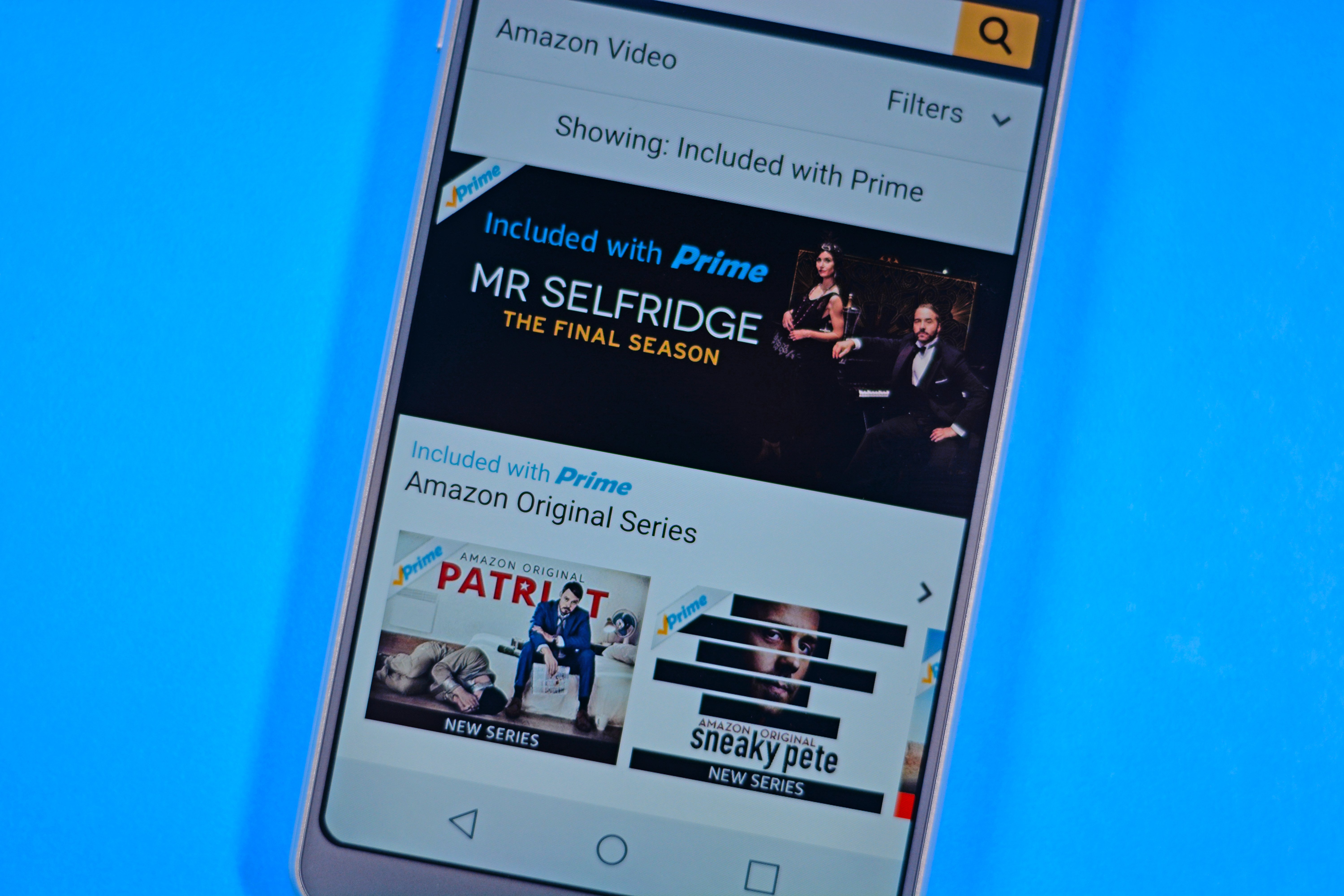
Amazon Prime Video streaming issues in 2024 frequently stem from network instability, outdated application software, or hardware incompatibilities related to the service's ad-tier transition. To resolve these interruptions, users should prioritize verifying their internet bandwidth (15 Mbps for UHD), clearing the application cache on smart devices, and ensuring that their device firmware supports the latest DRM protocols required by Amazon.
The Landscape of Streaming Stability in 2024
By the time 2024 concluded, the streaming landscape had undergone significant technical shifts. Amazon Prime Video, specifically, introduced an ad-supported model globally early in the year, which necessitated major backend updates to the Prime Video application. These changes occasionally resulted in playback friction, particularly on legacy hardware that struggled with the seamless transition between content and advertising segments. Understanding these issues requires a look at both the software infrastructure and the hardware limitations that defined the user experience throughout that period.
When a user encounters a "streaming issue," it is rarely a single, monolithic problem. Instead, it is usually a failure in one of three areas: the local network, the device software, or the Amazon server-side handshake. In 2024, the influx of high-bitrate 4K HDR content and Dolby Atmos audio tracks placed higher demands on home networks than ever before. Consequently, "buffering" became a catch-all term for issues ranging from packet loss on Wi-Fi to thermal throttling on cheap streaming sticks.
Minimum Requirements and Technical Prerequisites
Before diving into complex troubleshooting, it is essential to establish if your environment meets the baseline technical requirements for Prime Video. Amazon maintains strict standards to ensure content protection (DRM) and playback quality. If your setup falls below these thresholds, no amount of app-restarting will fix the fundamental issue.
Connectivity Standards
Streaming high-definition (HD) or Ultra High Definition (UHD/4K) video is not just about "having internet"; it is about sustained throughput and low latency.
- Standard Definition (SD): Requires at least 1.0 Mbps.
- High Definition (HD): Requires at least 3.5 Mbps.
- Ultra High Definition (UHD/4K): Requires at least 15 Mbps of dedicated bandwidth.
In 2024, many users discovered that while their "plan" promised 100 Mbps, their actual Wi-Fi speed at the TV was significantly lower due to wall interference or channel congestion. It is always recommended to use an Ethernet connection for 4K streaming to bypass the volatility of wireless signals.
Hardware and DRM Compatibility
Amazon utilizes High-bandwidth Digital Content Protection (HDCP) to prevent piracy. If you are streaming on a PC or using an external streaming device (like a Roku or Fire Stick) connected to a TV, the entire chain must be HDCP compliant.
- HDCP 1.4: Required for HD content.
- HDCP 2.2: Required for 4K/UHD content.
If you use an older HDMI cable or an older HDMI port on your 4K TV (some early 4K TVs only had one HDCP 2.2 port), you may encounter a "black screen" or an error message stating that the content cannot be played in the requested resolution.
Common Error Codes and Their Solutions
Amazon Prime Video uses specific numerical codes to identify failures. Identifying these codes is the fastest way to resolve an issue without unnecessary trial and error.
| Error Code | Primary Meaning | Recommended Action |
|---|---|---|
| 1060 | Network Congestion / Connectivity | Restart router; check for other high-bandwidth users on the network. |
| 5004 | Authentication Failure | Sign out of the app, clear cache, and sign back in. |
| 7031 | Browser / DRM Issue | Update your browser (Chrome/Firefox) and disable "Video Acceleration" in settings. |
| 9074 | Internal Service Error | Usually server-side; wait 15 minutes or check Amazon's service status. |
| PLR_PRS_CALL_FAILED | Playback Loading Error | Reinstall the Prime Video app or update device firmware. |
Resolving Error 1060 (Connectivity)
This code was one of the most reported issues in 2024. It signifies that the device is reaching Amazon's servers, but the connection is too unstable to maintain a video buffer. To fix this, you must "power cycle" your equipment. This involves unplugging your modem and router for 60 seconds. This process clears the DNS cache and forces the router to re-assign IP addresses, which often clears up bottlenecks that cause Error 1060.
Resolving Error 7031 (Web Browsers)
For those watching on computers, Error 7031 is a classic symptom of a browser extension conflict or an outdated graphics driver. In 2024, many "Ad-Blocker" extensions interfered with the new Prime Video ad-insertion technology, leading to this error. Disabling extensions or using an "Incognito/Private" window is the best way to verify if an extension is the culprit.
Step-by-Step Troubleshooting for App-Based Streaming
Most Prime Video consumption occurs through apps on Smart TVs, Fire TV devices, or gaming consoles. When these apps fail, follow this hierarchy of solutions.
1. The Soft Reset (The "Restart" Method)
Simply turning the TV off with the remote is often not enough, as many modern TVs enter a "Sleep" mode rather than fully shutting down. To perform a true soft reset, unplug the power cord from the wall for at least 30 seconds. This flushes the RAM of the streaming device, which often resolves memory leaks within the Prime Video app.
2. Clearing the Application Cache
As you use the Prime Video app, it stores small files (cache) to speed up loading times. However, if this cache becomes corrupted—which happened frequently during the 2024 UI updates—it can cause the app to crash or freeze.
- On Fire TV: Go to Settings > Applications > Manage Installed Applications > Prime Video > Clear Cache.
- On Android TV: Go to Settings > Apps > Prime Video > Clear Cache.
- On Roku: Roku does not have a "Clear Cache" button, but you can achieve this by removing the channel, restarting the Roku, and then re-adding the channel.
3. Verification of Account and Region Settings
Amazon Prime Video is geo-locked. In 2024, many users encountered issues when using VPNs or when their "Country/Region" settings in their Amazon account did not match their physical location. If you see a "Traveling?" message or a limited selection of titles, ensure your digital settings are correctly configured under the "Manage Your Content and Devices" section on the Amazon website.
Optimizing Video Quality and Preventing Buffering
If the video plays but the quality is poor (blurry or pixelated), the problem is usually related to "Adaptive Bitrate Streaming." This technology automatically lowers the resolution to prevent the video from stopping entirely when your internet speed drops.
Managing Bandwidth Competition
In 2024, the increase in remote work and high-end gaming meant that home networks were more crowded than ever. If Prime Video is pixelated, check for:
- Other devices downloading large game updates (e.g., PlayStation or Xbox updates).
- Other users streaming 4K content on different platforms.
- Cloud backups (like Google Photos or iCloud) syncing from smartphones.
Hardwiring for Stability
The most effective solution for 2024 streaming issues is a physical Ethernet cable. While Wi-Fi 6 and 6E became more common, the 2.4GHz and 5GHz bands remain susceptible to interference from microwave ovens, baby monitors, and neighbors' routers. An Ethernet cable provides a dedicated "lane" for your data, significantly reducing the "time to first frame" and eliminating mid-movie buffering.
Advanced Network Fixes: DNS and IPv6
For users who have tried basic steps without success, the issue may lie in how your router communicates with Amazon's Content Delivery Networks (CDNs).
Changing DNS Settings
By default, your router uses the DNS servers provided by your Internet Service Provider (ISP). These are sometimes slow or fail to update their records, leading to "Server Not Found" errors. Changing your DNS to a public provider like Google DNS (8.8.8.8 and 8.8.4.4) or Cloudflare (1.1.1.1) can improve the speed at which the Prime Video app locates the video files it needs to play.
IPv6 Compatibility
Some older routers struggle with IPv6, a modern networking protocol. If you experience "infinite loading wheels," try temporarily disabling IPv6 in your router settings to see if the Prime Video app functions better on an IPv4-only connection. This was a documented workaround for specific ISP-related glitches observed in early 2024.
Hardware-Specific Troubleshooting
Fire TV Devices
Since Amazon manufactures Fire TV devices, they are generally the most stable for Prime Video. However, they are prone to overheating. If your Fire Stick is tucked tightly behind a TV, the heat can cause the processor to throttle, leading to laggy menus and stuttering video. Using the included HDMI extender to provide better airflow can resolve this.
Apple TV and Roku
On these platforms, Prime Video is a third-party app. Ensure that "Background App Refresh" is enabled on Apple TV so the app can update itself. On Roku, ensure that your "System Update" is manually triggered in the settings menu, as Roku updates often include "Channel" patches specifically for Prime Video.
Smart TVs (Samsung, LG, Sony)
Smart TVs often have less powerful processors than dedicated streaming sticks. In 2024, many users found that while their TV's built-in app was glitchy, a $30 external streaming stick worked perfectly. If your TV app is consistently crashing, it may be that the TV's manufacturer has stopped providing the necessary firmware updates to support the latest version of Prime Video.
FAQ: Resolving Persistent 2024 Issues
Why did Amazon Prime Video start having more issues in 2024? The introduction of an ad-supported tier required significant changes to the app's code. This caused "handshake" issues where the app would struggle to transition from an advertisement back to the main feature, often resulting in a frozen screen or a "Playback Error" message.
Can a VPN cause Prime Video streaming issues? Yes. Amazon has some of the most sophisticated VPN detection in the industry. Using a VPN can lead to "Error 4601" or cause the app to display a "Moving or Traveling" screen, even if you are in your home country. Most streaming issues can be resolved by disabling the VPN or using a dedicated streaming IP address.
How do I fix out-of-sync audio on Prime Video? Audio sync issues are usually caused by processing delays in the TV's soundbar or receiver. Go to the "Audio" settings in the Prime Video app (or your TV's system settings) and look for an "Audio Delay" or "Lip Sync" adjustment. Additionally, switching the audio output from "Dolby Digital Plus" to "Stereo" can often fix sync issues on older hardware.
Why does Prime Video look dark or "washed out"? This is typically an issue with HDR (High Dynamic Range) settings. If your TV supports HDR but doesn't have the peak brightness to display it correctly, the image can appear dim. You can often resolve this by disabling "HDR" in your streaming device's display settings or by adjusting the "Gamma" and "Backlight" settings on your TV while the content is playing.
Final Recommendation for 2024 Issues
If you have performed a power cycle, cleared the app cache, and verified that your internet speed exceeds 15 Mbps, yet you still face issues, the most effective next step is to delete and reinstall the Prime Video application. This forces the device to download the most recent, bug-fixed version of the software and clears out any deep-seated configuration errors that a simple cache-clear might miss. For long-term stability, transitioning from a Smart TV's built-in app to a dedicated, high-performance streaming device remains the most reliable solution for consistent 2026-era performance.