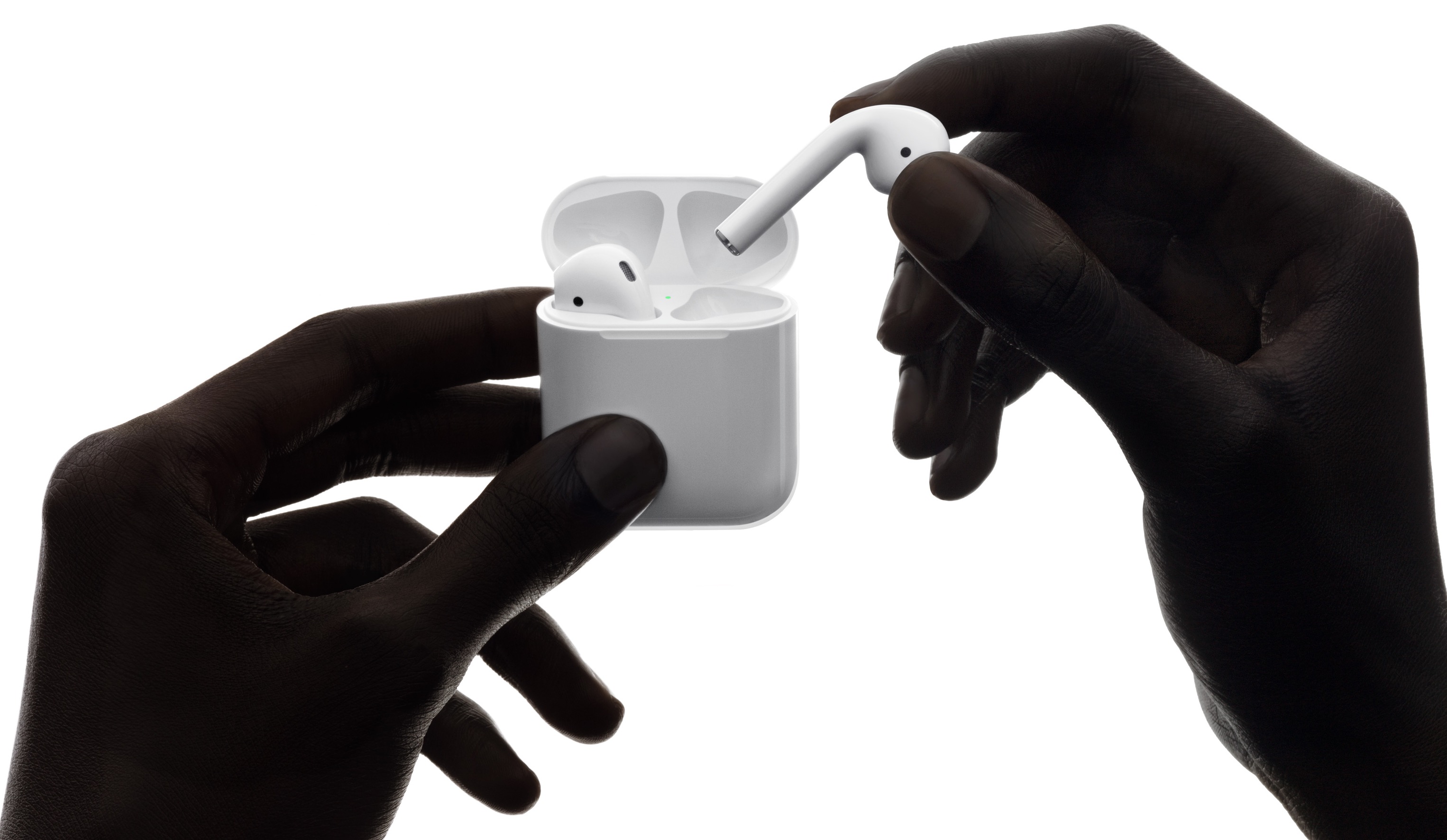
If your AirPods are not holding a charge, the issue is typically caused by dirty charging contacts, software glitches, or natural lithium-ion battery degradation. Start by cleaning the charging stems and the internal case pins with 70% isopropyl alcohol, then perform a factory reset. If the problem persists, the internal battery cells likely require professional replacement.
Understanding the AirPods Battery Lifecycle in 2026
To solve the problem of AirPods not holding a charge, one must first understand the fundamental limitations of the hardware. AirPods utilize high-density lithium-ion batteries specifically designed for their compact form factor. By 2026, while battery density has improved slightly compared to early models, the physical constraints of the earbud housing mean these batteries are still susceptible to "chemical aging."
Chemical aging is a process where the amount of charge a battery can hold diminishes over time, resulting in shorter periods between charges. Each time you charge your AirPods, they go through a "cycle." Most AirPods batteries are designed to retain up to 80% of their original capacity after approximately 300 to 500 full charge cycles. For a daily user, this threshold is often reached within 24 to 36 months. If your AirPods are older than two years and fail to hold a charge for more than an hour, you are likely witnessing the natural end of the battery’s functional life.
However, many "charging" issues are actually connectivity issues. If the software or the physical connection between the bud and the case is compromised, the battery may be healthy, but it simply isn't receiving or reporting the charge correctly. Distinguishing between a dead battery and a blocked connection is the first step in effective troubleshooting.
Step 1: Cleaning the Charging Contacts and Case
The most frequent cause of AirPods not holding a charge is a physical barrier between the charging "teeth" inside the case and the silver contacts at the bottom of the AirPod stems. Even a microscopic layer of earwax, skin oils, or pocket lint can increase electrical resistance, preventing a full charge or causing the charging process to start and stop intermittently.
Cleaning the AirPod Stems
Inspect the silver-colored rings at the base of each AirPod. If they appear dull or have visible residue, use a microfiber cloth lightly dampened with 70% isopropyl alcohol. Avoid using water or harsh household cleaners, as these can corrode the metal. Gently buff the contacts until they shine. Ensure they are completely dry before placing them back into the case.
Cleaning the Charging Case Interior
The deep recesses of the AirPods case are magnets for debris. Use a dry cotton swab or a specialized anti-static cleaning tool to reach the bottom of the charging wells. If there is stubborn debris at the contact points, you can very lightly dampen the swab with alcohol, but do not allow liquid to pool at the bottom. For the lightning or USB-C port at the base of the case, use a non-metallic toothpick to gently remove any lint that might be preventing the charging cable from seating properly.
Step 2: Performing a Factory Reset and Re-pairing
Software bugs can often cause the AirPods to "misread" their own battery levels or fail to initiate the charging handshake with the case. A factory reset clears the firmware's temporary cache and forces a fresh connection with your source device.
- Place AirPods in the case: Close the lid and wait 30 seconds to ensure the connection is stabilized.
- Forget the device: On your iPhone or iPad, go to Settings > Bluetooth, tap the "i" icon next to your AirPods, and select Forget This Device. Confirm the action.
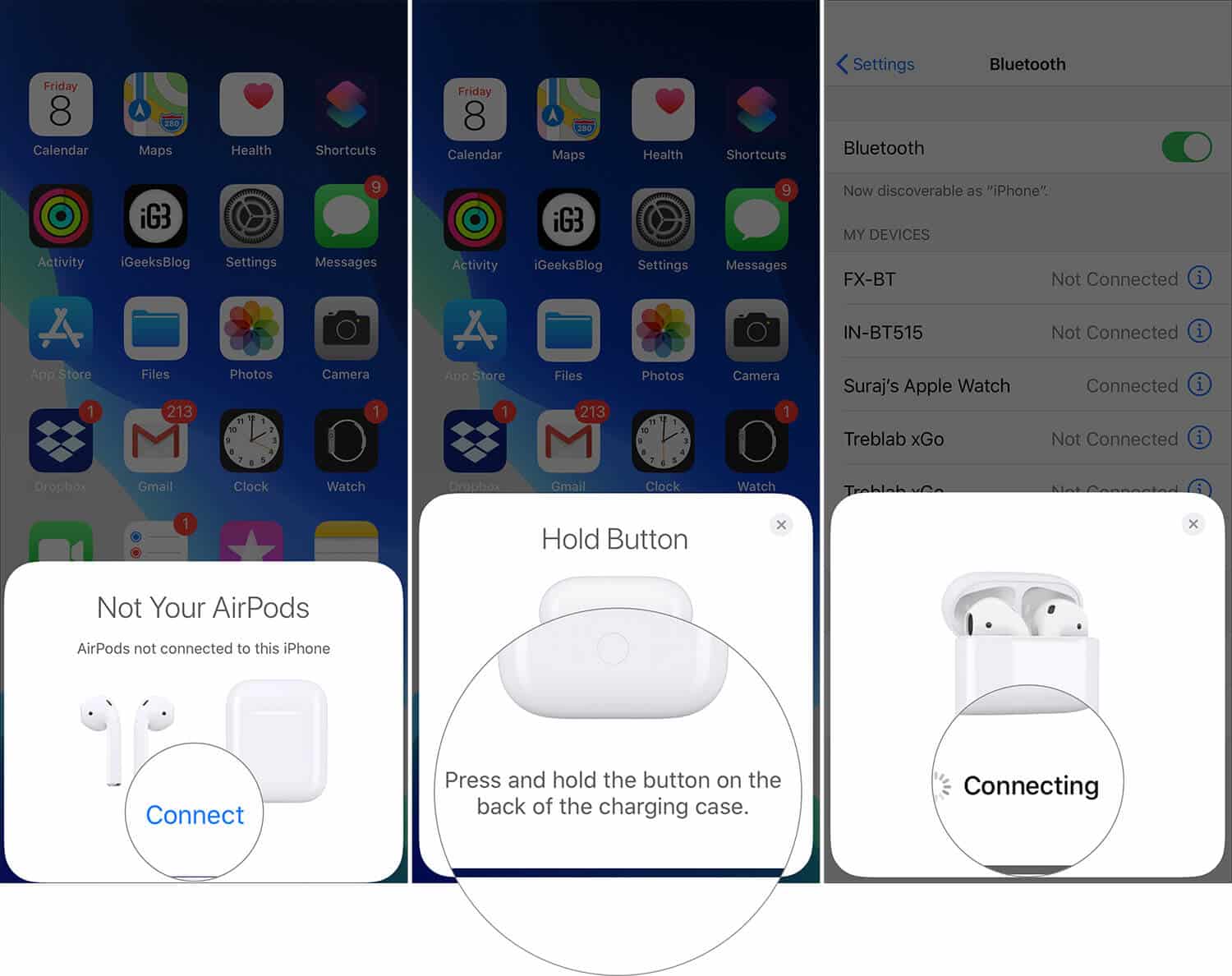
- Reset the hardware: Open the lid of the charging case. Locate the setup button on the back of the case. Press and hold this button for approximately 15 seconds.
- Watch the status light: The light (either inside the case or on the front) will flash amber, then turn white. This indicates the reset is complete.
- Re-pair: With the lid open, hold the AirPods near your device and follow the on-screen instructions to reconnect.
This process resolves the "phantom drain" issue, where AirPods continue to seek a Bluetooth connection even while inside the case, leading to rapid battery depletion.
Step 3: Managing Firmware and Software Updates
By 2026, Apple has integrated more sophisticated battery management features into iOS and iPadOS. AirPods firmware updates are not performed manually; instead, they occur automatically when the AirPods are charging and in Bluetooth range of your iPhone or Mac.
If your AirPods are not holding a charge, ensure your host device is running the latest version of its operating system (e.g., iOS 19 or iOS 20). Outdated software on the iPhone can lead to incorrect battery reporting in the "Batteries" widget, making it appear as though the AirPods are losing charge when they are actually functioning normally. To check your AirPods firmware version, go to Settings > Bluetooth, tap the "i" next to your AirPods, and scroll down to the Version section. You can verify the latest official version on the Apple Support website.
Step 4: Disabling Battery-Draining Features
If your battery health is declining, you can extend the usable life of a single charge by toggling off high-power features. Features like Active Noise Cancellation (ANC) and Transparency Mode require constant microphone processing and secondary chips to function, which can drain the battery up to 25% faster than standard "Off" mode.
Spatial Audio with Head Tracking is another significant power consumer. While it provides an immersive experience, the constant use of gyroscopes and accelerometers to track head movement draws additional current. In Settings > AirPods, you can switch Spatial Audio to "Fixed" or "Off" to preserve power. Additionally, check the Automatic Ear Detection setting; if this is malfunctioning, your AirPods may remain "active" even when they are sitting on a table, draining the battery until they are dead.
Comparing Battery Life and Repair Costs (2026 Data)
When troubleshooting fails, you must decide whether to repair or replace the units. The following table outlines the expected battery performance and the typical out-of-warranty service costs as of 2026.
| Model | Original Listening Time (ANC On) | Expected Lifespan (Daily Use) | Battery Service Cost (Per Bud) |
|---|---|---|---|
| AirPods (2nd Gen) | 5 Hours (No ANC) | 24-30 Months | $49 - $59 |
| AirPods (3rd Gen) | 6 Hours (No ANC) | 30-36 Months | $49 - $69 |
| AirPods Pro (2nd Gen) | 6 Hours | 24-36 Months | $49 - $79 |
| AirPods Pro (3rd/4th Gen) | 7+ Hours | 36-40 Months | $59 - $89 |
| AirPods Max | 20 Hours | 48+ Months | $79 - $99 |
Note: Prices are estimates based on standard 2026 Apple authorized service provider rates and may vary by region.
The Impact of "Optimized Battery Charging"
In modern iterations of iOS, Apple includes a feature called Optimized Battery Charging. This feature is designed to reduce battery wear and improve lifespan by learning your daily charging routine. The system will wait to charge your AirPods past 80% until just before you need to use them.
If you find that your AirPods are stuck at 80% when you take them out of the case, this is likely not a fault but a protective measure. However, if your schedule is unpredictable, this feature might result in your AirPods "not holding a charge" simply because they haven't finished charging. You can disable this in Settings > Bluetooth > [Your AirPods] > Optimized Battery Charging to see if it resolves your immediate power concerns.
Environmental Factors and Storage
Lithium-ion batteries are highly sensitive to temperature extremes. If AirPods are left in a hot car (above 95°F / 35°C) or exposed to freezing temperatures, the internal chemistry can be permanently damaged. Heat, in particular, causes the battery to expand and lose its ability to store energy efficiently.
If you are in an environment with extreme temperatures, the AirPods may stop charging as a safety precaution. Ensure the case and buds have returned to room temperature before attempting to charge them. Furthermore, if you plan to store your AirPods for an extended period without use, Apple recommends leaving them at approximately 50% charge. Storing them fully depleted or fully charged for months can lead to a "deep discharge" state where the battery will no longer accept a charge at all.
Hardware Degradation: When Troubleshooting Fails
If you have cleaned the contacts, performed a hard reset, updated your software, and disabled power-hungry features, but the AirPods still die within minutes, the hardware has reached its physical limit. Unlike a laptop or a smartphone, AirPods are held together with strong adhesives, making them nearly impossible for a consumer to open and repair without destroying the outer shell.
At this stage, you have three primary options:
- AppleCare+: If you have active coverage, battery depletion below 80% of original capacity is typically covered for a $0 service fee.
- Out-of-Warranty Service: Apple provides a "Battery Service" which is essentially a replacement of the individual buds at a discounted rate compared to buying a new retail set.
- Third-Party Recycling: Companies like The Podswap or similar entities specialize in swapping depleted AirPods for refurbished units with fresh batteries, providing a more sustainable alternative to disposal.
Common Related Questions
Why does one AirPod die faster than the other?
One AirPod usually acts as the primary microphone for Siri and phone calls. This "lead" earbud handles more data transmission and processing, leading to faster battery drain. You can mitigate this by going to Settings > Bluetooth > [Your AirPods] > Microphone and switching from "Automatically Switch AirPods" to a specific side, though this is only a temporary workaround.
Can I replace the AirPods battery myself?
Battery replacement for AirPods is not recommended for users. The units are classified as "disposable" by most repair advocates because they are sealed with industrial glue. Attempting to pry them open usually results in permanent damage to the delicate internal ribbon cables and acoustic chambers.
Why is my AirPods case not holding a charge even when empty?
If the case itself is losing percentage rapidly without the AirPods inside, there is likely a short circuit in the case’s logic board or a failing battery cell within the case. Try using a different charging cable and power adapter (at least 5W or 10W) to ensure the case is actually reaching 100% before diagnosing it as a hardware failure.
Does using "Find My" drain the AirPods battery?
Yes. The "Find My" network uses Bluetooth Low Energy (BLE) to broadcast a signal to nearby Apple devices. If you have "Find My Network" enabled for your AirPods, they will consume a small amount of power even while idle in the case. If you are struggling with extreme battery drain, turning this feature off may save a few percentage points of daily life.
Final Recommendation
If your AirPods are not holding a charge, the most effective next step is to thoroughly clean the metal contacts with 70% isopropyl alcohol and perform a factory reset. If the listening time does not improve after these steps, use the "Support" app on your iPhone to run a remote diagnostic with Apple Support. This will confirm whether the issue is a genuine hardware failure, allowing you to proceed with a battery service or replacement with confidence.