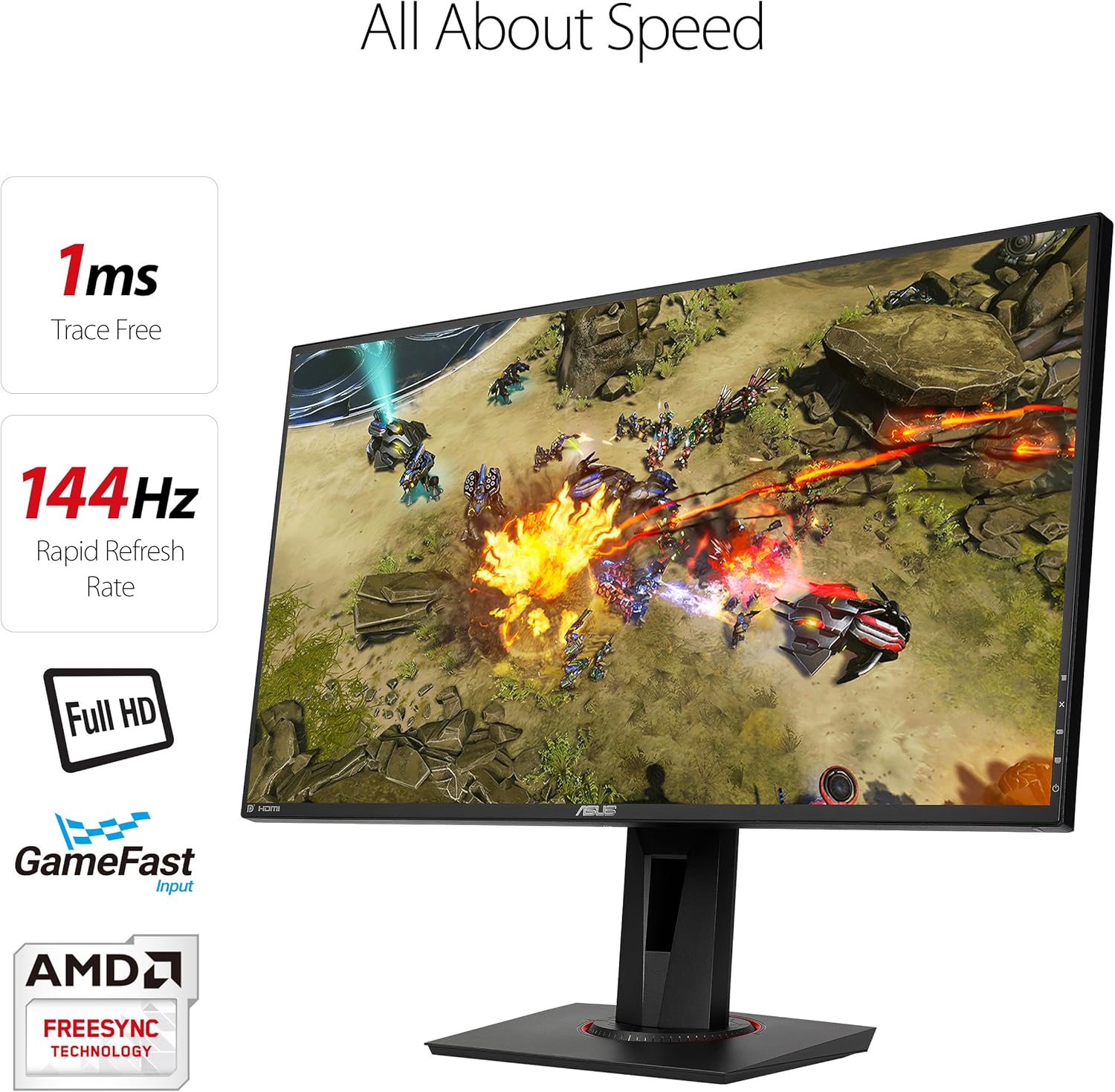
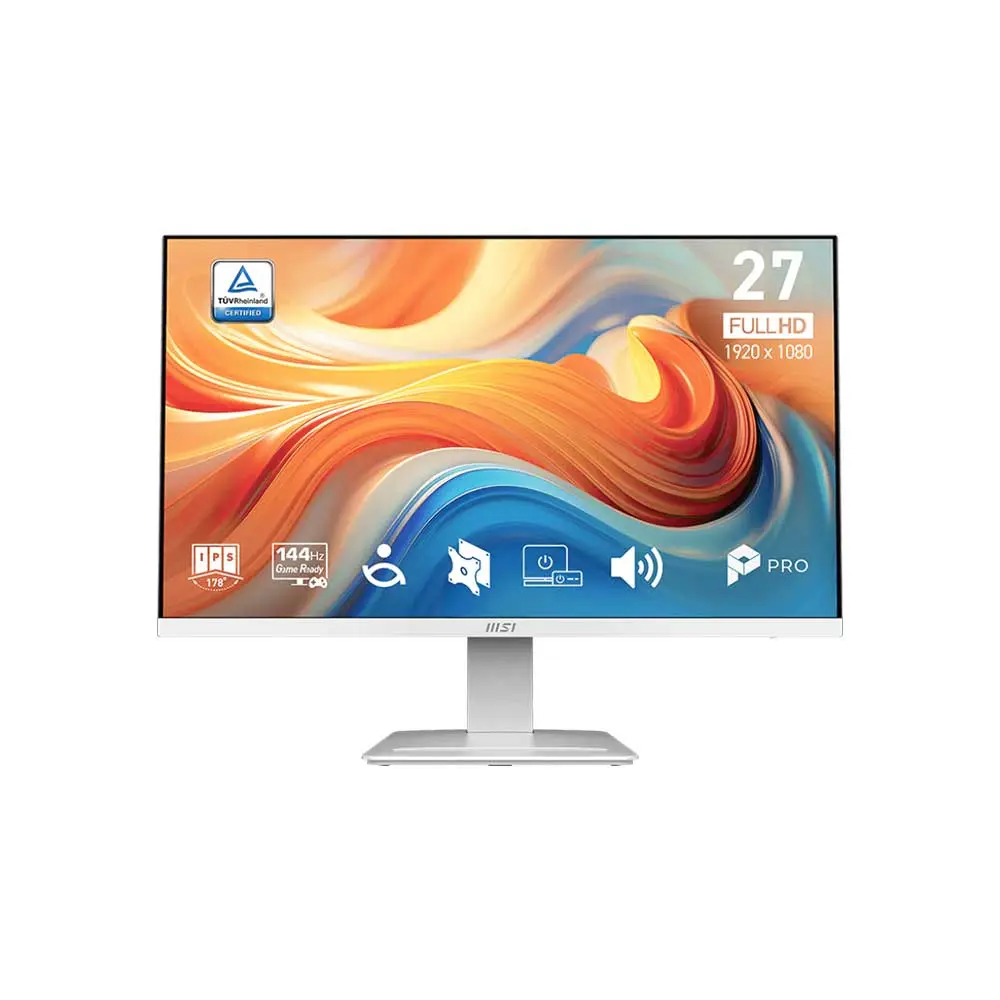
A 1080p 144Hz monitor with a 27-inch screen size occupies a unique position in the PC gaming and productivity market, offering ultra-smooth 144 frames-per-second motion clarity at an affordable price point, though its lower pixel density requires careful consideration of viewing distance.
Understanding the 1080p 144Hz Monitor 27 Inch Landscape
The hardware market is saturated with display options, yet the 1080p 144Hz monitor in a 27-inch form factor remains a heavily contested segment. Budget-conscious gamers, esports competitors, and general users frequently gravitate toward this specification. By pairing a Full HD (1920x1080) resolution with a high refresh rate of 144Hz, manufacturers deliver hardware that can achieve fluid motion without requiring a high-end, expensive graphics processing unit (GPU).
However, scaling a 1080p resolution up to a 27-inch panel introduces specific visual trade-offs. While smaller 24-inch monitors at 1080p maintain a tight pixel density that yields sharp text and clean lines, a 27-inch screen spreads those same 1920x1080 pixels over a larger physical area. This reduction in pixels per inch (PPI) can make text appear slightly softer and individual pixels more noticeable if you sit close to the display. Despite this characteristic, the combination of high refresh rates, immersive screen real estate, and low hardware demands ensures this monitor category retains widespread appeal.
Evaluating Key Technical Specifications and Performance Metrics
When shopping for a 1080p 144Hz monitor 27 inch display, looking beyond the headline numbers is essential. Manufacturers often advertise peak performance capabilities, but real-world execution depends heavily on panel technology, response times, and adaptive sync support.
Panel Technologies: IPS, VA, and TN
The underlying panel type dictates color accuracy, contrast ratios, and viewing angles:
- In-Plane Switching (IPS): IPS panels are the gold standard for mainstream users, offering vibrant colors, wide 178-degree viewing angles, and good response times. Modern IPS displays easily achieve 144Hz refresh rates and low motion blur, making them the most versatile choice for mixed usage.
- Vertical Alignment (VA): VA panels excel in static contrast ratios—often exceeding 3000:1, compared to 1000:1 for IPS. This results in deep blacks and excellent performance in dark rooms. However, older or lower-end VA panels can suffer from black smearing during fast motion.
- Twisted Nematic (TN): TN panels are historical staples of competitive gaming due to their rapid response times. While they have largely been superseded by fast IPS panels in terms of color fidelity and viewing angles, budget 27-inch TN models still appear in entry-level markets.
Refresh Rates and Motion Handling
A 144Hz refresh rate means the screen updates 144 times per second, providing exceptionally smooth motion compared to standard 60Hz office monitors. This fluidity drastically reduces motion blur and input lag, helping players track fast-moving targets in competitive shooters. To fully benefit from 144Hz, your computer's GPU must be capable of rendering 144 frames per second in your chosen games.
Response Time and Ghosting
Pixel response time—measured in milliseconds (ms), often as Gray-to-Gray (GtG)—determines how quickly a pixel can change from one color to another. Look for monitors featuring 1ms GtG response times (typically achieved using overdrive settings on IPS or VA panels) to minimize ghosting and trailing behind fast-moving objects.
Adaptive Sync Technologies
Screen tearing occurs when your monitor's refresh rate falls out of sync with the frame rate output by your graphics card. Adaptive sync technologies eliminate this artifact:
- AMD FreeSync: Widely supported across AMD and NVIDIA GPUs via DisplayPort and HDMI, synchronizing the monitor's refresh rate dynamically with the game's frame rate.
- NVIDIA G-Sync: Often features dedicated hardware modules for optimal variable refresh rate performance, though "G-Sync Compatible" monitors rely on adaptive sync over DisplayPort without proprietary hardware chips.
Balancing Pixel Density, Screen Size, and Viewing Distance
The primary critique of a 27-inch 1080p monitor involves pixel density. At 1920x1080 resolution stretched across a 27-inch diagonal canvas, the pixel density sits at approximately 81.59 PPI. For comparison, a 24-inch 1080p monitor boasts roughly 91.79 PPI, while a 27-inch 1440p (QHD) monitor reaches 108.79 PPI.
| Resolution | Screen Size | Pixel Density (PPI) | Primary Use Case |
|---|---|---|---|
| 1920 x 1080 (FHD) | 24 inch | ~91.8 PPI | Budget gaming, competitive esports |
| 1920 x 1080 (FHD) | 27 inch | ~81.6 PPI | Immersive gaming, casual multimedia |
| 2560 x 1440 (QHD) | 27 inch | ~108.8 PPI | High-detail gaming, productivity, content creation |
This lower pixel density on the 27-inch 1080p model means that text can look slightly pixelated, and fine details in open-world games may lack sharpness. However, this characteristic can be mitigated by adjusting your setup. Sitting slightly further back from the desk—increasing your viewing distance from two feet to roughly 2.5 to 3 feet—naturally blends the pixels, making individual dots imperceptible to the human eye. Furthermore, lower resolution reduces the computational load on your graphics card, allowing older or mid-range GPUs to easily maintain high frame rates.
Practical Performance in Gaming and Productivity
Analyzing how a 27-inch 1080p high-refresh monitor performs across different applications clarifies whether it fits your daily routine.
Competitive and Casual Gaming
In fast-paced competitive titles like Counter-Strike 2, Valorant, or Apex Legends, maintaining a high and stable frame rate is paramount. Because 1080p is significantly less demanding on hardware than 1440p or 4K, mid-range graphics cards can effortlessly push past 144 FPS. The larger 27-inch canvas also enlarges visual elements slightly compared to a 24-inch screen, which some players find helpful for spotting distant enemies, though it requires sweeping your eyes across a wider area.
Productivity and Office Work
For spreadsheet management, word processing, and web browsing, the 27-inch screen provides ample physical space for side-by-side window multitasking. Operating system scaling features can be left at 100% because the elements are naturally larger on a 1080p screen than on a high-resolution panel of the same size. Nevertheless, if your workflow involves complex video editing, photo retouching, or reading dense text blocks for hours, a 1440p monitor provides noticeably sharper text rendering and extra workspace.
Connectivity, Ergonomics, and Stand Adjustments
Hardware integration depends heavily on available ports and physical adjustability. When selecting a display, evaluate the following physical characteristics:
- Display Inputs: Ensure the monitor includes modern DisplayPort 1.2 or 1.4 ports, which are required to run 1080p at 144Hz with adaptive sync enabled. HDMI 2.0 ports are also useful for connecting consoles or secondary devices, though older HDMI 1.4 ports may limit refresh rates at native resolution.
- Ergonomic Flexibility: A fixed stand that only tilts forward and backward can cause neck strain during long sessions. Look for monitors offering height adjustment, swivel, pivot (portrait mode), and VESA mount compatibility (typically 100x100mm) for third-party monitor arms.
- Integrated Features: Built-in speakers are common on budget displays, though their audio quality is generally poor; external speakers or gaming headsets remain preferable. USB hub functionality and headphone jacks add convenience for cable management.
Common Pitfalls and How to Avoid Them
Buyers navigating this specific monitor category frequently encounter avoidable setup errors or unmet expectations.
- Forgetting to Enable 144Hz in Settings: Many users plug in a new high-refresh monitor and assume it runs at 144Hz automatically. By default, Windows or macOS often caps the display at 60Hz. You must navigate to your operating system's advanced display settings or GPU control panel to manually select the 144Hz refresh rate.
- Using Outdated Cables: Connecting the monitor via an old HDMI cable can restrict bandwidth, preventing the monitor from reaching 144Hz or enabling variable refresh rate features. Always use the certified DisplayPort or high-speed HDMI cable included in the box.
- Expecting 1440p Sharpness: Do not purchase a 27-inch 1080p monitor expecting crisp, high-density text. If crisp text and high-resolution workspace are your top priorities, budget for a 1440p panel instead.
Frequently Asked Questions
Is 1080p too blurry on a 27-inch monitor?
It depends on your viewing distance and sensitivity to pixel density. At a normal desk distance of about two feet, text may look slightly less sharp than on a 24-inch 1080p or 27-inch 1440p screen. If you push the monitor back slightly or prioritize high frame rates over razor-sharp text, the lower pixel density becomes a minor trade-off.
Do I need a powerful graphics card for a 144Hz monitor?
No. One of the primary advantages of a 1080p resolution is that it requires far less GPU power than 1440p or 4K. Mid-range and even budget graphics cards can easily sustain 144 frames per second in modern esports titles and moderately demanding games.
Can current-generation gaming consoles run at 144Hz on these monitors?
Consoles like the PlayStation 5 and Xbox Series X support 120Hz output, but compatibility depends on the monitor's specific EDID (Extended Display Identification Data) and HDMI version. You must check whether the monitor supports 120Hz/144Hz over HDMI, as some budget 1080p monitors only achieve high refresh rates via DisplayPort.
What is the difference between 144Hz and 60Hz for daily tasks?
While typing documents or browsing the web at 144Hz offers subtle smoothness improvements in cursor movement and window dragging, the dramatic difference shines during gaming, fast scrolling, and dynamic visual media playback.
Are IPS panels better than VA panels for gaming?
IPS panels generally offer better color accuracy and faster pixel response times without ghosting in dark scenes, making them ideal for fast-paced gaming. VA panels provide much higher contrast ratios for deep blacks, which benefits dark-room gaming, but often suffer from slower dark-pixel transitions.
Final Recommendation
A 1080p 144hz monitor 27 inch display represents a pragmatic choice for gamers and users who want high refresh rate fluidity and a spacious screen without investing in expensive graphics hardware. While text sharpness is lower than on smaller or higher-resolution alternatives, its combination of affordability, motion clarity, and modest system requirements makes it a reliable entry point into high-performance desktop setups. Ensure your graphics card features matching display outputs, enable the high refresh rate in your operating system settings, and position the monitor at a comfortable viewing distance to maximize your visual experience.